
An operating system (OS) is the main software that runs a computer or phone. It manages the hardware, such as the processor, memory, storage, and screen, and gives every app a stable place to run, so programs and people never have to deal with the hardware directly. Windows, macOS, Linux, Android, and iOS are all operating systems.
Think of the OS as a building manager. The building (your hardware) has power, plumbing, and rooms. Tenants (your apps) don’t wire their own electricity or argue over who gets the elevator. The manager hands out space, keeps tenants out of each other’s apartments, and fixes things when they break. That’s the job.
Without an operating system, a modern laptop or phone is just expensive hardware that can’t do anything useful for you.
What does an operating system actually do?
Every OS, from Windows on a gaming PC to the software inside a smart thermostat, handles the same core jobs. Here they are, each with an everyday example.

1. Runs your programs (process management)
When you have Spotify, a browser with 20 tabs, and a Zoom call open at once, the OS decides which one gets the processor (CPU) at each split second. It switches between them thousands of times a second, so fast that everything looks like it’s running at the same time. Each running program is called a process.
2. Shares out memory (memory management)
Your computer’s RAM is short-term working space. The OS gives each app its own slice and stops one app from reading another’s data. When RAM fills up, it quietly moves less-used data to storage, which is why a computer with too many tabs open gets slow instead of simply crashing.
3. Keeps your files organized (file and storage management)
When you save an essay as history-paper.docx in your Documents folder, the OS decides exactly where those bytes go on the SSD and remembers how to find them later. The system it uses to do this is called a file system. Windows uses NTFS, Macs use APFS, and many Linux systems use ext4.
4. Talks to your hardware (device drivers)
Plug in a new printer or game controller and it usually just works. That’s because the OS loads a driver, a small translator that tells the OS how to talk to that specific device. Apps never need to know which brand of printer you own; they just say “print” and the OS handles the rest.
5. Gives you a way to interact (user interface)
The desktop, Start menu, Dock, home screen, and notification bar all belong to the OS. So does the text-based terminal power users type commands into. More on these two styles below.
6. Protects you and your data (security and permissions)
When your phone asks “Allow this app to use your location?” or your laptop wants your password before installing software, that’s the OS enforcing permissions. It also separates user accounts, so your sibling’s login can’t open your files.
7. Connects you to networks (networking)
When you join coffee-shop Wi-Fi, the OS handles the connection and the network protocols (like TCP/IP) that every app then shares. Your browser, email app, and games don’t each build their own internet connection; they ask the OS.
Is an OS the same as an app? No. An app (like Chrome, Word, or TikTok) does one job for you. The OS is the platform underneath that every app depends on. Apps ask the OS for what they need through requests called system calls: “open this file,” “send this data,” “draw this window.”
What happens when you press the power button?
This is the part most textbook pages skip, and it’s the easiest way to understand where the OS fits. Here’s the startup sequence (called booting) on a typical modern PC or Mac:
- Firmware wakes up. A small program stored on a chip on the motherboard runs first. On modern PCs it’s called UEFI (older PCs used BIOS). It checks that the processor, memory, and drives respond. This happens before any OS exists in memory.
- Firmware finds the bootloader. UEFI looks at your drive for a small startup program called a bootloader. On Windows it’s Windows Boot Manager; on many Linux systems it’s GRUB. If you’ve set up a dual boot, this is the menu where you choose which OS to start.
- The bootloader loads the kernel. It copies the core of the operating system, the kernel, from storage into RAM and hands over control.
- The kernel takes charge of the hardware. It sets up memory, loads drivers for your storage, display, keyboard, and network, and starts the very first process.
- OS services start. That first process launches background services: networking, audio, printing, security tools, update checkers. (On most Linux systems this first process is systemd; on macOS it’s launchd.)
- You see the login screen. The graphical interface loads, you sign in, and your desktop or home screen appears. Now your apps can run.
The whole thing usually takes a few seconds on an SSD. A phone goes through the same basic steps when you turn it on, just with different names for the parts.
What is a kernel? (Kernel vs. OS vs. shell)
This is the distinction students most often miss, so here it is in one place.
- The kernel is the core of the operating system. It’s the part with full control of the hardware: it schedules processes, manages memory, and runs drivers. You never see it directly. Linux is, strictly speaking, a kernel, created by Linus Torvalds in 1991. Windows uses the Windows NT kernel, and macOS and iOS use a kernel called XNU.
- The operating system is the kernel plus everything that comes with it: system services, built-in tools, settings apps, file manager, and the user interface. When people say “Windows 11,” they mean the whole package, not just the kernel.
- The shell is the layer you interact with. It can be a text shell (like PowerShell on Windows or Bash/Zsh on Linux and Mac) or a graphical shell (like the Windows desktop and taskbar, or the macOS Finder and Dock).
A simple way to remember it: the kernel is the engine, the OS is the whole car, and the shell is the steering wheel and dashboard.
That’s also why Android counts as its own operating system even though it runs on the Linux kernel: Google built a completely different system on top of the same engine.
GUI vs. command-line interface
There are two main ways to “talk” to an operating system:
| GUI (graphical user interface) | CLI (command-line interface) | |
|---|---|---|
| How you use it | Click, tap, drag icons and windows | Type text commands |
| Example | Opening the Downloads folder in File Explorer or Finder | Typing ls ~/Downloads in a terminal |
| Best for | Everyday use, beginners | Automation, servers, speed once learned |
| Where you’ll meet it | Every desktop and phone | Linux servers, developer work, IT troubleshooting |
Most desktop operating systems give you both. Servers often run with no GUI at all, so if you’re heading toward IT or development, learning a few basic Linux commands pays off quickly. Keep our Linux commands cheat sheet handy while you practice.
Types of operating systems
Many textbooks list types like “batch” and “time-sharing.” Those describe how mainframes worked decades ago. Here are the types you’ll actually meet today, grouped by the device they run.
Desktop and laptop operating systems
Built for one person at a keyboard and screen, with windows, multitasking, and broad app support. Examples: Windows, macOS, Linux distributions such as Ubuntu and Fedora, ChromeOS.
Mobile operating systems
Designed for touchscreens, batteries, cameras, cellular radios, and app stores, with stricter app permissions than desktops. Examples: Android, iOS, iPadOS.
Server operating systems
Run the computers that host websites, databases, and cloud services, often 24/7 with no screen attached. Stability, security, and remote management matter more than looks. Examples: Linux distributions (such as Ubuntu Server, Red Hat Enterprise Linux, Debian) and Windows Server.
Embedded and IoT operating systems
Small, stripped-down systems inside devices that do one job: smart TVs, routers, car dashboards, smartwatches, smart speakers. You rarely see the OS itself; you just use the device. Many run a trimmed-down Linux.
Real-time operating systems (RTOS)
Used where timing must be guaranteed, not just fast. An airbag controller, a pacemaker, or an industrial robot can’t wait while the system “catches up.” An RTOS promises a response within a fixed deadline. Examples: FreeRTOS, Zephyr, VxWorks.
What about the textbook types? You may still see these on exams:
- Batch: runs queued jobs one after another with no user interaction (early mainframes).
- Time-sharing / multitasking: splits processor time among many users or programs. Every modern OS does this.
- Distributed: makes many networked computers act like one system.
- Network OS: focused on sharing files and printers across a network.
Notice that most modern systems blend several of these ideas. Your laptop is “time-sharing” and “networked” at the same time; the old labels just don’t describe today’s devices very well.
Popular operating systems in 2026
Here are the operating systems you’re most likely to run into. Versions below were checked against vendor announcements in October 2026.
| Operating system | Made by | Used on | In one line |
|---|---|---|---|
| Windows (Windows 11; latest update version 26H2) | Microsoft | Most desktop and laptop PCs | The most common PC operating system, with the widest app and game support. There is no released “Windows 12.” |
| macOS (macOS 27 Golden Gate) | Apple | Mac computers | Polished and tightly tied to Apple hardware; macOS 27 runs only on Apple silicon Macs. |
| Linux | Open-source community (kernel led by Linus Torvalds) | Servers, developer PCs, Android phones, embedded devices | Free and open source; comes in many versions called distributions. |
| Android (Android 17) | Most smartphones and many tablets worldwide | The most-used operating system on Earth, built on the Linux kernel. | |
| iOS (iOS 27) | Apple | iPhone | Apple’s phone OS, known for long update support and a tightly controlled App Store. |
| ChromeOS | Chromebooks, especially in US schools | A lightweight, web-first laptop OS; Google is moving its laptops to a new Android-based successor, Googlebook OS, while supporting ChromeOS until 2034. |
Which OS is the most used? Counting every device, Android is. StatCounter’s September 2026 worldwide figures put Android at roughly 42% of usage and Windows at about 29%, followed by iOS. On desktops and laptops alone, Windows still leads by a wide margin.
What is a Linux distribution?
Because the Linux kernel is free and open source, many groups bundle it with their own choice of desktop, apps, and tools. Each bundle is a distribution (or “distro”), such as Ubuntu, Fedora, Linux Mint, or Debian. They share the same kernel but can look and feel very different. Our guide to what “distro” means explains how to tell them apart and pick one.
Want to try Linux without giving up Windows? You can run both on one computer. Start with what a dual boot is, then follow our step-by-step guide on how to set up dual boot.
Can a computer run without an operating system?
Yes, but only in a limited way. Every computer has firmware (UEFI or BIOS) that runs without an OS; it’s what lets you open setup menus before Windows loads. Many simple devices, like a microwave, a TV remote, or an Arduino project, run a single program directly on the chip with no OS at all. Developers call this bare-metal programming. What you lose is everything an OS provides: running several programs at once, a file system, drivers for new hardware, user accounts, and security. A general-purpose computer such as a laptop or phone has no practical use without one; with no OS installed, it will usually just show a firmware message saying it can’t find a bootable device.
How to check which operating system you’re running
On Windows:
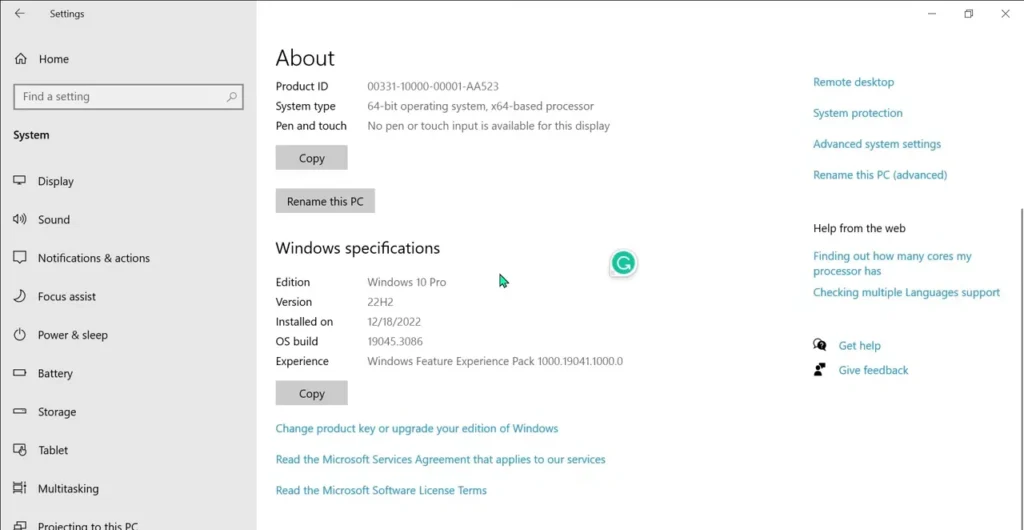
- Open Settings → System → About. Under Windows specifications you’ll see the edition (for example, Windows 11 Home) and the version (such as 26H2).
- Shortcut: press Windows key + R, type
winver, and press Enter.
On a Mac:
- Click the Apple menu in the top-left corner and choose About This Mac. You’ll see the macOS name and version number.
On Linux:
- Open a terminal and type
cat /etc/os-release. It shows your distribution name and version. - To see the kernel version, type
uname -r.
On a phone or Chromebook:
- iPhone: Settings → General → About (shows the iOS version).
- Android: open Settings and look for About phone; the Android version is listed there or in a software information section (the exact wording varies by phone maker).
- Chromebook: Settings → About ChromeOS.
Key takeaways
- An operating system is the core software that manages hardware and lets apps run.
- Its main jobs: running programs, managing memory, organizing files, talking to hardware, providing an interface, enforcing security, and handling networking.
- The kernel is the core of the OS; the shell or GUI is the part you interact with.
- Modern types are best understood by device: desktop, mobile, server, embedded/IoT, and real-time.
- Windows leads on PCs, Android leads overall, and Linux quietly runs most of the internet’s servers.
Ready to go further? If this sparked an interest in Linux, our basic Linux commands guide is the friendliest next step.
Frequently asked questions
What is an operating system in simple words?
An operating system is the main program that runs a computer or phone. It controls the hardware and gives your apps a place to run, so you can open files, browse the web, and use programs without dealing with the hardware yourself.
What are 5 examples of operating systems?
Windows, macOS, Linux (such as Ubuntu), Android, and iOS. ChromeOS on Chromebooks is another common example.
What are the main functions of an operating system?
Process management (running programs), memory management, file and storage management, device management through drivers, the user interface, security and permissions, and networking.
Is Microsoft Word an operating system?
No. Word is an application. It runs on an operating system such as Windows or macOS and asks the OS for things like saving files and printing.
What is the difference between an OS and a kernel?
The kernel is the core part of the OS that directly controls the hardware. The operating system is the kernel plus the services, tools, and user interface built around it.
Is Linux an operating system?
Technically, Linux is a kernel. In everyday use, “Linux” means a complete operating system built around that kernel, packaged as a distribution such as Ubuntu or Fedora.
Is BIOS an operating system?
No. BIOS (and its modern replacement, UEFI) is firmware. It starts the hardware and hands control to the bootloader, which then loads the operating system.
Which operating system is best?
It depends on what you need. Windows has the broadest software and gaming support, macOS suits people already using Apple devices, Linux is free and popular for development and servers, and ChromeOS is simple and inexpensive for web-based schoolwork.
Can I have two operating systems on one computer?
Yes. You can dual boot (choose an OS at startup) or run one inside another using a virtual machine. See our guide on how to set up dual boot.