
A dual boot is a computer setup with two operating systems installed side by side, such as Windows and Linux, where you choose which one to start each time you turn the machine on. Only one system runs at a time, and it gets the full hardware: CPU, RAM, GPU, and storage.
If you’ve been told to “just dual boot” to try Linux, keep an old app alive, or game on Windows while coding on Linux, you’ve probably also heard the horror stories. This guide explains what dual booting actually is, what happens inside your PC at power-on, how it stacks up against a virtual machine or WSL2, what can realistically go wrong, and whether your computer (including a Mac) can do it at all. When you’re ready to build one, our step-by-step guide on how to set up dual boot picks up where this article ends.
Dual boot meaning, in plain English
Think of dual booting as having two separate computers that happen to share one body. Each operating system lives in its own section of storage, keeps its own apps and settings, and doesn’t run while the other one is active. A small program called a boot manager (or bootloader) shows you a menu at startup, and whichever system you pick takes over the whole machine until you restart.
A few related terms you’ll see:
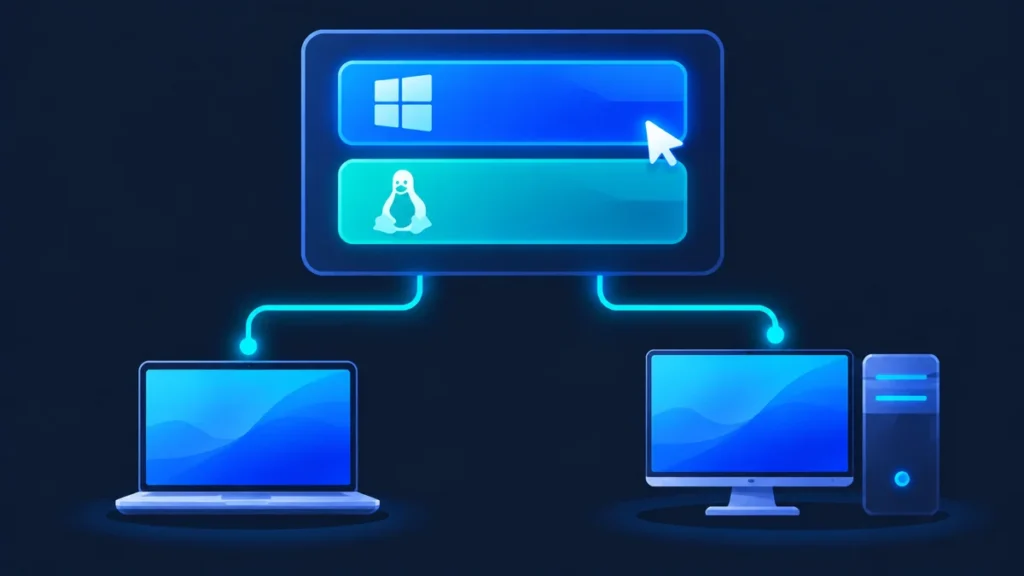
- Multi-boot: the same idea with three or more operating systems. “Dual boot” is simply the most common case of multi-booting.
- Partition: a logical slice of a drive that the computer treats as a separate space. Each operating system usually gets its own.
- Bootloader / boot manager: the program that lists your installed systems and starts the one you choose. On Linux that’s usually GRUB; on Windows it’s Windows Boot Manager.
What dual boot is not: running two operating systems at the same time. That’s virtualization, which we’ll compare below.
How does dual booting work?
Every dual boot setup needs three things: a place for each operating system to live, a way to pick one at startup, and a firmware setup that knows where to look.
1. Space for each OS: partitions or a second drive
You can either split one drive into partitions (the most common approach on laptops) or give each OS its own physical drive (common on desktops). A second drive keeps the systems more cleanly separated and makes it less likely that one install touches the other’s files, but both approaches work.
Windows typically uses the NTFS file system, while most Linux distributions use ext4 or Btrfs. That’s why each OS needs its own partition rather than sharing one.
2. A boot menu: GRUB vs Windows Boot Manager
Modern PCs use UEFI firmware, which keeps a list of boot entries and loads a small boot program from a dedicated partition called the EFI System Partition (ESP). Both Windows and Linux put their boot files there.
- GRUB (the GNU GRand Unified Bootloader) is installed by most Linux distributions. It usually detects Windows during setup and adds it to its menu, so you get one screen listing both systems.
- Windows Boot Manager handles Windows installations well, including two versions of Windows on one PC, but it doesn’t list Linux on its own.
You can also skip the bootloader menu entirely and use your PC’s one-time boot menu — a key you tap right after power-on (F12, F11, F9 or Esc, depending on the manufacturer) to pick a boot entry directly.
3. What happens when you press the power button
| Step | What happens | Who’s in charge |
|---|---|---|
| 1 | Firmware runs hardware checks and, if Secure Boot is on, verifies that boot code is signed and trusted | UEFI firmware |
| 2 | Firmware reads its boot order and loads the first entry from the EFI System Partition | UEFI firmware |
| 3 | A menu appears listing your operating systems (often with a countdown to a default) | GRUB or Windows Boot Manager |
| 4 | You pick one; the bootloader loads that system’s kernel | Bootloader |
| 5 | The chosen OS starts and takes full, direct control of the CPU, GPU, RAM and drives | Windows or Linux |
| 6 | To switch, you restart and choose the other entry | You |
That last row is the key tradeoff: you get native performance, but switching always means a reboot.
What about Secure Boot? You usually don’t have to turn it off. Major distributions such as Ubuntu and Fedora boot with Secure Boot enabled using a small Microsoft-signed loader called “shim.” Some smaller distros or custom kernels may need extra steps, which our setup guide covers.
Common dual boot pairings
Windows + Linux (the classic). By far the most popular combination: Windows for games, Office and vendor software; Linux for development, servers, privacy, or learning. If you’re not sure which Linux to pick, start with our explainer on what a distro is.
Two versions of Windows. For example, Windows 11 alongside an older Windows install kept for a legacy app or hardware driver. Windows Boot Manager handles this natively. Keep in mind that Windows 10 reached end of support on October 14, 2025, so an older install kept for compatibility shouldn’t be your everyday, online system.
Linux + Linux. Running two distributions — say, a stable one for work and a rolling or testing release for tinkering. GRUB manages this easily.
Windows + ChromeOS Flex? Not officially. Google’s ChromeOS Flex FAQ states that dual booting isn’t supported on ChromeOS Flex devices. You can run it from a USB stick to try it, but a full install takes over the drive.
macOS + something else. Possible on some Macs and not others. See the Mac section below.
Dual boot vs virtual machine vs WSL2 vs live USB vs a second computer
This is the question most people are really asking. Here’s how the options compare:
| Option | Performance | Convenience | Cost | Best for |
|---|---|---|---|---|
| Dual boot | Full native speed, including direct GPU access | Reboot to switch; can’t use both at once | Free (plus disk space and any OS license) | Gaming, GPU work, daily use of a second OS, hardware/driver testing |
| Virtual machine (VirtualBox, VMware Workstation, Hyper-V, Parallels) | Shares CPU/RAM with your main OS; 3D graphics and GPU access are limited | Both OSes run at once; easy snapshots and rollback | Free to paid, depending on software | Trying distros safely, isolated testing, running occasional apps |
| WSL2 (Windows Subsystem for Linux) | Near-native for command-line tools; supports Linux GUI apps and GPU acceleration with current drivers | Runs inside Windows, no reboot; integrates with Windows files and the Start menu | Free, built into Windows | Developers who need Linux tools but live in Windows |
| Live USB | Slower (runs from the USB stick); nothing installed | Plug in and boot; changes usually aren’t saved | A USB drive | Testing hardware compatibility, rescue work, a quick look at Linux |
| Second computer | Full native speed on both, simultaneously | Two machines to maintain, but zero interference | Highest | Anyone who wants total separation, or has a spare PC |
Quick takeaway: If you mostly need a Linux terminal, WSL2 is easier than dual booting. If you want to experiment safely, use a VM. If you need the full power of your hardware in both systems — especially for games or GPU-heavy work — dual boot is the right tool.
Pros and cons of dual booting
The advantages
- Full native performance. Each OS talks to the hardware directly, with no virtualization layer. Games, GPU compute and video editing run at full speed.
- Fewer compatibility gaps. Some software behaves differently or refuses to run inside a VM — certain multiplayer games’ anti-cheat systems are a common example. On real hardware, that problem largely goes away.
- It’s free. Linux costs nothing, and the boot tools come with your operating systems.
- A built-in fallback. If one system won’t start, you can often boot the other to rescue files.
The disadvantages
- Rebooting to switch. You can’t copy something in Linux and paste it in Windows a second later.
- Disk space. Each system needs room for itself, its updates and its apps. On a 256 GB laptop drive, that gets tight fast.
- Setup takes care. Shrinking partitions and changing firmware settings isn’t hard, but mistakes can cost data — which is why a full backup comes first.
- Occasional maintenance. Two real, documented risks are worth knowing about — neither is common, and both are fixable.
The real risks, stated accurately
A Windows update can occasionally affect your boot menu. The best-known recent case: Microsoft’s August 2024 security update applied a Secure Boot setting (SBAT) meant to block old, vulnerable Linux bootloaders. Microsoft said it wouldn’t apply to dual-boot systems, but its detection missed some setups, and those PCs stopped booting Linux with a “Something has gone seriously wrong” message. Microsoft acknowledged the problem, later updates stopped applying that setting, and a permanent fix shipped in May 2025. Updating the Linux side (or temporarily disabling Secure Boot to do so) also resolved it. More routinely, a Windows or firmware update can reset the boot order so the PC goes straight to Windows; changing the boot order back in firmware, or repairing the bootloader, are well-known fixes.
BitLocker may ask for your recovery key. Windows BitLocker (and the “device encryption” many Windows 11 laptops turn on automatically) watches the boot process. Changes like toggling Secure Boot or adjusting boot settings can make it pause and request the 48-digit recovery key. Enter it once and Windows normally boots fine afterward. Before you dual boot, find and save that key — for most home users it’s stored in your Microsoft account at account.microsoft.com/devices/recoverykey. Without it, an encrypted Windows drive can be locked for good.
Smaller quirks to expect:
- Clock mismatch. Windows stores the hardware clock in local time; Linux assumes UTC. Your clock may look wrong after switching until you change one setting.
- Windows Fast Startup. This feature leaves the Windows partition in a semi-hibernated state, which makes it unsafe to write to from Linux. Many dual-booters turn it off.
None of this means dual booting is fragile. Millions of people run it for years with nothing more than an occasional boot-order fix. It does mean you should back up first and keep your BitLocker key somewhere other than the PC itself.
Can a Mac dual boot?
Short answer: it depends on the chip.
Intel Macs: yes, with Boot Camp. Apple’s Boot Camp Assistant lets Intel-based Macs install Windows on a separate partition and choose between macOS and Windows at startup. Boot Camp has always required a Mac with an Intel processor.
Apple silicon Macs (M1 and later): no Boot Camp, so no Windows dual boot. Apple confirmed in 2020 that Boot Camp wouldn’t come to its own chips, and it hasn’t. Windows on a modern Mac means virtualization: Microsoft lists Parallels Desktop as an authorized way to run the Arm versions of Windows 11 Pro and Enterprise in a virtual machine on Apple silicon Macs. VMware Fusion and UTM also run Windows on Arm, and Microsoft’s Windows 365 Cloud PC streams Windows from the cloud.
Linux on Apple silicon: yes, on some models. The community-built Asahi Linux project installs Linux alongside macOS — a true dual boot. As of October 2026, M1 and M2 Macs are the mature, recommended targets. Asahi announced official support for M3, M3 Pro and M3 Max Macs on September 6, 2026, with caveats: installing initially required expert mode (no longer needed as of a September 15, 2026 update), GPU acceleration, sleep and HDMI output aren’t working yet, and the M3 Ultra Mac Studio isn’t supported. M4 and M5 Macs aren’t ready for everyday Linux use yet.
Who is dual boot for?
Dual boot is a good fit if you:
- Game on Windows but want Linux as your daily system (or the reverse)
- Need full GPU performance in both systems — machine learning, 3D, video editing
- Want to learn Linux properly on real hardware, not inside a window — our basic Linux commands guide is a good companion
- Test drivers, hardware or software that behaves differently in a VM
- Are moving from Windows to Linux gradually and want a safety net
Pick a VM or WSL2 instead if you:
- Mostly need a Linux terminal, compilers, Docker or scripting on a Windows PC — WSL2 does this without a reboot
- Want to try several distros with zero risk to your main system — use a VM
- Switch between systems many times a day
- Use a work-managed laptop (IT policies, encryption and firmware locks usually rule dual booting out — ask first)
- Have a small drive with little free space
- Own an Apple silicon Mac and need Windows — virtualization is the supported route
What you’d need to dual boot (a quick preview)
You don’t need special hardware. A typical Windows + Linux dual boot requires:
- A full backup of anything you can’t afford to lose
- Your BitLocker recovery key saved somewhere off the PC (if encryption is on)
- Free disk space for the second OS — roughly 50–100 GB is a comfortable starting point for a Linux desktop with room for apps, or a second drive
- A USB flash drive (8 GB or larger is typical) for the installer
- Access to your PC’s firmware settings (UEFI/BIOS) to change boot order if needed
- The installer for your second OS — a Linux ISO or Windows installation media
Ready? Our full walkthrough, How to Set Up Dual Boot, covers partitioning, installation, Secure Boot and fixing the boot menu step by step.
FAQ
What does dual boot mean?
Dual boot means a computer has two operating systems installed and lets you pick one at startup. Only one runs at a time, and it has full use of the hardware until you restart.
Is dual booting safe?
Yes, when done carefully. The real risks are data loss from partitioning mistakes (prevented by a backup), occasional boot-menu changes after updates (fixable), and BitLocker asking for its recovery key (harmless if you saved the key). It won’t damage your hardware.
Does dual booting slow down your computer?
No. Each OS runs natively with full access to the CPU, GPU and RAM. The only costs are disk space and a slightly longer startup if you pause on the boot menu.
Is dual boot better than a virtual machine?
For performance, yes — especially for gaming and GPU work. For convenience and safety, a VM is better, because you can run both systems at once and roll back mistakes with snapshots.
Should I use WSL2 or dual boot?
Use WSL2 if you mainly need Linux command-line tools, development environments or occasional GUI apps on Windows. Choose dual boot if you want to use Linux as a full desktop, need maximum performance, or want hardware-level testing.
Can I play games while dual booting?
Yes. Booted into Windows, your games run exactly as they would on a Windows-only PC, because Linux isn’t running in the background. That’s one of the main reasons gamers dual boot rather than use a VM.
Can I dual boot on a Mac?
Intel Macs can dual boot Windows with Boot Camp. Apple silicon Macs can’t use Boot Camp, so Windows runs in a virtual machine instead; Linux can be dual booted on M1, M2 and (with caveats) M3 Macs through Asahi Linux.
Can both operating systems see the same files?
Partly. Linux can usually read and write Windows’ NTFS partitions (turn off Windows Fast Startup first), but Windows can’t read Linux file systems like ext4 without extra tools, and BitLocker-encrypted drives need the key. Many people use a shared data partition or cloud storage.
What’s the difference between dual boot and multi-boot?
Dual boot is two operating systems; multi-boot is three or more. They work the same way, using a bootloader menu at startup.
Can I remove a dual boot later?
Yes. You can delete the second system’s partition, reclaim the space, and set the remaining OS’s boot entry as the default. Our setup guide explains how to undo a dual boot cleanly.
The bottom line
A dual boot gives you two complete operating systems on one machine, each running at full speed, with a reboot as the price of switching. For gamers, GPU users and anyone who wants Linux as a real desktop, that tradeoff is usually worth it. If you just need Linux tools on Windows, WSL2 is simpler, and a VM is the safest way to experiment.
Next steps: Follow our guide to set up a dual boot, or get comfortable on the Linux side first with our Linux commands cheat sheet.
Sources
- Google, ChromeOS Flex FAQ — “Can I dual boot ChromeOS Flex with another OS?”: https://support.google.com/chromeosflex/answer/11543105
- Asahi Linux blog, “M2: Episode 1 (or, Asahi Linux on M3),” September 6, 2026: https://asahilinux.org/2026/09/m2-episode-1/
- BleepingComputer, “Microsoft fixes Linux boot issues on dual-boot Windows systems”: https://www.bleepingcomputer.com/news/microsoft/microsoft-fixes-linux-boot-issues-on-dual-boot-windows-systems/
- GamingOnLinux, “Microsoft finally solve the Linux dual boot issue after 9 months” (May 2025): https://www.gamingonlinux.com/2025/05/microsoft-finally-solve-the-linux-dual-boot-issue-after-9-months
- Microsoft Support, “Finding your BitLocker recovery key in Windows”: https://support.microsoft.com/en-us/windows/finding-your-bitlocker-recovery-key-in-windows-6b71ad27-0b89-ea08-f143-056f5ab347d6
- Parallels, “Run Windows 11 on Apple Silicon with a Microsoft-Authorized Solution”: https://parallels.com/blogs/windows-11-arm-apple-m-series
- Microsoft, WSLg project (Linux GUI apps on WSL): https://github.com/microsoft/wslg