

Quick answer: On Windows 11, press Ctrl + Shift + Esc to open Task Manager, select Performance, then select GPU 0 (and GPU 1 if you see it). Your graphics card’s name appears in the top-right corner of that pane, and the memory figures below the graphs tell you how much dedicated video memory (VRAM) it has.
That takes about 30 seconds. The harder part is knowing what you’re looking at: why your laptop lists two GPUs, what “Microsoft Basic Display Adapter” means, and why three different tools report three different memory numbers. This guide covers the methods and how to read the results. If you just want the steps, the short version gets you there fast.
Why you might need to know your graphics card
Most people search “what graphics card do I have” for one of four reasons:
- A game or app lists system requirements and you need to know if your PC meets them.
- You’re about to update graphics drivers and need to download the right one.
- Something looks wrong: low resolution, stuttering, or a black screen after an update.
- You’re upgrading, buying, or selling a PC and want to confirm what’s actually inside.
Every Windows PC that shows a picture has a GPU (graphics processing unit). The question is which one, and whether it’s built into the processor or a separate card.
Method 1: Task Manager (fastest)
Task Manager is the quickest way to see your GPU name and its memory in one place.
- Press Ctrl + Shift + Esc, or right-click the Start button and select Task Manager.
- Select Performance in the left sidebar. (If Task Manager opens as a small window, select More details first.)
- Select GPU 0 in the list. If your PC has more than one graphics processor, you’ll also see GPU 1.
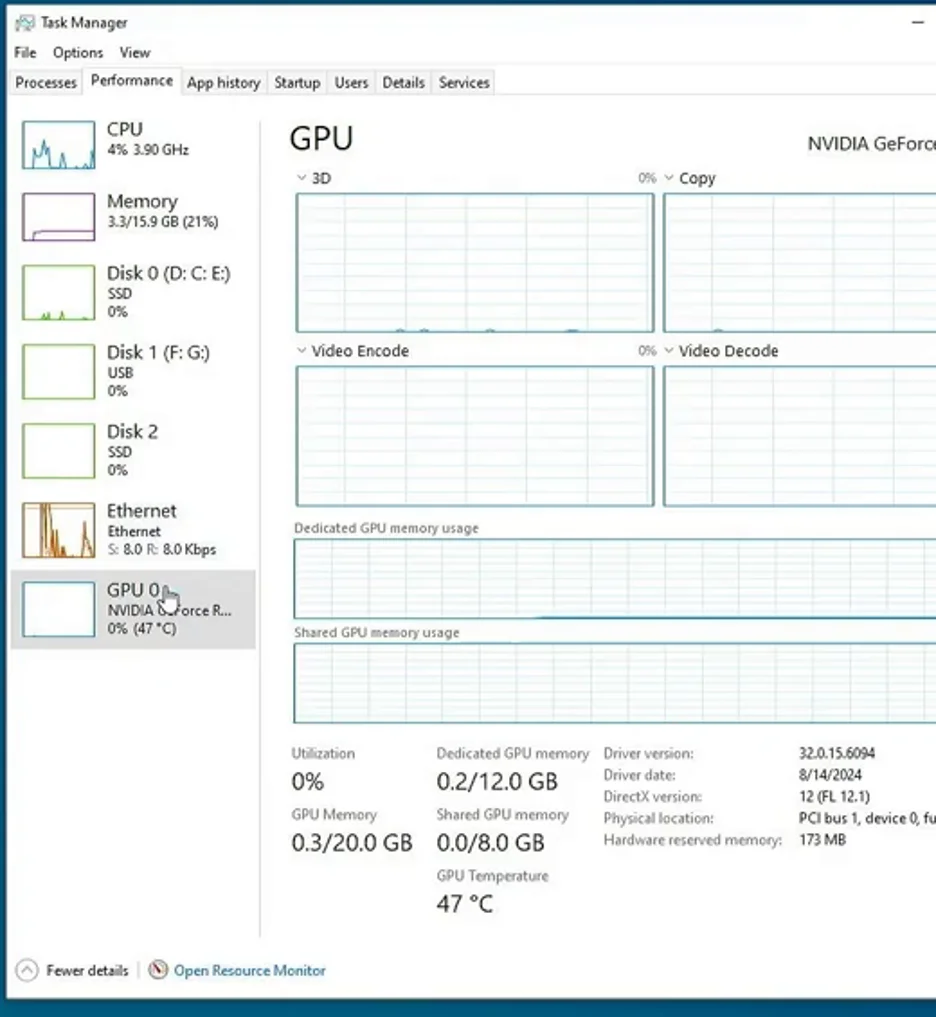
- Read the name in the top-right corner of the pane, for example “NVIDIA GeForce RTX 4060” or “Intel UHD Graphics 770”.
Below the graphs you’ll find three memory figures:
- Dedicated GPU memory: the VRAM physically on a graphics card. This is the number games mean when they list “6 GB VRAM.”
- Shared GPU memory: regular system RAM the GPU is allowed to borrow. Windows sets this to up to half of your installed RAM.
- GPU Memory: the two added together.
The pane also shows the driver version and date, which you’ll want when updating.
No GPU entry in Task Manager?
If Performance shows CPU, Memory, Disk, and Network but no GPU, the display driver is probably too old. Task Manager only shows GPU data for drivers built on WDDM 2.0 or later (the Windows Display Driver Model). It doesn’t mean you have no graphics card. Use Device Manager (Method 2) to get the name, then update your graphics drivers.
Method 2: Device Manager
Device Manager lists every graphics adapter Windows knows about, and it’s the best place to spot driver problems.
- Right-click the Start button (or press Win + X) and select Device Manager.
- Expand Display adapters.
- Read the name of each entry. A laptop with switchable graphics typically shows two, for example an Intel or AMD entry plus an NVIDIA entry.
A yellow warning triangle on an entry means Windows has found a problem with that device. Right-click it and select Properties to see the error.
What “Microsoft Basic Display Adapter” means
If Display adapters shows only Microsoft Basic Display Adapter, Windows hasn’t identified your graphics hardware. It’s running a generic fallback driver because the manufacturer’s driver isn’t installed (common right after a fresh Windows install or a failed driver update).
Signs you’re on the basic driver: a fixed or blurry resolution, no brightness slider on some laptops, choppy video, and games that refuse to launch.
The fix is to install the proper driver. Windows Update often handles it on its own; if not, follow our guide to updating your graphics drivers. Once the right driver is in, the real card name replaces the generic one. (You’ll also see this adapter inside many virtual machines, where it’s normal.)
Method 3: DirectX Diagnostic Tool (dxdiag)
dxdiag gives you the name, manufacturer, driver details, and memory figures in one report.
- Press Win + R, type
dxdiag, and press Enter. - If asked whether to check that drivers are digitally signed, select Yes.
- Wait for the green progress bar at the bottom to finish, then select the Display tab. On a PC with two GPUs you may see Display 1 and Display 2, or a Render tab for the second GPU.
- In the Device section, read Name and Manufacturer.
Why dxdiag’s memory number looks too big
dxdiag shows Approx. Total Memory, and that number is not your VRAM. It’s dedicated video memory plus the shared system RAM the GPU can borrow. A card with 8 GB of VRAM in a PC with 32 GB of RAM can show around 24 GB here.
The figure you want is Display Memory (VRAM) in the same section. For a quick, unambiguous read, Task Manager’s Dedicated GPU memory or your GPU maker’s app (NVIDIA app, AMD Software: Adrenalin Edition) is clearer.
Method 4: Settings and System Information
Settings: which GPU is driving your screen
- Press Win + I to open Settings.
- Select System > Display.
- Scroll to Related settings and select Advanced display.
- Under Display information, the GPU your monitor is connected to is listed.
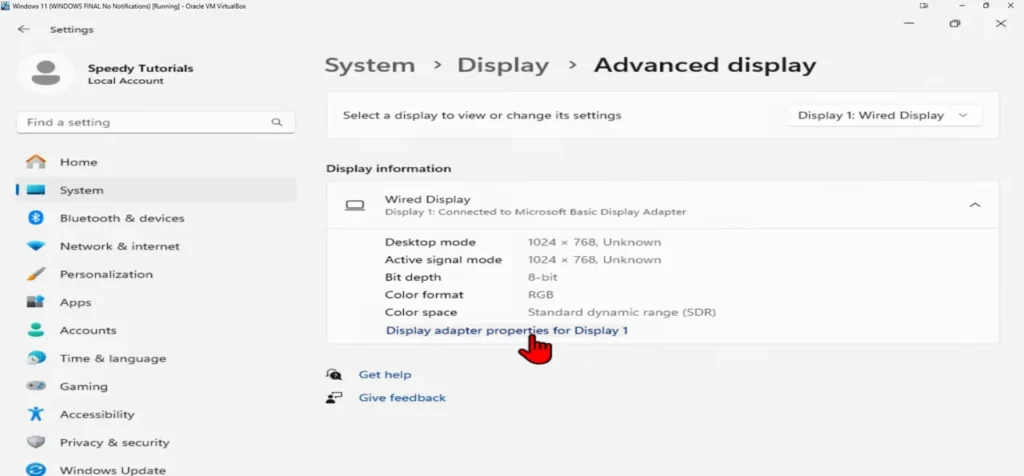
This is useful on two-GPU laptops: it tells you which chip is actually wired to the display, which isn’t always the one games use.
System Information (msinfo32)
- Press Win + R, type
msinfo32, and press Enter. - Expand Components and select Display.
You’ll see the adapter name, driver version, and resolution. It’s handy if you need to save or share a full hardware report (File > Export).
Method 5: PowerShell (for power users)
If you want the GPU name as copyable text, open PowerShell (search for it from Start) and run:
Get-CimInstance -ClassName Win32_VideoController | Select-Object Name, DriverVersionYou’ll get one line per graphics adapter with its driver version. Ignore the AdapterRAM property if you see it elsewhere: it’s a 32-bit value and can’t report more than about 4 GB, so it’s wrong for most modern cards.
How to read what you found
This is where most guides stop, and where most confusion starts.
Integrated vs. dedicated: does integrated graphics “count”?
Yes. Integrated graphics is a real GPU; it’s just built into your processor instead of sitting on its own card, and it borrows system RAM instead of having its own VRAM. Whether it’s enough depends on what you want to run.
Here’s how the names typically look:
| Type | Example names you might see |
|---|---|
| Integrated (Intel) | Intel UHD Graphics, Intel Iris Xe Graphics, Intel Arc Graphics |
| Integrated (AMD) | AMD Radeon Graphics, AMD Radeon 780M Graphics |
| Dedicated (NVIDIA) | NVIDIA GeForce RTX 4060, NVIDIA GeForce RTX 4060 Laptop GPU |
| Dedicated (AMD) | AMD Radeon RX 7600 |
| Dedicated (Intel) | Intel Arc A770 |
Two quick tells: a dedicated card shows a meaningful Dedicated GPU memory figure in Task Manager (usually 4 GB or more), and its name carries a model family like GeForce RTX or Radeon RX. Watch the Intel Arc naming: plain “Intel Arc Graphics” is integrated into newer Intel Core Ultra processors, while “Intel Arc A770” or a “B”-series number is a separate card.
Two GPUs on a laptop: which one counts?
Many gaming and creator laptops have both: an integrated GPU for battery life and a dedicated GPU for games. Windows switches between them automatically.
- For game requirements, the dedicated GPU is the one that counts. That’s the NVIDIA GeForce RTX or AMD Radeon RX entry.
- GPU 0 and GPU 1 are not a ranking. They’re just the order Windows enumerated the hardware. On many laptops the integrated chip is GPU 0, but don’t assume; read the name.
- Want to confirm a game is using the dedicated GPU? Open Task Manager while the game runs, select Processes, and check the GPU engine column (right-click a column header to add it if missing). To force it, go to Settings > System > Display > Graphics, choose the app, and pick the high-performance option.
Some laptops have a MUX switch or a “dedicated GPU only” mode in the maker’s control app. With that turned on, the integrated GPU can disappear from Task Manager entirely, which is normal.
How to read your VRAM
When a game says “8 GB VRAM,” compare it to Dedicated GPU memory in Task Manager, not to dxdiag’s Approx. Total Memory and not to Task Manager’s combined GPU Memory.
Task Manager may show slightly less than the advertised figure (for example, 7.8 GB for an 8 GB card) because of how Windows reports and reserves memory. That’s expected.
Integrated graphics will show little or no dedicated memory and rely on shared memory instead. If you see 128 MB or 512 MB “dedicated” on an Intel or AMD integrated chip, that’s a small reserved slice of system RAM, not real VRAM.
How to check your graphics card on a Mac
- Choose Apple menu > About This Mac.
- On an Apple silicon Mac (M1 and later), you’ll see Chip. The GPU is part of that chip, so the chip name (for example, Apple M3) is your answer. Your model’s Tech Specs page on Apple’s support site lists the GPU core count.
- On an Intel-based Mac, you’ll see Graphics with the GPU name and memory.
For full detail, hold Option, choose Apple menu > System Information, then select Graphics/Displays under Hardware. Older MacBook Pro models with two GPUs list both here.
How to check your graphics card on Linux
Open a terminal and run:
lspci | grep -iE 'vga|3d|display'Each line is a graphics controller. Add -k (lspci -k) to also see the kernel driver in use. On desktops like GNOME, the About page in Settings (under System on newer versions) also lists Graphics. With NVIDIA’s proprietary driver installed, nvidia-smi shows the model and VRAM.
No software? How to find your GPU another way
If the PC won’t boot, you’re shopping for a used machine, or Windows only shows a generic adapter, you still have options.
Laptops and prebuilt PCs: look up the model
Most laptops are sealed; you won’t see the card. Instead:
- Find the exact model number on the sticker underneath, in the battery bay, or on the original box.
- Search it on the manufacturer’s support site (Dell, HP, Lenovo, ASUS, Acer, and so on) and open the specifications page.
- Watch for configurations: the same model often ships with different GPUs. Your original order confirmation or invoice usually names the exact one, and the maker’s support site can often look up the shipped configuration from your serial number or service tag.
Desktops: read the card’s label (last resort)
If nothing else works, you can look at the card itself.
- Shut down the PC, switch off the power supply, and unplug it.
- Touch a bare metal part of the case to discharge static before reaching inside.
- Remove the side panel. The graphics card is the large card in the top PCIe slot, usually with fans and the monitor ports on the back.
- Read the model on the card’s shroud or the sticker on its side or back.
Don’t remove the card unless you need to. Before you open anything, also check where your monitor cable plugs in. Ports on the card sit in a horizontal row lower down on the back of the case; ports in the vertical panel near the top belong to the motherboard. If your monitor is plugged into the motherboard ports, you’re running on integrated graphics even if a card is installed.
What to do with the answer
Check game or app requirements. Compare your GPU name and Dedicated GPU memory to the minimum and recommended specs. Compare model generation and tier, not just brand. An RTX 4060 is well ahead of a GTX 1650 even though both say NVIDIA.
Get the right driver. Now that you know the maker (NVIDIA, AMD, or Intel) and model, follow our guide to updating your graphics drivers. On laptops, check the laptop maker’s support page as well. And if you saw Microsoft Basic Display Adapter, this is your first job.
Check your temperatures. If the reason you looked was stuttering or crashes, heat is a common culprit. See what a normal GPU temperature is and the full GPU temperature range for idle, gaming, and danger zones.
FAQ
What graphics card do I have on Windows 11?
Open Task Manager with Ctrl + Shift + Esc, select Performance, then select GPU 0. The name appears in the top-right corner. You can also go to Settings > System > Display > Advanced display and look under Display information.
Why does my laptop show two graphics cards?
Most gaming and creator laptops have an integrated GPU for battery life and a dedicated GPU for heavy work. Both are real. For game requirements, the dedicated one (usually NVIDIA GeForce RTX or AMD Radeon RX) is the one that matters.
Is GPU 0 my main graphics card?
Not necessarily. GPU 0 and GPU 1 reflect the order Windows detected the hardware, not which is faster. Read the names to tell integrated from dedicated.
How do I know how much VRAM I have?
In Task Manager, select Performance > GPU and read Dedicated GPU memory. Ignore dxdiag’s Approx. Total Memory, which adds shared system RAM on top of real VRAM.
What does “Microsoft Basic Display Adapter” mean?
Windows is using a generic driver because your graphics driver isn’t installed. Install the correct driver through Windows Update or our graphics driver update guide, and the real GPU name will appear.
Why doesn’t Task Manager show my GPU?
Your graphics driver is likely older than WDDM 2.0, which Task Manager needs to show GPU data. Check Device Manager > Display adapters for the name, then update the driver.
Does integrated graphics count as a graphics card?
It counts as a GPU, and it’s fine for everyday use, video, and lighter games. It isn’t a separate card, though, and it uses system RAM instead of dedicated VRAM, so demanding games usually list a dedicated GPU in their requirements.
Can I find my graphics card without turning on the PC?
Yes. Look up the laptop or prebuilt model number on the manufacturer’s specs page, check the original order or box, or (for desktops) power down, unplug, and read the label on the card itself.