

Quick verdict
– Idle (desktop, browsing, video): about 30–50°C (86–122°F) for most desktop cards. Many modern cards sit at 40–55°C (104–131°F) at idle because their fans are switched off on purpose.
– Gaming / heavy load: about 65–85°C (149–185°F) for most desktop cards.
– Laptops: gaming laptop GPUs commonly run into the mid-to-high 80s °C (roughly 185–192°F) by design.
The caveat that matters most: your card’s own design target and maximum temperature matter more than any universal number. A card built to settle at 83°C is behaving normally at 83°C.
You’re in a game, you glance at the overlay, and it says 82°C. Or you’re just on the desktop and the GPU reads 52°C with the fans not even spinning. Is that normal?
Usually, yes. But “usually” isn’t good enough when it’s your hardware, so this guide teaches you how to judge your reading: which sensor you’re looking at, what your card was designed to do, and the specific signs that actually mean something is wrong.
If you want the full table of temperature ranges and limits by card family, see our GPU temperature range guide. If you need help finding or setting up a temperature readout, our GPU temp monitoring guide covers every tool in depth. This page answers one question: is your number OK?
Why “normal” depends on your card
There is no single normal GPU temperature. Modern graphics cards don’t try to stay as cool as possible. They try to run as fast as possible within a power limit and a temperature limit, and they boost clock speeds right up to those limits.
That means a perfectly healthy card can sit near its limit all game long. What decides where yours lands:
- The manufacturer’s temperature target and maximum. On many GeForce cards from generations before the RTX 50 series, GPU Boost uses a default temperature target. The RTX 3080 Founders Edition, for example, defaults to 83°C (181°F), while NVIDIA’s spec sheet lists 93°C (199°F) as that card’s maximum GPU temperature. The RTX 50 series dropped the adjustable target, and NVIDIA now publishes just a maximum GPU temperature, such as 88°C (190°F) for the RTX 5080 and 90°C (194°F) for the RTX 5090. Check your exact model’s spec page; figures vary by card. (Not sure which card you have? Here’s how to find out what graphics card you have.)
- The cooler. A large triple-fan cooler and a compact two-fan or blower card can carry the same GPU and land 10°C or more apart under the same load.
- Case airflow. A GPU breathing warm, recirculated air runs hotter than one fed by front intake fans.
- Room temperature. Your GPU can only cool down toward the air around it. A 90°F room in July and a 68°F room in January give different readings with identical hardware.
So the better question isn’t “is 80°C OK?” It’s “is 80°C OK for my card, in my case, in my room, and has it changed?”
Normal GPU temp at idle
At idle (desktop, web browsing, YouTube), most desktop cards read about 30–50°C (86–122°F).
Why your idle temp might look “high”
Plenty of people see 40–55°C (104–131°F) at idle and worry. Here’s the most common reason: zero-RPM mode (also called fan stop, 0dB fan or Zero Frozr depending on the brand).
Most mid-range and higher cards stop their fans completely at light load to cut noise and dust. The heatsink handles the small amount of heat passively until the GPU crosses a set threshold, typically around 50–60°C (122–140°F). ASUS, for example, documents fan start above roughly 55°C on its RTX 30, 40 and 50 cards. The exact point varies by brand and model, and some cards also trigger on power draw.
So an idle reading in the high 40s or low 50s with the fans at 0 RPM is usually the card doing exactly what it was built to do.
Other normal reasons idle temps creep up:
- Multiple or high-refresh monitors, which can keep memory clocks higher at idle.
- Background GPU work, like video playback, browser hardware acceleration or a hidden app using the GPU.
- A warm room or a quiet, low-airflow case.
When high idle is NOT normal
The pattern to watch is high idle temperature with fans spinning hard. If your card sits above roughly 60°C (140°F) at the desktop while the fans are audibly working, something is keeping it hot: a background process maxing the GPU (check Task Manager’s GPU column), clogged dust filters, or a cooling problem. Likewise, if temps keep climbing at idle and the fans never start, that’s worth investigating.
Normal GPU temperature while gaming
Under a sustained gaming load, most desktop cards land around 65–85°C (149–185°F). Where yours lands within that range comes down to the cooler, case and room.
Is 80°C hot for a GPU?
Not for most modern cards. Touching 80–83°C (176–181°F) in a demanding game is common, and on cards designed around an 83°C target it’s the card working as intended. NVIDIA’s own system intends the GPU to hover near its target under sustained load.
What about 85–90°C?
This range deserves a closer look rather than panic. Compare your reading to your card’s published maximum. A card that runs 86°C (187°F) against a 93°C (199°F) maximum has headroom; one at 87°C (189°F) against an 88°C (190°F) maximum is right at its ceiling and is probably giving up some boost clock. Neither is “damaging” the card by itself, because the GPU protects itself by slowing down. But a desktop card that constantly lives at its limit is telling you that airflow, dust or room heat could use attention.
Also note: stress tests like FurMark push cards harder than any game. Judge your card by real gameplay, not a synthetic worst case.
Desktop vs laptop GPU temperatures
Laptop GPUs play by different rules. A thin chassis, shared heat pipes and small fans mean gaming laptops commonly run their GPUs into the mid-to-high 80s °C (around 185–192°F) under load, often against a limit the laptop maker configured in the high 80s. When the GPU hits that limit, it slows itself down to stay there.
So a laptop GPU at 86°C (187°F) in a game is usually normal. What isn’t normal for a laptop:
- Hitting its limit within a minute or two of launching a light game
- Big, sudden FPS drops that line up with temperature spikes
- Performance noticeably worse than when the laptop was new
Raising the back of the laptop for airflow, using it on a hard surface instead of a bed or couch, and picking the right performance mode in the manufacturer’s app all make a real difference.
The three GPU temperatures explained: core, hotspot and memory
Open a detailed monitoring tool and you may see three or more temperatures. Here’s what each means, and which one to use when.
| Sensor | What it measures | Typical behavior under load |
|---|---|---|
| GPU temperature (core / edge) | The headline reading. On AMD it’s labeled “edge” or simply GPU temperature. | Most desktop cards: ~65–85°C (149–185°F) |
| Hotspot / junction | The hottest point among many sensors spread across the GPU die | Usually ~10–20°C (18–36°F) above core |
| Memory / VRAM junction | The hottest point on the video memory chips | Varies a lot by memory type; GDDR6X commonly runs hot |
Core (edge) temperature
This is the number Task Manager and most overlays show by default, and the one most “normal range” advice refers to. For a quick yes/no check, this is your reading.
Hotspot (junction) temperature
The hotspot reading takes the highest value from an array of sensors across the GPU die. Because heat never spreads perfectly across silicon, it always reads higher than the core temperature. A gap of roughly 10–20°C (18–36°F) is typical on most cards.
When the delta matters: manufacturers don’t publish an official delta limit, but a common rule of thumb among reviewers and repair technicians is that a gap persistently above about 25–30°C (45–54°F) under load, especially one that has grown over time, points to poor contact between the GPU and its cooler (dried-out paste, a pump-out pattern, or an uneven mount). Some architectures run wider gaps than others, so compare against your own card’s history rather than someone else’s screenshot.
AMD’s junction spec: AMD has stated that junction temperatures up to 110°C (230°F) during typical gaming are expected and within specification for its RDNA-based Radeon cards, starting with the RX 5700 series. When hotspot reaches that limit, the card throttles to stay there. So a Radeon junction reading in the 90s or even around 100°C under heavy load isn’t a defect by itself.
RTX 50 owners: if you can’t find a hotspot reading, you’re not missing a setting. NVIDIA removed public hotspot reporting on the RTX 50 series, so common tools show GPU and memory temperature only (some tools have added unofficial readouts since). For those cards, lean on core temperature, clock behavior and the red flags below.
Memory (VRAM) temperature
Video memory has its own sensors. The headline example is GDDR6X, used on cards like the RTX 3080 and 3090: in Tom’s Hardware testing, Founders Edition cards reached roughly 94–104°C (201–219°F) memory junction temperatures in demanding games, with throttling observed around 110°C (230°F). That’s typical observed behavior on those cards rather than a published “normal” figure, and other memory types and coolers can run much cooler.
If your memory temperature sits near its limit during ordinary gaming (not mining or AI workloads running for hours), or keeps rising over the months, that’s when to look at airflow or the card’s thermal pads.
Which reading should you trust?
- Quick check: core temperature against your card’s spec.
- Diagnosing a performance drop: hotspot (where available) and the core-to-hotspot gap.
- Long sessions, rendering or AI work on GDDR6X cards: watch memory junction too.
When to actually worry
Temperature alone is a weak signal. Change over time and symptoms are strong ones.
Red flags:
- Temps climbing month over month in the same game, same settings and similar room temperature
- Throttling or FPS drops at temperatures that used to be fine, or clocks noticeably lower than when the card was new
- High idle temperature with fans spinning hard
- Fans not spinning at all while the GPU heats up past roughly 60–65°C (140–149°F) under load
- A hotspot gap that has widened to roughly 25–30°C (45–54°F) or more
- Artifacts, crashes, black screens or sudden shutdowns under load
- Laptop hitting its limit almost immediately in light games
NOT a problem on its own:
- Touching 80–83°C (176–181°F) in a heavy game on a card designed around that target
- Idle readings of 40–55°C (104–131°F) with fans stopped
- Hotspot 10–20°C (18–36°F) above core
- An AMD junction reading in the 90s–100s °C under heavy load, as long as performance holds
- A gaming laptop GPU in the mid-to-high 80s °C while gaming, if FPS is stable
How to check your GPU temperature in 30 seconds
- Task Manager (Windows 10 version 2004 or later, Windows 11): press Ctrl + Shift + Esc, open Performance, select your GPU, and look for GPU temperature. It shows Celsius only and only for dedicated GPUs with a recent driver (WDDM 2.4 or newer). If it’s missing, update your graphics drivers first.
- Vendor overlay: the NVIDIA App performance overlay or AMD Software: Adrenalin Edition metrics overlay shows temperature live while you play, which is the reading that matters.
- Detailed sensors: for hotspot, memory junction and fan RPM, use a dedicated monitoring tool. Our GPU temp monitoring guide walks through the best options and how to log a gaming session.
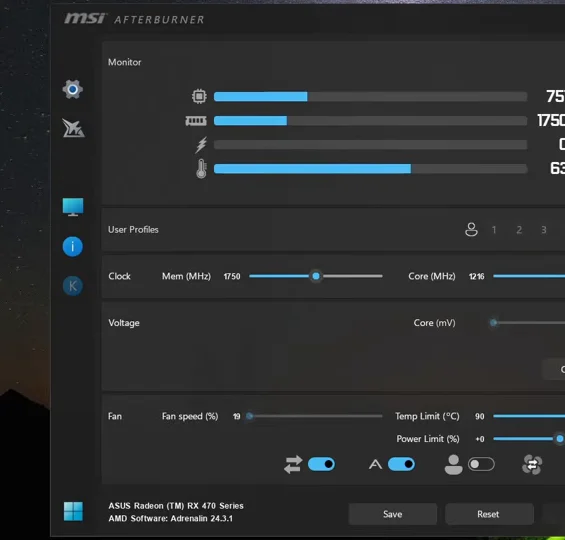
Check twice: once after five minutes at idle, and once after 15–20 minutes in your most demanding game. A single peak during a loading screen tells you very little.
First fixes if your GPU runs too hot
Start with the free, reversible steps:
- Clean dust from the GPU fans, heatsink fins and case dust filters with compressed air (hold the fans still while you spray).
- Improve case airflow: make sure front intake and rear/top exhaust fans are oriented correctly and cables aren’t blocking the GPU.
- Check the room: a warmer room means a warmer GPU. Move the PC away from heaters, closed cabinets and direct sunlight.
- Adjust the fan curve in your vendor software or a tuning tool so fans ramp up a little earlier under load. (You can keep zero-RPM idle on.)
- Cap your frame rate in games where you’re far above your monitor’s refresh rate. Less wasted work means less heat.
- Undervolt (intermediate): lowering voltage often trims heat with little or no performance loss, but it takes testing for stability.
- Repaste or replace thermal pads (advanced): this can fix a wide hotspot gap or high memory temps, but opening the cooler may void your warranty, and wrong pad thickness can make things worse. On a card under warranty, contact the manufacturer first.
To see how your card’s range compares to its family and generation, check our GPU temperature range guide.
FAQ
What is a normal GPU temp while gaming?
For most desktop cards, about 65–85°C (149–185°F) under sustained gaming load. Gaming laptops commonly run into the mid-to-high 80s °C. Your card’s published maximum is the real reference point.
Is 83°C OK for a GPU?
Yes, for most modern cards. Many GeForce cards were designed around an 83°C (181°F) temperature target, and NVIDIA’s listed maximum temperatures for recent cards sit above that (for example 88°C on the RTX 5080 and 93°C on the RTX 3080).
What is a normal GPU temp at idle?
About 30–50°C (86–122°F) for most desktop cards, but 40–55°C (104–131°F) is normal on cards whose fans stop at idle. Fans typically start around 50–60°C.
Is a GPU hotspot 20°C higher than core normal?
Usually, yes. A hotspot reading roughly 10–20°C above core is typical. A gap that stays above about 25–30°C under load, or that grows over time, suggests a cooler contact or thermal paste problem.
Is 100°C hotspot bad on an AMD card?
Not on its own. AMD has said junction temperatures up to 110°C (230°F) during typical gaming are within spec for its RDNA-based Radeon cards. Watch for throttling, crashes or a hotspot that keeps rising over the months.
Why can’t I see hotspot temperature on my RTX 50 card?
NVIDIA removed public hotspot reporting on RTX 50 series GPUs, so most monitoring tools show only GPU and memory temperature. Use core temperature, clock speeds and performance stability to judge cooling.
Why does my laptop GPU run at 87°C?
Gaming laptops are designed to let the GPU run hot, and many are configured with limits in the high 80s °C. If FPS stays stable and the laptop isn’t shutting down, it’s typically working as designed.
Can a high GPU temperature damage my graphics card?
Modern GPUs protect themselves by lowering clock speeds as they approach their limit, and they shut down if heat keeps rising. Running within your card’s spec isn’t a cause for concern; consistently bouncing off the limit is a sign to improve cooling.
The bottom line
A normal GPU temp isn’t one number. For most desktop cards it’s around 30–50°C at idle and 65–85°C while gaming, laptops run hotter by design, and hotspot and memory readings are supposed to be higher than core. Judge your card against its own spec and its own history, and save your worry for the red flags: rising temps over time, falling performance, fans that don’t match the heat, and crashes.
Next step: grab a 20-minute reading in your favorite game with the tools in our GPU temp monitoring guide, then compare it with your card’s family in our GPU temperature range guide.