

A typical desktop GPU idles at 30–50°C (86–122°F) and runs at 60–80°C (140–176°F) while gaming. The true upper limit depends on your exact card: NVIDIA lists 85–90°C (185–194°F) across the RTX 50 lineup, 90°C (194°F) for every RTX 40 card, and 93°C (199.4°F) for the RTX 3060 and 3060 Ti. AMD manages its cards by a hotter junction (hotspot) sensor and has described up to 110°C (230°F) junction as within spec.
Quick reference: typical desktop GPU temperatures
These are typical ranges seen on healthy desktop cards — not manufacturer specs. Your card’s hard limit is in the family table below.
| State | Typical core temperature (°C) | Typical core temperature (°F) | What it usually means |
|---|---|---|---|
| Idle (desktop, browsing, video) | 30–50°C | 86–122°F | Normal. Many cards stop their fans at idle, so 45–50°C is common. |
| Gaming | 60–80°C | 140–176°F | Normal for most air-cooled cards. |
| Sustained max load (long renders, AI, stress tests) | 75–85°C | 167–185°F | Normal on smaller coolers; check how close you are to your card’s own limit. |
Want to know whether your reading is fine? That’s what our normal GPU temp guide is for. This page is the reference: the ranges, the sensors and the official limits.
How GPU Temperature Limits Actually Work
Why doesn’t a GPU just cook itself? Because every modern graphics card manages its own heat, in layers.
1. Boost scales with temperature. NVIDIA’s GPU Boost and AMD’s equivalent push clock speeds up as long as power, voltage and temperature allow. As the chip warms, boost backs off in small steps. That’s why the same card can show slightly lower clocks on a hot summer day — it isn’t broken, it’s managing itself.
2. The temperature target. On older NVIDIA cards (RTX 40 and earlier), there’s an adjustable temperature target — a value the card aims to hover around under sustained load, usually several degrees below the maximum. Hitting the target means “slow down a little,” not “danger.” On RTX 50, NVIDIA removed the adjustable temperature target; only the power limit is user-adjustable, and the published maximum remains.
3. Thermal throttling at the maximum. When the core reaches the card’s published Maximum GPU Temperature, clocks drop hard to pull heat down. You’ll see lower frame rates, but the card keeps running. AMD does the same thing, but triggers off the hottest of many on-die sensors (the junction or hotspot reading) rather than an average.
4. Shutdown protection. If cooling fails outright — a dead fan, a heatsink knocked loose — the card and system cut power to protect the hardware. Exact trip points are rarely published, so we don’t print one.
So is running hot “damaging” your GPU? Not instantly. A card bumping its limit protects itself by throttling. The honest picture: sustained operation right at the limit costs performance, adds fan noise, and over years adds thermal stress to solder joints, thermal pads and paste. That’s a reason to fix poor cooling, not a reason to panic over a single high reading.
GPU Temperature Range by Sensor: Core, Hotspot and VRAM
Most “my GPU hit 105°C!” scares come from reading the wrong sensor. Modern cards report up to three different temperatures, and each has its own normal range.
| Sensor (what tools call it) | What it measures | Typical idle | Typical gaming / load | The limit that applies |
|---|---|---|---|---|
| Core (“GPU Temperature,” “Edge”) | Average or reference temperature of the GPU die | 30–50°C (86–122°F) | 60–85°C (140–185°F) | NVIDIA’s published Maximum GPU Temperature for your model (see family table). AMD does not publish a core/edge maximum on its product pages. |
| Hotspot / Junction (“GPU Hot Spot,” “Junction,” “Tjunction”) | The hottest single point across many on-die sensors | Close to core at idle | Often 10–25°C above core under load (observed) | AMD: manages boost against junction temperature; AMD has stated up to 110°C (230°F) junction is expected and within spec (RX 5700 series blog; restated by AMD support for RX 7900 series). NVIDIA: no published hotspot limit; RTX 50 cards no longer expose a usable hotspot reading in most tools. |
| Memory junction (“Memory Junction,” “VRAM,” “GPU Memory Temp”) | The hottest point on the video memory chips | 35–55°C (95–131°F) | GDDR6: commonly 60–85°C (140–185°F). GDDR6X / GDDR7: reviewers and owners commonly report 80–95°C (176–203°F), higher in long compute jobs (observed) | No consumer-facing limit published by NVIDIA or AMD. Some cards’ firmware reports a memory limit in monitoring tools (for example, 108°C on some RX 9070 XT boards in HWiNFO — an observed readout, not a published spec). |
A real-world example of the gap: in one independent review, an RTX 4090 Founders Edition peaked at 75°C core and 86°C hotspot in a demanding benchmark, while in another, an RTX 5090 Founders Edition reached 73°C core with memory peaking at 88°C after an hour of 4K gaming. Three sensors, three different “normal” numbers — on the same healthy cards.
What about GDDR6X? Memory on GDDR6X cards (RTX 3080/3090 family and several RTX 40 models) is known for running warm. We treat its range as observed behavior, not a spec: readings in the 80s and 90s °C under sustained load are widely reported and usually not a problem by themselves. If memory temperature climbs steadily over months under the same load, that points to drying thermal pads.
GPU Temperature Limits by Card Family
Here’s the core of this page: typical gaming ranges and the official maximum core temperature wherever the manufacturer publishes one. If we couldn’t verify a figure on the maker’s own spec material, the table says so instead of guessing.
Typical gaming ranges are observed, not specs. Maximums are NVIDIA’s “Maximum GPU Temperature” for Founders Edition / reference designs; partner cards (ASUS, MSI, Gigabyte, Zotac and others) may use different targets — check your model’s page.
| Family | Typical gaming range (core) | Official maximum core temperature |
|---|---|---|
| NVIDIA GeForce RTX 50 | 60–78°C (140–172.4°F) | Varies by model: RTX 5090 — 90°C (194°F) · RTX 5080 — 88°C (190.4°F) · RTX 5070 Ti — 88°C (190.4°F) · RTX 5070 — 85°C (185°F) · RTX 5060 Ti — 87°C (188.6°F) · RTX 5060 — 89°C (192.2°F) · RTX 5050 — 87°C (188.6°F) |
| NVIDIA GeForce RTX 40 | 60–78°C (140–172.4°F) | 90°C (194°F) for RTX 4090, 4080 SUPER, 4080, 4070 Ti SUPER, 4070 Ti, 4070 SUPER, 4070, 4060 Ti and 4060 |
| NVIDIA GeForce RTX 30 | 65–80°C (149–176°F) | RTX 3060 Ti and RTX 3060 — 93°C (199.4°F). Other RTX 30 models: varies by model — check your card’s spec page |
| NVIDIA GeForce GTX 16 / GTX 10 | 65–83°C (149–181.4°F) | Varies by model — check your card’s spec page |
| AMD Radeon RX 9000 | 60–80°C core (140–176°F); junction often 15–30°C higher (observed) | Core: not officially published. Junction: no RX 9000-specific figure published; 110°C (230°F) hotspot is what monitoring tools commonly show as the firmware limit (observed) |
| AMD Radeon RX 7000 | 60–80°C core (140–176°F) | Core: not officially published. Junction: AMD support has stated RX 7900 Series cards can operate up to 110°C (230°F) junction |
| AMD Radeon RX 6000 | 60–80°C core (140–176°F) | Core: not officially published. Junction: no RX 6000-specific figure published; AMD’s 110°C (230°F) junction guidance (introduced with RX 5700) is the commonly applied reference |
Two things this table makes obvious:
- “Under 85°C is safe” doesn’t fit every card. The desktop RTX 5070’s published maximum is 85°C, while an RTX 3060 has 8 more degrees before its 93°C limit. One-size tables can’t capture that.
- AMD and NVIDIA limit different things. NVIDIA publishes a core maximum; AMD throttles on the junction sensor. Comparing an AMD hotspot reading to an NVIDIA core spec is apples to oranges.
Not sure which card you have? Find the exact model first with our guide on what graphics card you have.
Laptop GPU temperature range
Laptop GPUs share a slim chassis with the CPU, use thinner heat pipes and smaller fans, and are often tuned by the laptop maker to run warm and quiet. Judge them against laptop numbers, not desktop ones.
| State | Typical laptop GPU temperature (°C) | (°F) |
|---|---|---|
| Idle / light use | 40–55°C | 104–131°F |
| Gaming (plugged in, performance mode) | 70–87°C | 158–188.6°F |
Why higher? Less heatsink area, shared cooling with the CPU, and power and thermal limits set by the laptop manufacturer rather than a single GPU spec. A thin-and-light model at 85°C can be operating exactly as designed. For your model’s limits, check the laptop maker’s support or spec page, not the desktop card’s.
What about integrated graphics?
Integrated GPUs live on the same chip as the CPU, so their temperature is tied to the CPU package. That changes how you monitor them:
- Many Intel integrated GPUs (Intel UHD, Iris Xe) don’t expose a separate GPU temperature sensor in common tools. Watch the CPU package temperature instead.
- AMD APUs may show a graphics-related temperature in some tools, but it still shares the package’s cooling and limits.
- Either way, the CPU’s thermal limits, not a “GPU range,” are what apply.
What Decides Where Your Card Lands in the Range
Two identical GPUs can sit 15°C apart. Here’s why.
- Cooler design. Open-air coolers (two or three fans) dump heat into the case and usually run cooler. Blower coolers push heat out the back through one fan — great for cramped or multi-GPU builds, typically warmer and louder. Big triple-slot coolers run cooler than compact dual-slot versions of the same GPU.
- Case airflow. A GPU breathes the air inside your case. Too little intake, a glass front panel with no vents, or a card choked by the PSU shroud can add several degrees.
- Ambient temperature. Room temperature sets the floor. A card in a 85°F (29.4°C) summer room will run noticeably hotter than in a 70°F (21.1°C) office.
- Fan curve. Many factory curves favor silence and let temps climb. A slightly more aggressive curve in AMD Software: Adrenalin Edition or MSI Afterburner trades a little noise for lower temps.
- Dust and age. Clogged fins and dried-out thermal paste or pads slowly push temperatures up over the years.
- Workload type. Gaming loads fluctuate. 3D rendering, video encoding and local AI/LLM workloads can hold the GPU and memory at full load for hours, so expect the top of the range — and memory temperatures in particular to run higher than in games.
- Power limit and undervolting. Lowering the power target or undervolting cuts heat directly, often with little performance loss.
- Drivers. Outdated drivers occasionally ship with fan or power-management bugs. Keeping them current is cheap insurance — here’s how to update graphics drivers.
How to Find Your Own Card’s Exact Limit
1. Check the manufacturer’s spec page
- Identify the exact model (for example, “GeForce RTX 5070 Ti,” not just “RTX 50”). Use our GPU identification guide if you’re unsure.
- NVIDIA: open the card’s page on nvidia.com, scroll to Specs → View Full Specs, and find Thermal and Power Specs → Maximum GPU Temperature (in C).
- Partner cards: check your board maker’s product page (ASUS, MSI, Gigabyte, Zotac, PNY, Sapphire, XFX, PowerColor and others). NVIDIA itself notes that partner specs may differ from Founders Edition figures.
- AMD: product pages don’t list a core maximum. Use AMD’s junction guidance and the limits your monitoring tool reads from the card.
2. Read what the card itself reports
- GPU-Z (TechPowerUp): on NVIDIA cards up to RTX 40, the Advanced tab → General section lists the card’s adjustable temperature limit (minimum, default and maximum) as stored in the card’s BIOS. The default is the temperature target; the published spec maximum can be higher. RTX 50 cards no longer have an adjustable temperature limit, so rely on the spec page.
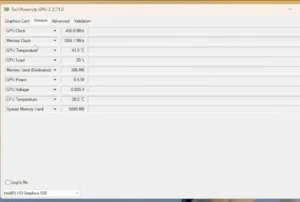
- nvidia-smi (NVIDIA): running
nvidia-smi -q -d TEMPERATUREprints the card’s temperature section, which on many cards includes slowdown and shutdown thresholds. Field names vary by card and driver. - HWiNFO: on many AMD cards it shows “limit” percentages for hotspot and memory sensors, which reveal the firmware threshold each sensor is measured against.
3. Check your current temperature
Quickest way on Windows 11: Task Manager → Performance → GPU shows the core temperature for most dedicated NVIDIA and AMD cards. For hotspot and memory readings, logging and in-game overlays, see our full guide to checking GPU temp.
Got a number and want a verdict? Run it through our normal GPU temp guide — it walks through what each reading means for your situation.
Key Takeaways
- Typical desktop range: 30–50°C (86–122°F) idle, 60–80°C (140–176°F) gaming.
- There is no single “max GPU temperature.” NVIDIA lists 85–90°C for RTX 50 (by model), 90°C for all RTX 40, and 93°C for RTX 3060/3060 Ti.
- Know your sensor. Hotspot runs well above core; memory junction has its own range. AMD throttles on junction, with up to 110°C described as within spec.
- Cards protect themselves. Hitting the limit means throttling, not instant damage — but sustained heat is worth fixing.
- Laptops run hotter by design; integrated graphics follow CPU package temps.
Next step: look up your card’s limit in the table above, then check your current GPU temp and compare it using our normal GPU temp guide.
FAQ
What is a normal GPU temperature range?
For most desktop graphics cards, about 30–50°C (86–122°F) at idle and 60–80°C (140–176°F) while gaming. Long renders or AI workloads can sit at 75–85°C (167–185°F). Laptops typically run 70–87°C (158–188.6°F) while gaming.
What is the maximum safe temperature for a GPU?
It depends on the model. NVIDIA publishes a “Maximum GPU Temperature” for each card: 90°C (194°F) for every RTX 40 card, 85–90°C (185–194°F) across RTX 50 depending on model, and 93°C (199.4°F) for the RTX 3060 and 3060 Ti. AMD doesn’t publish a core maximum and instead manages against junction temperature.
Is 85°C too hot for a GPU?
Not necessarily. 85°C is the published maximum for the desktop RTX 5070, so that card would be throttling there, while an RTX 4070 has 5°C of headroom and an RTX 3060 has 8°C. If your card sits at 85°C constantly, improving airflow or the fan curve is worthwhile.
Is 100°C hotspot temperature normal?
On AMD Radeon cards it can be. AMD manages boost against the junction (hotspot) sensor and has described up to 110°C as within spec. A large gap between core and hotspot (well over 25–30°C) can point to uneven thermal paste contact, so it’s worth watching.
What’s the difference between GPU temperature and hotspot temperature?
“GPU temperature” (core or edge) is a reference or average reading of the die. “Hotspot” or “junction” is the hottest single point measured by many sensors across the die, so it always reads higher under load.
Why does my VRAM run hotter than my GPU core?
Fast memory such as GDDR6X and GDDR7 produces a lot of heat in small chips, and memory pads often get less cooling than the die. Readings in the 80s and 90s °C under heavy load are commonly reported. Neither NVIDIA nor AMD publishes a consumer memory temperature spec.
Do laptop GPUs run hotter than desktop GPUs?
Yes. Laptop GPUs share a compact cooling system with the CPU and are tuned by the laptop maker, so 70–87°C (158–188.6°F) while gaming is common and often by design.
Can a GPU get damaged by high temperatures?
Modern GPUs throttle, and if needed shut down, before reaching damaging temperatures. Short spikes to the limit won’t harm a card. Years of operation right at the limit add wear to thermal pads, paste and solder joints, so persistent high temperatures are worth fixing.
Do integrated graphics have a separate temperature?
Often not in a usable way. Integrated graphics share the CPU’s package and cooling, and many Intel integrated GPUs don’t expose a separate temperature sensor. Monitor the CPU package temperature instead.
How do I find my graphics card’s temperature limit?
Look up your exact model on the manufacturer’s site: on NVIDIA’s pages, open the full specs and find “Maximum GPU Temperature (in C).” Partner cards may differ, so check the board maker’s page too. On NVIDIA cards through RTX 40, GPU-Z’s Advanced tab also shows the card’s temperature limit settings.