

Quick answer (Windows 11 and 10): Press Ctrl + Shift + Esc to open Task Manager, select Performance, then click GPU 0. Your graphics card’s name appears in the top-right corner of the window, for example “NVIDIA GeForce RTX 4060” or “AMD Radeon RX 7600.”
No GPU entry in Task Manager? That usually means a very old graphics driver. Use Method 2 (Device Manager) instead; it works on any Windows PC.
| If you… | Use this | Time |
|---|---|---|
| Are on Windows 11 or 10 (most people) | Task Manager → Performance → GPU | ~10 seconds |
| Don’t see a GPU in Task Manager | Device Manager → Display adapters | ~20 seconds |
| Prefer typing a command | Win + R → dxdiag → Display tab | ~20 seconds |
| Use a Mac or Linux | About This Mac, or lspci | grep -i vga | ~10 seconds |
That’s it for most people. If you need a backup method, have two GPUs listed, or you’re on a Mac or Linux, the answers are below.
Method 1: Task Manager (fastest)
- Press Ctrl + Shift + Esc. You can also right-click the Start button and choose Task Manager.
- Select Performance. On Windows 11, it’s in the left-side menu (the icon looks like a heartbeat line). On Windows 10, it’s a tab across the top. If Windows 10 opens a small window, click More details first.
- Click GPU 0 in the list on the left.
- Read the name in the top-right corner. That’s your GPU.
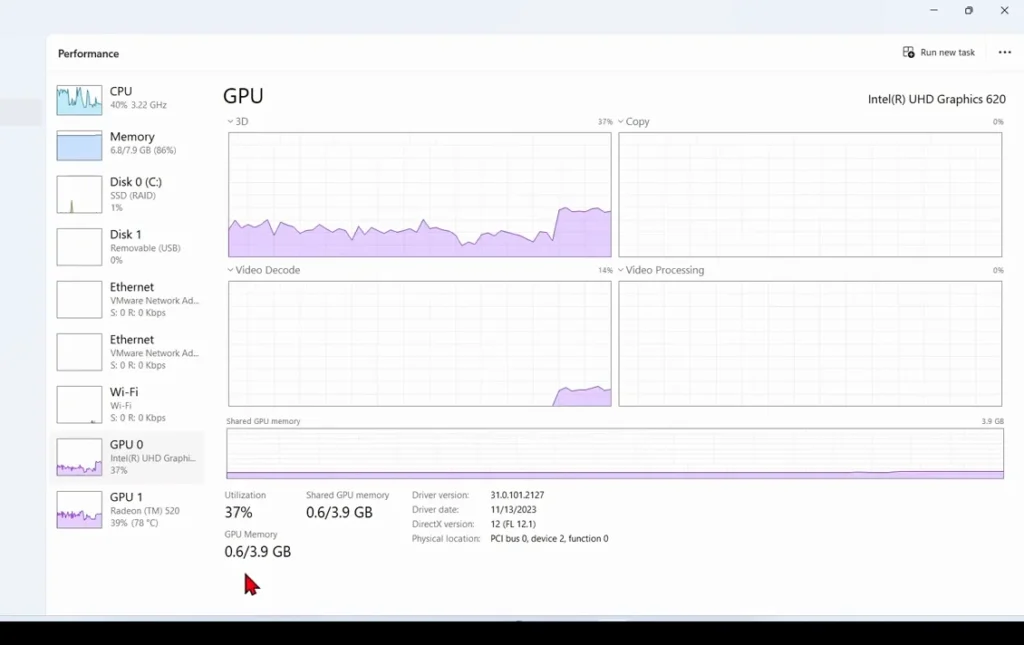
The same screen shows your dedicated GPU memory and driver version near the bottom, which is handy if you’re checking a game’s requirements.
If you see GPU 1 as well, your PC has two graphics processors. That’s normal, and the box below explains which one matters.
Why is there no GPU in Task Manager? Task Manager only lists GPUs when the graphics driver supports it. Very old drivers don’t, so the GPU section simply doesn’t appear. Your card is still there; use Method 2 to see its name, and consider updating your graphics drivers.
Method 2: Device Manager
- Right-click the Start button and select Device Manager.
- Click the arrow next to Display adapters to expand it.
- The name listed there is your GPU. If you see two entries, you have two GPUs.
Seeing “Microsoft Basic Display Adapter”? That isn’t a real graphics card. It’s the generic driver Windows uses when no proper driver is installed for your GPU. Your screen works, but games and video apps will run poorly. Install the correct driver from NVIDIA, AMD, or Intel, and the real name will appear. Our guide on how to update graphics drivers walks you through it.
Method 3: dxdiag (no menus to click through)
Prefer typing to clicking? This is the quickest keyboard-only route.
- Press Win + R to open the Run box.
- Type dxdiag and press Enter. If it asks about checking whether drivers are digitally signed, click Yes or No; either is fine.
- Open the Display tab and look at the Name field under Device. That’s your GPU.
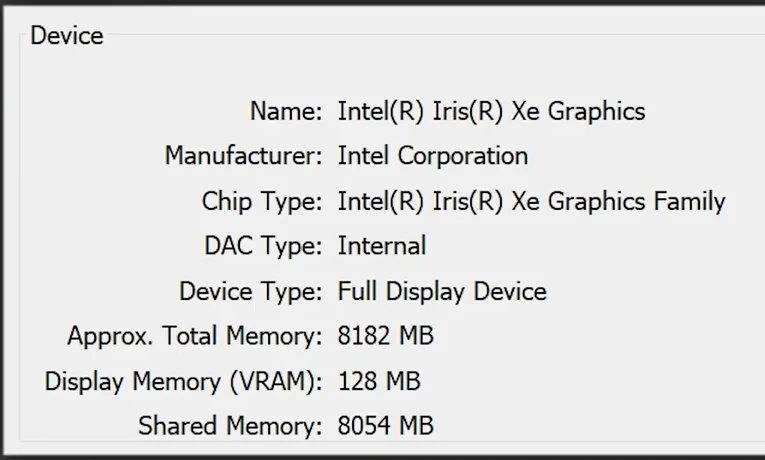
On many gaming laptops, dxdiag also shows a Render tab. That tab usually holds the dedicated graphics card, while the Display tab shows the integrated chip that drives the screen.
Two GPUs listed? Here’s which one matters
- Most laptops and many desktops have two: an integrated GPU built into the processor (often Intel or AMD Radeon Graphics) and a dedicated graphics card (usually NVIDIA GeForce or AMD Radeon RX).
- GPU 0 and GPU 1 are just the order Windows detected them. GPU 0 is not automatically your main or fastest card.
- Games normally run on the dedicated GPU. That’s the one to compare against a game’s system requirements. The integrated one handles light tasks to save power.
Want the full explanation, including how to force a game onto the right GPU? See our complete guide to checking what graphics card you have.
What does your GPU name mean?
The name tells you more than the brand. A quick way to read it:
- NVIDIA GeForce RTX 4060: the first digits (40) are the generation and the last two (60) are the tier. Within one generation, a higher tier is faster, so a 4070 beats a 4060. A “Laptop GPU” suffix means the mobile version, which is usually slower than the desktop card with the same number.
- AMD Radeon RX 7600: the same idea. 7 is the generation and 600 is the tier.
- Intel UHD, Iris Xe, or AMD Radeon Graphics (no “RX” number): this is integrated graphics built into your processor. It’s fine for everyday use and light games, but most new games list a dedicated card in their requirements.
To compare your card against a game’s listed GPU, match the generation first, then the tier.
On a Mac or Linux?
Mac: Click the Apple menu → About This Mac. Intel Macs show your graphics card on the Graphics line; Apple silicon Macs show the Chip (such as Apple M3), which has the GPU built in.
Linux: Open a terminal and run:
lspci | grep -i vgaThe line that comes back names your graphics card.
Now you know: what next?
You’ve got the name. Here’s what to do with it:
- Check a game’s requirements. Compare your GPU against the game’s minimum and recommended specs, usually listed on its Steam, Epic, or publisher store page. Use the dedicated GPU if you have two.
- Check how hot it runs. If games stutter or your fans roar, see our guide to checking your GPU temperature.
- Need specs, VRAM, or the two-GPU details? Our full guide to finding your graphics card covers all of it, including free tools that show deeper specs.
FAQ
What’s the fastest way to check what GPU I have?
Press Ctrl + Shift + Esc, select Performance, and click GPU 0. The name in the top-right corner of Task Manager is your graphics card. It takes about 10 seconds on Windows 11 or 10.
Is a GPU the same as a graphics card?
Close enough for this purpose. The GPU is the chip that does the graphics work; the graphics card is the board that holds it, along with memory and cooling. Windows shows the GPU name, which is also how cards are sold.
Why does my PC say “Microsoft Basic Display Adapter”?
Your graphics driver is missing or not installed correctly, so Windows is using a generic fallback driver. Install the driver for your GPU and its real name will show in Device Manager and Task Manager.
Which GPU does my laptop use for games?
Usually the dedicated one, the NVIDIA GeForce or AMD Radeon RX entry, not the integrated Intel or AMD Radeon Graphics chip. Don’t go by GPU 0 or GPU 1; those numbers only reflect detection order.
Can I check my GPU without opening my PC?
Yes. Every method on this page is software-only. Task Manager, Device Manager, and dxdiag are all built into Windows, so there’s nothing to download or unscrew.