
Most "speed up your laptop" guides hand you ten random tips and hope one sticks. That’s backwards. A slow laptop is almost always slow for one main reason: the processor is maxed, memory is full, the drive is choking, or the machine is too hot. Find which one, and the fix is usually obvious and free.
Quick answer: Press Ctrl + Shift + Esc to open Task Manager, click the CPU, Memory, and Disk column headers to see what’s maxed out, then apply the matching fix below. For most laptops, that means a proper restart, trimming startup apps, freeing drive space, and installing updates. If the laptop still has a spinning hard drive (HDD), swapping it for an SSD is the single biggest upgrade you can make.
This guide walks you through the 2-minute check, a fix ladder ordered by impact, the "speed-up" products you should never pay for, and the two hardware upgrades that genuinely bring an old laptop back.
Step zero: the 2-minute Task Manager check
Before changing anything, look at what the laptop is actually doing while it feels slow.
- Press Ctrl + Shift + Esc to open Task Manager. (You can also right-click the Start button and choose Task Manager.)
- If you see a small window, click More details.
- Make sure you’re on Processes (the top icon in the left menu in Windows 11).
- Click the CPU column header to sort by processor use. Then click Memory, then Disk. Watch each for 30 seconds or so while you reproduce the slowness.
- For the big picture, open the Performance tab and look at the CPU, Memory, and Disk graphs.
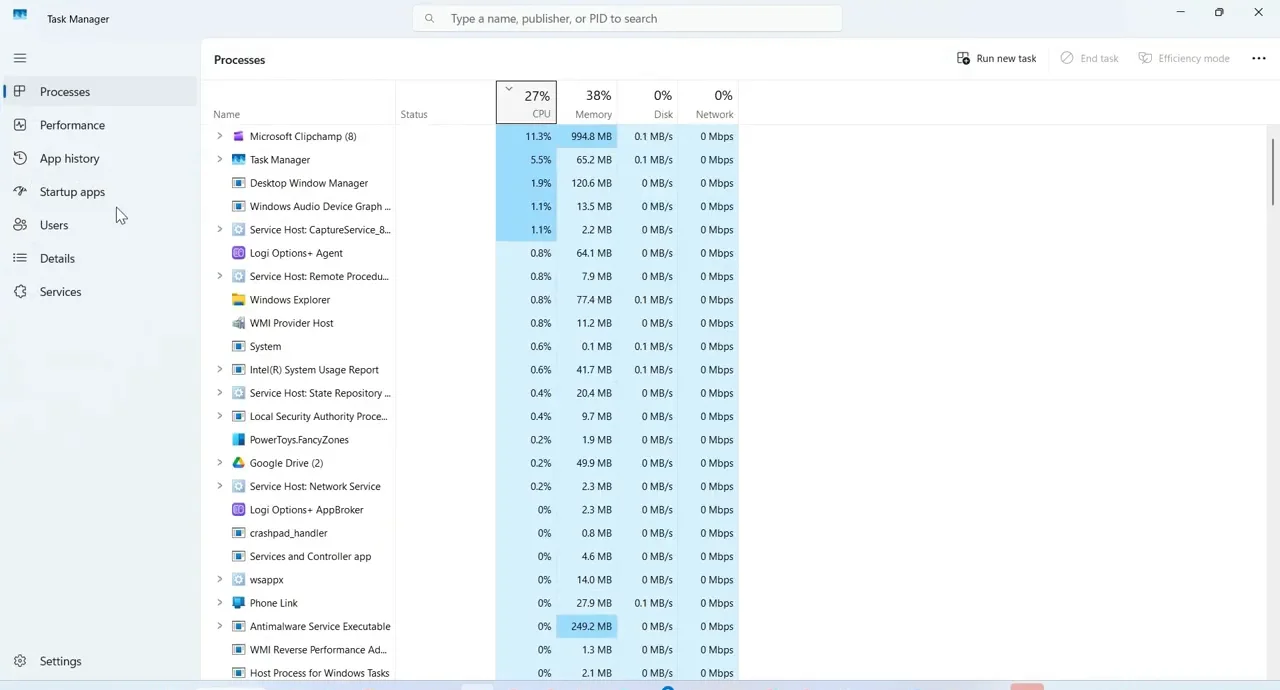
Here’s how to read what you see:
| What stays high | What it usually means | Go to |
|---|---|---|
| CPU near 100% for long stretches | One app or background process is hogging the processor, or the laptop is overheating and running slowly on purpose | Fixes 1, 2, 5, 8 and the overheating section |
| Memory consistently very high (roughly 85–90%+) | Too many apps or browser tabs for the RAM you have | Fixes 2, 6 and the RAM upgrade |
| Disk pinned at or near 100% | Drive is the bottleneck — very common on HDD laptops, or when updates, antivirus scans, or sync are running | Fixes 3, 4, 8 and the SSD upgrade |
| Nothing stays high, but it still feels sluggish | Heat, power settings, a nearly full drive, or a heavy browser | Fixes 3, 6, 7 and overheating |
Is one specific process at the top every time? Note its name. If you don’t recognize it, search it before ending it — some names that look strange (like "Antimalware Service Executable" or "System") are core Windows processes doing normal, temporary work.
How to tell if your drive is an HDD or SSD: In Task Manager, open Performance and click your Disk 0. The drive type is shown at the top right (HDD or SSD). You can also search Start for Defragment and Optimize Drives, which lists each drive’s media type.
What kind of slow is it?
Match your symptom to where you should start:
- Slow to boot or sign in → Fix 1 (restart properly), Fix 2 (startup apps). On an HDD laptop, the SSD upgrade is the real cure.
- Apps are slow to open and switch → Check Memory and Disk in Task Manager first, then Fixes 3, 8, and the hardware section.
- The browser is the slow part → Fix 6 first. The browser is often the heaviest app on the machine.
- Games stutter or frame rates dropped → Fix 4 (especially graphics drivers), Fix 7 (power mode), and overheating.
- Everything lags after an update → Fix 1 (a real restart), then Fix 4 (let pending updates and driver installs finish). Background work often runs for a while after a big update.
- Fan is loud all the time → Check CPU in Task Manager, then the overheating section.
The fix ladder: in order of impact
Work top to bottom. After each step, use the laptop for a bit and see if it’s better before moving on.
1. Restart properly (Shut down isn’t the same thing)
Here’s something most guides miss: on many Windows laptops, Shut down is not a fresh start.
Windows has a feature called Fast Startup, which is turned on by default on many PCs. When you choose Shut down with Fast Startup on, Windows closes your apps and signs you out, but saves the core of the system (the kernel session and loaded drivers) to a file on the drive, then reloads it at next boot. That makes startup faster, but it also means a glitchy driver or stuck system state can survive a shutdown.
Restart doesn’t use that shortcut. It ends the session completely and starts Windows from scratch.
To get a genuinely clean start:
- Start > Power > Restart. This is the one to use when the laptop is acting slow or strange.
- Or hold Shift while you click Shut down to force a full shutdown that skips Fast Startup.
If your laptop goes days or weeks in sleep mode, a real restart alone often helps. You don’t need to turn Fast Startup off permanently; just use Restart when troubleshooting.
2. Stop unnecessary startup apps (disable, don’t delete)
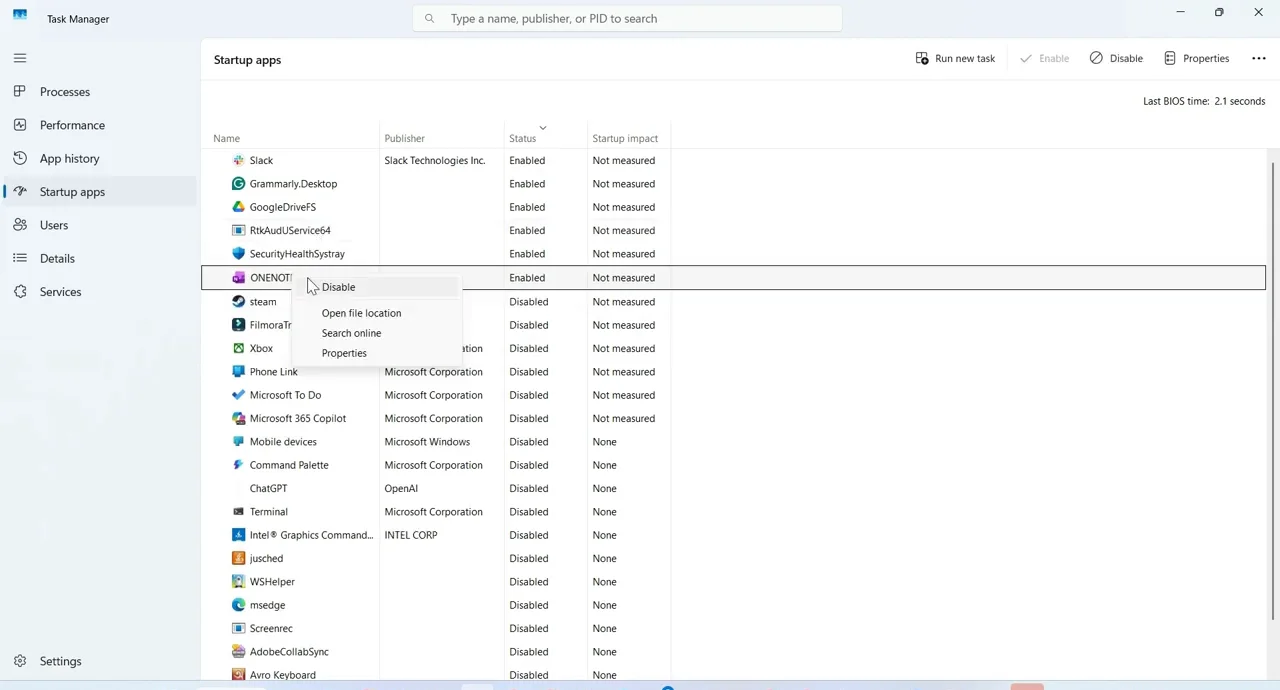
Every app that launches when you sign in competes for CPU, memory, and disk at the worst possible moment. This is the top fix for "slow to boot."
In Task Manager:
- Press Ctrl + Shift + Esc.
- Select Startup apps in the left menu.
- Check the Startup impact column. Right-click anything you don’t need at sign-in and choose Disable.
In Settings (Windows 11):
- Go to Settings > Apps > Startup.
- Sort by Startup impact and turn off the toggles for apps you don’t need at sign-in.
What’s usually safe to disable: game launchers, chat apps, music apps, cloud-storage helpers you don’t rely on, and manufacturer "assistant" or update utilities. What to leave alone: your antivirus/security software, touchpad and audio drivers, and anything from your laptop maker you’re not sure about.
Disable, don’t delete. Disabling only stops the app from launching at sign-in. The app still works when you open it, and you can re-enable it anytime. Uninstall only things you genuinely never use (Settings > Apps > Installed apps).
If an app keeps launching anyway, check its own settings for a "start with Windows" option. Also note that Windows 11 can reopen apps after sign-in; you can turn that off at Settings > Accounts > Sign-in options ("Automatically save my restartable apps…").
3. Free up storage space
A nearly full drive makes everything worse. Windows needs free space for updates, temporary files, and virtual memory (the page file), and an almost-full drive can make the whole system feel sluggish.
- Open Settings > System > Storage to see what’s using space.
- Click Temporary files, review the list, and remove what you don’t need. Be careful with Downloads if it’s checked — it deletes everything in your Downloads folder.
- Turn on Storage Sense (same page) so Windows cleans temporary files and the Recycle Bin automatically.
- Click Cleanup recommendations for large or unused files and apps.
- Move big photo and video folders to an external drive or cloud storage.
How much free space should you keep? There’s no official magic number. A common rule of thumb is to keep at least 10–20% of your system drive free, with more headroom being better on small drives. If Windows is warning you about low space, that’s the clear signal to act.
4. Install Windows updates and drivers
Updates fix performance bugs, and outdated drivers (especially graphics) are a common cause of stuttering.
- Go to Settings > Windows Update > Check for updates. Install everything and restart.
- Then go to Settings > Windows Update > Advanced options > Optional updates and check for driver updates.
- For graphics drivers, get them from your laptop maker or directly from Intel, AMD, or NVIDIA. Our guide on how to update graphics drivers covers each one step by step.
Laptop slow right after an update? That’s common and usually temporary. After a big update, Windows can spend time finishing installs, optimizing, re-indexing files, and running security scans. Plug it in, leave it on for a while, then do a proper Restart. If it’s still slow days later, check Task Manager to see what’s busy.
Still on Windows 10? Microsoft ended support for Windows 10 on October 14, 2025. It still runs, but it no longer gets regular free security updates. If your laptop meets Windows 11’s requirements, upgrading is the long-term fix; if it doesn’t, that’s part of the "when to stop fixing" math below.
5. Run a full malware scan
Malware, adware, and crypto-miners can quietly eat CPU and disk. Windows 11 already includes Microsoft Defender Antivirus, so you don’t need to buy anything to check.
- Go to Settings > Privacy & security > Windows Security > Virus & threat protection.
- Under Current threats, click Scan options.
- Choose Full scan and click Scan now. It can take a while; that’s normal.
If you suspect something stubborn (pop-ups, browser redirects, unknown apps that reappear), use Microsoft Defender Offline scan from the same Scan options list. It restarts your laptop and scans before Windows fully loads, which helps catch malware that hides while Windows is running. Save your work first. (This option may not be available on some Arm-based Windows laptops.)
If you already use a third-party antivirus, run a full scan with it instead. Running two real-time antivirus programs at once can itself slow a laptop down.
6. Lighten the browser
For many people, the "slow laptop" is really a heavy browser.
- Audit your extensions. In Chrome go to Extensions > Manage Extensions; in Edge go to Extensions > Manage extensions. Remove anything you don’t recognize or use. Unknown extensions are also a common adware source.
- Close tabs you’re not using. Each tab uses memory. Bookmark or use a reading list instead of keeping 40 tabs open. Edge’s Sleeping tabs and Chrome’s Memory Saver can help put inactive tabs to rest.
- Check the browser’s own task manager. Press Shift + Esc in Chrome or Edge to see which tab or extension is using the most memory and CPU.
- Hardware acceleration — test, don’t assume. In Chrome it’s under Settings > System; in Edge under Settings > System and performance, labeled "Use graphics acceleration when available." Usually it should stay on. Toggling it is only a troubleshooting test if you see video stutter or graphics glitches; if switching it off doesn’t help, turn it back on.
7. Check power settings
Laptops intentionally trade speed for battery life, and the setting may be holding yours back.
- Go to Settings > System > Power & battery.
- Under Power mode, you’ll see options like Best power efficiency, Balanced, and Best performance. Best performance lets the processor run at higher speeds more often, at the cost of more heat, fan noise, and battery drain. Balanced is the sensible default; try Best performance when plugged in and you need the speed.
- Check Energy saver. On Windows 11 24H2 and later, Energy saver replaced the old Battery saver. When it’s on, Windows prioritizes efficiency and limits background activity — and you can’t change the power mode until it’s off. Make sure it isn’t turning on too early (you can set the battery percentage where it kicks in).
Two more things worth knowing:
- Many laptops run noticeably slower on battery than plugged in, by design. If it’s only slow unplugged, that’s normal behavior, not a fault.
- Some manufacturers add their own performance or "quiet" mode in a vendor app. If you’ve set a quiet or battery mode there, it can override what you expect.
On Windows 10, look for Battery saver and the power mode slider instead.
8. Tame background sync and apps
Some background work is useful, just badly timed.
- Pause OneDrive while you work. Click the OneDrive cloud icon in the taskbar, open Help & Settings (the gear), choose Pause syncing, and pick 2, 8, or 24 hours. Big initial syncs can tie up an HDD for a long time.
- Search indexing on HDDs. Windows builds a search index in the background. On an older HDD laptop, keeping indexing on Classic (rather than Enhanced) limits it to your libraries and desktop. You’ll find this at Settings > Privacy & security > Searching Windows. We don’t recommend disabling the Windows Search service outright — it breaks fast search and the work is usually temporary after big changes.
- Background apps. For individual Store apps, go to Settings > Apps > Installed apps, click the three dots next to an app, choose Advanced options (where available), and set Background apps permissions to Never.
Overheating: a hot laptop slows itself down on purpose
When a laptop gets too hot, the processor lowers its speed to protect itself. That’s called thermal throttling, and it feels exactly like a slow laptop — no software fix will cure it. Signs: the fan is loud constantly, the bottom is hot, and performance drops after a few minutes of heavy use.
Dust-clogged vents, a dried-out cooling system, and using the laptop on a bed or couch are the usual culprits. We cover the safe fixes in our dedicated guide to laptop overheating. While you’re giving the laptop some care, our guide on how to clean a laptop screen covers the safe way to clean the display too.
The junk list: don’t waste your money or time
⚠️ Skip all of these. They’re either useless on modern Windows, risky, or both.
- Registry cleaners — Removing old registry entries doesn’t make a measurable speed difference on modern Windows, and a bad "clean" can break apps or Windows itself.
- RAM cleaners / "memory booster" apps — Windows manages memory on its own; force-freeing RAM just makes apps reload data they’d already cached, which can make things slower.
- Driver-updater tools — They often install wrong or generic drivers and bundle extra software. Use Windows Update and your laptop maker or chip vendor instead.
- Defragmenting an SSD — SSDs don’t benefit from defragmentation. Windows’ built-in Optimize Drives already knows the difference: it sends TRIM commands to SSDs (which helps the drive manage free space) and defragments HDDs, on a schedule by default. Leave it on automatic and don’t use third-party defrag tools on an SSD.
- Paid "PC tune-up" suites — They bundle the free Windows tools above, plus the junk above, into a subscription, and often add their own background processes and startup entries — the very thing slowing you down.
Notice what’s missing from this list: Windows’ own built-in tools. Disk cleanup, Storage Sense, startup management, Defender scans, and Optimize Drives already cover what these products claim to do, for free.
The honest hardware section: the two upgrades that actually work
If your laptop is a few years old and the fixes above only helped a little, hardware is the real limit. There are only two upgrades that consistently make an old laptop feel fast again. (A faster processor isn’t one of them — laptop CPUs are almost always soldered and can’t be swapped.)
Upgrade 1: Replace the hard drive with an SSD
If your laptop still runs Windows from a spinning hard drive (HDD), this is the single biggest improvement you can make. Boot time, app launches, and updates are all limited by the drive, and an HDD is dramatically slower than any SSD. It’s also the classic cause of "100% disk" in Task Manager and the "old laptop that feels dead" problem.
Before you buy, find out what your specific model accepts:
- 2.5-inch SATA bay — Common in older laptops with HDDs. A 2.5-inch SATA SSD drops in where the hard drive was.
- M.2 slot — Newer laptops use small M.2 drives. Some M.2 slots support NVMe (faster), some only SATA M.2, and they also differ in physical length. The wrong type won’t work.
- Some laptops have both, and a few have soldered storage that can’t be upgraded at all.
Check your laptop’s service manual or the maker’s support page for your exact model number (usually on a sticker underneath or in Settings > System > About). You’ll also need to move Windows to the new drive — either by cloning the old drive or doing a clean install — and back up first either way.
Upgrade 2: Add more RAM
If Task Manager shows memory consistently very high and you’re running a browser with lots of tabs plus everyday apps, more RAM helps. For a typical Windows 11 laptop used for browsing, school, and office work, going from 8GB to 16GB is the common upgrade that makes multitasking noticeably smoother.
The honest catch: many modern laptops have RAM soldered to the motherboard, which means it can’t be upgraded. Others have one or two removable slots (SO-DIMM), and some have a mix of soldered memory plus one slot. Check your model’s specs or service manual before buying, and match the memory type and speed it supports.
If Memory isn’t the bottleneck in Task Manager, more RAM won’t make a difference — which is exactly why you diagnose first.
Is upgrading worth it?
Rule of thumb: an SSD and/or RAM upgrade is worth it if the laptop is otherwise sound — the battery holds a reasonable charge, the screen, keyboard, and hinges are fine, it runs (or can run) a supported version of Windows, and the processor isn’t the bottleneck for what you do. If several of those are already failing, put the money toward a replacement instead.
Using a Mac? The short version
Most "slow laptop" searches are about Windows, but the same diagnose-first approach works on a MacBook:
- Activity Monitor is the Mac’s Task Manager. Open it from Applications > Utilities > Activity Monitor (or search it in Spotlight) and check the CPU, Memory, and Disk tabs. In the Memory tab, the Memory Pressure graph tells you if RAM is the bottleneck.
- Storage: go to Apple menu > System Settings > General > Storage for recommendations such as Store in iCloud, optimizing storage, and emptying the Trash automatically.
- Login items (the Mac’s startup apps) are in System Settings > General > Login Items & Extensions.
- Keep macOS updated, and restart occasionally instead of only closing the lid.
Same junk rules apply: skip "Mac cleaner" and memory-booster apps.
When to stop fixing
Some problems aren’t software, and pushing on can make things worse.
A swollen battery means stop. If the trackpad is bulging or not clicking properly, the case is separating, or the laptop rocks on a flat table, the battery may be swelling. Stop using it, unplug it, don’t press on it or try to puncture it, and get it serviced by the manufacturer or a qualified repair shop. This is a safety issue, not a performance one.
Watch for a failing drive. Clicking or grinding sounds from an HDD, files that won’t open or copy, frequent freezes when reading files, and drive health (SMART) warnings from your laptop maker’s diagnostics are signs the drive is failing. Back up your files immediately, before trying anything else. A failing drive can cause severe slowness, and no setting will fix it.
Age and economics. If the laptop is old, can’t run a supported version of Windows, and would need a new battery plus an SSD and RAM to be usable, the repair math often favors replacement. If it just needs an SSD or a RAM bump and everything else is healthy, upgrading is usually the better deal.
Your 10-minute action plan
- Open Task Manager (Ctrl + Shift + Esc) and find the bottleneck.
- Restart (not Shut down).
- Disable unneeded startup apps.
- Free up drive space and turn on Storage Sense.
- Install Windows and driver updates.
- Run a full Defender scan.
- Trim browser extensions and tabs.
- If it’s an HDD laptop, plan an SSD upgrade.
Bookmark this page so you can run the Task Manager check again the next time things feel off — and if heat is your problem, head to our laptop overheating guide next.
FAQ
Why is my laptop so slow all of a sudden?
A sudden slowdown usually has a specific cause: a Windows update finishing in the background, an app or browser tab hogging the CPU, a nearly full drive, malware, or overheating. Open Task Manager (Ctrl + Shift + Esc), sort by CPU, Memory, and Disk, and see what’s at the top. Then do a proper Restart.
Why does my laptop show 100% disk usage?
It usually means the drive can’t keep up with what’s being asked of it. It’s most common on laptops with spinning hard drives, especially during updates, antivirus scans, OneDrive syncing, or search indexing. Let updates finish, pause syncing, and trim startup apps. If it happens constantly on an HDD laptop, upgrading to an SSD is the lasting fix.
Is restarting better than shutting down?
For fixing slowness, yes. With Fast Startup on, Shut down saves part of the Windows system state and reloads it at next boot, while Restart starts Windows completely fresh. Use Restart when troubleshooting, or hold Shift while clicking Shut down to force a full shutdown.
Will more RAM make my laptop faster?
Only if memory is the bottleneck. If Task Manager shows memory consistently very high while you work, upgrading (for example, from 8GB to 16GB) helps with multitasking. Check first whether your model’s RAM is soldered, because many modern laptops can’t be upgraded.
Should I defragment my laptop?
Not manually, and never with third-party tools on an SSD. Windows’ built-in Optimize Drives runs automatically: it defragments hard drives and sends TRIM to SSDs. Leave it on its default schedule.
Do PC cleaner or optimizer apps work?
Not in any way you need to pay for. Registry cleaners, RAM boosters, driver updaters, and tune-up suites duplicate free Windows tools at best and cause problems at worst. Windows already includes everything you need to clean up and protect your laptop.
How do I speed up a slow laptop on Windows 11 without spending money?
Restart properly, disable unneeded startup apps (Settings > Apps > Startup), free up space (Settings > System > Storage), install updates, run a full Microsoft Defender scan, trim browser extensions, and check your power mode. Those free steps fix most software-related slowdowns.
Is my laptop too old to fix?
If it runs from a hard drive but is otherwise healthy, an SSD can give it years more life. If it can’t run a supported version of Windows, has a worn battery, and would need several upgrades just to be usable, replacing it is usually the better value.