
Quick answer: Press Windows key + Ctrl + Shift + B at the same time. Your screen will flash or go black for a second, and you should hear a short beep. That’s Windows resetting your graphics driver — it takes a couple of seconds, it does not reboot your PC, and it does not close your apps. It works on Windows 10 and Windows 11 with NVIDIA, AMD, and Intel graphics.
Will you lose your work? Open documents, browser tabs, and apps stay exactly where they were. The one honest caveat: if a game or program had already crashed before you pressed the keys, the shortcut can’t bring back progress that program lost. It recovers the display, not a crashed app.
If the shortcut fixed it, you’re done. If the problem keeps coming back, work down the ladder below in order — each step is more thorough (and more disruptive) than the last:
| Step | What it does | Time | Closes apps? | Use it when |
|---|---|---|---|---|
| 1. Win + Ctrl + Shift + B | Resets the graphics driver/display stack | ~2 seconds | No | Frozen, black, or flickering screen right now |
| 2. Device Manager disable/enable | Stops and reloads the driver | ~1 minute | Usually no (save first) | Shortcut didn’t help; glitch persists |
| 3. Vendor software reset | Restores AMD/NVIDIA settings to defaults | ~2–5 minutes | Varies | A bad setting or profile is the suspect |
| 4. Clean reinstall with DDU | Removes every trace of the driver, then fresh install | 20–40 minutes | Yes (reboots) | Recurring problems after updates, switching GPU brands |
Only need to update your driver, not reset it? See our full guide on how to update graphics drivers.
Method 1: Restart Your Graphics Driver With Win + Ctrl + Shift + B
This is the official Windows shortcut. Microsoft’s own blank-screen troubleshooting page tells you to press Windows + Ctrl + Shift + B to reset the graphics driver, and says a beep or screen flicker means it worked.
How to do it:
- Press and hold Windows key + Ctrl + Shift.
- Tap B.
- Watch for the screen to blink or go black for a moment and listen for a beep.
- Give it a few seconds. Your desktop should redraw normally.
Can you use it on a black screen? Yes — that’s exactly what it was built for. As long as the PC is on and Windows has finished loading (check that Caps Lock or Num Lock lights toggle), you can press it blind.
Mid-game freeze? Press Alt + Tab first if you can, so the game isn’t capturing your keyboard, then use the shortcut.
What does the shortcut actually do?
The shortcut tells Windows to reset its graphics pipeline — the graphics driver and the Desktop Window Manager (DWM) that draws everything you see — and rebuild the image on screen. Think of it as unplugging and replugging your monitor in software.
What it doesn’t do matters just as much:
- It doesn’t reboot Windows or log you out.
- It doesn’t reset your graphics settings (resolution, refresh rate, NVIDIA/AMD profiles all stay the same).
- It doesn’t update, roll back, or reinstall your driver.
- It doesn’t fix hardware.
So “restart” and “reset” mean two different things here. The shortcut is a restart of the running driver. A true reset — wiping settings or reinstalling the driver from scratch — is Methods 3 and 4.
Did you know? Windows already does something similar on its own. When the GPU stops responding for about two seconds, a feature called Timeout Detection and Recovery (TDR) automatically resets the driver. If you’ve ever seen a “Display driver stopped responding and has recovered” message, that was TDR. The keyboard shortcut lets you trigger a reset yourself.
Shortcut not working? Check these first
- Gaming keyboard “Win-lock” or “Game Mode”: Many gaming keyboards disable the Windows key during play. Turn the lock off and try again.
- A game is grabbing input: Alt + Tab out of a full-screen game, then retry.
- Remote Desktop or a virtual machine: The shortcut targets the local graphics driver, so it may not pass through a remote session.
- The PC is actually asleep or frozen solid: If the lock-key lights don’t respond, Windows itself has hung. A forced restart (hold the power button) is your only option.
- It’s a cable or input problem: A loose DisplayPort/HDMI cable or the monitor set to the wrong input will look like a black screen but isn’t a driver issue.
Method 2: Disable and Re-Enable the Driver in Device Manager
If the shortcut didn’t clear the glitch, a full disable/enable cycle stops the driver completely and loads it again. It’s more thorough than the shortcut but still doesn’t touch your settings or require a reboot.
Before you start: Save your work. Your screen will go black or drop to a low resolution for a few seconds while the driver is off — that’s expected. Close any games first.
- Right-click the Start button and choose Device Manager.
- Expand Display adapters.
- Right-click your graphics card and choose Disable device.
- Click Yes on the warning that the device will stop functioning.

- Wait 5–10 seconds. The screen may flicker, go black, or switch to a basic low-resolution mode.
- Right-click the same graphics card again and choose Enable device.
- Wait for the display to return to your normal resolution.
Laptop or PC with two GPUs? You’ll see two entries under Display adapters — usually an integrated chip (Intel or AMD Radeon Graphics) and a dedicated card (NVIDIA GeForce or AMD Radeon RX). Disable/enable the one that’s misbehaving — usually the dedicated card if the glitch happens in games. On many laptops the built-in screen is wired through the integrated chip, so disabling that one can black out the screen until you re-enable it. If you can’t see well enough to click, press Tab and the arrow keys to navigate, or connect an external monitor. Not sure which GPU is which? See what graphics card do I have.
Tip: If the glitch started right after a driver update, right-click the GPU → Properties → Driver tab → Roll Back Driver (if it isn’t grayed out). That restores the previous version without a full reinstall.
Method 3: Reset Through Your GPU Vendor’s Software
Vendor apps don’t “restart” the driver the way Windows does. What they can do is reset your settings to defaults — useful when a bad overclock, profile, or tweak is causing the problem. Here’s what each brand actually offers (not sure which brand you have? Check what graphics card do I have).
AMD (AMD Software: Adrenalin Edition)
AMD has two separate reset options, and they do very different things:
- Settings-only reset (no reinstall): Open AMD Software, type Factory Reset in the search box, choose Factory Reset – System Settings, then click Perform Reset. This restores all AMD settings and profiles — including custom tuning and per-game profiles — to defaults without reinstalling anything.
- Installer Factory Reset (reinstall): When you run the AMD Software installer, an optional Factory Reset checkbox removes all prior versions of AMD Software before installing fresh, and temporarily pauses Windows Update during the install. It’s AMD’s built-in clean install. Note that a Factory Reset install removes the Roll Back Driver option in Device Manager.
NVIDIA (NVIDIA App and Control Panel)
NVIDIA doesn’t have a one-click “restart driver” button — use Method 1 or 2 for that. To reset 3D settings, open NVIDIA Control Panel → Manage 3D settings → Restore Defaults. For a full refresh, NVIDIA’s standalone driver installer offers Custom (Advanced) → Perform a clean installation, which removes the previous version and installs the new one, resetting your NVIDIA settings in the process.
Intel
Intel’s graphics software also has no one-click driver restart; use Methods 1 or 2. Intel’s standalone driver installer does include a clean-install option you can tick during setup when you reinstall.
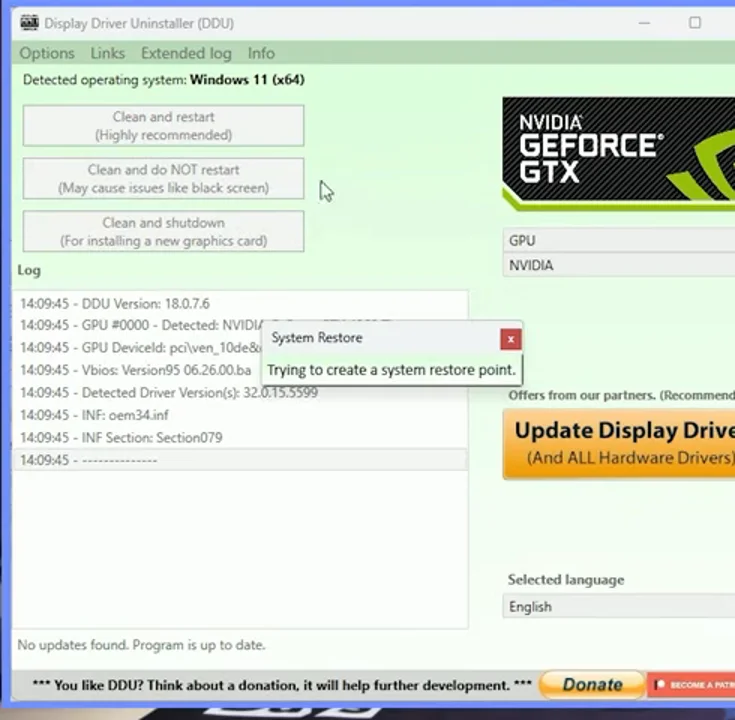
Method 4: The Full Reset — Clean Reinstall With DDU
Display Driver Uninstaller (DDU) is the nuclear option: a free tool from Wagnardsoft that strips out every file, registry entry, and leftover from NVIDIA, AMD, or Intel drivers so you can install fresh. You don’t need it for a one-time glitch. Wagnardsoft itself cautions against running it with every driver update.
Use DDU when:
- Artifacts, crashes, or black screens keep coming back after driver updates
- The vendor installer fails or refuses to install
- You’re switching GPU brands (e.g., NVIDIA to AMD) and want no leftovers
- The vendor’s own clean-install option (Method 3) didn’t solve it
Before you start
- Download DDU only from the official Wagnardsoft website (wagnardsoft.com). Wagnardsoft prohibits distribution from unauthorized servers, and copycat download sites are a common malware trap.
- Download your new driver first from NVIDIA, AMD, Intel, or your laptop maker, so you have it ready offline.
- Create a restore point: search the Start menu for Create a restore point, then click Create.
- Have your BitLocker recovery key handy if your drive is encrypted — Windows may ask for it when booting into Safe Mode.
- Windows 11 24H2 and later: your PIN may not work in Safe Mode. Make sure you know your account password and have used it to sign in at least once.
Steps (functional overview)
- Disconnect from the internet (unplug Ethernet or turn off Wi-Fi). This stops Windows Update from auto-installing a generic driver after the cleanup — Wagnardsoft recommends it.
- Boot into Safe Mode. Go to Settings → System → Recovery → Advanced startup → Restart now, then Troubleshoot → Advanced options → Startup Settings → Restart, and press 4 (or F4) for Safe Mode. DDU works in normal mode too, but Wagnardsoft recommends Safe Mode for the most stable cleanup.
- Run DDU (extract it first if needed). Select GPU as the device type and choose your vendor — NVIDIA, AMD, or Intel.
- Click Clean and restart. DDU removes the driver and reboots you back into normal Windows. Your screen will run at a low resolution — that’s normal without a driver.
- Install the fresh driver you downloaded earlier.
- Reconnect to the internet and reboot once more.
- For the full driver install walkthrough by brand, follow our guide: how to update graphics drivers.
If anything goes wrong, boot into Safe Mode or Windows Recovery and use System Restore to roll back to the restore point you made.
When Resetting Helps — and When It Won’t
A driver reset fixes software problems. It can’t fix hardware, so it’s worth knowing where the line is.
Resetting usually helps with:
- Screen flicker or a flashing taskbar
- Brief black screens, especially after waking from sleep
- Glitches right after a driver or Windows update
- A frozen display while the PC is otherwise responsive (you can hear audio, music keeps playing)
- A stuck overlay, frozen capture, or corrupted on-screen graphics after alt-tabbing
Resetting won’t fix:
- Failing hardware — a dying GPU, bad VRAM, or damaged cable produces artifacts that come straight back
- Overheating — if the GPU crashes under load, check whether it’s running hot. Here’s what a normal GPU temp looks like.
- Power supply problems — an underpowered or failing PSU can cause black screens and reboots under gaming load
- A monitor set to the wrong input or a loose cable
If it keeps happening: a quick escalation checklist
- Reseat your display cable. Unplug and firmly reconnect DisplayPort or HDMI at both ends; try a different cable or port.
- Install pending Windows updates (Settings → Windows Update).
- Check temperatures while gaming against normal GPU temps.
- Look in Event Viewer (Windows Logs → System) for “Display” warnings saying the driver stopped responding and recovered — frequent entries point to a deeper driver, thermal, or hardware issue.
- Remove any overclock on the GPU (and undo memory overclocks/XMP to test).
- Test your RAM with Windows Memory Diagnostic; bad memory can mimic driver crashes.
- Still crashing after a DDU clean install? Test the card in another PC or contact the manufacturer — it’s likely hardware.
Laptops and Hybrid Graphics: What’s Different?
The Win + Ctrl + Shift + B shortcut works the same on laptops. On laptops with two GPUs (for example, Intel integrated graphics plus an NVIDIA GeForce chip), Windows manages both adapters through the same graphics system, so a reset typically refreshes the whole display pipeline. You may see the built-in screen blink once, just like on a desktop.
The difference shows up in Device Manager (Method 2): there are two adapters, and the one driving your built-in screen is often the integrated chip. Disable that one and the panel can go dark until you re-enable it. For laptops, it’s also smart to check your manufacturer’s support site for drivers, since some models use customized drivers.
Frequently Asked Questions
What is the shortcut to reset the graphics driver?
Press Windows key + Ctrl + Shift + B. The screen flashes or goes black for a second, a beep sounds, and the driver resets in about two seconds — no reboot needed. It works on Windows 10 and 11.
Does Win + Ctrl + Shift + B restart my computer?
No. It only resets the graphics driver and redraws your display. Windows keeps running, you stay signed in, and your apps stay open.
Will resetting my graphics driver delete my files or close my apps?
No files are deleted. The shortcut and the Device Manager disable/enable cycle keep apps open, but save your work before Method 2 just in case. Only the DDU clean reinstall requires restarts. A game that crashed before you reset can still lose unsaved progress.
Does resetting the graphics driver reset my display settings?
The shortcut and Device Manager method don’t. Your resolution, refresh rate, and NVIDIA/AMD settings stay the same. AMD’s Factory Reset, NVIDIA’s clean installation, and a DDU reinstall do return settings to defaults.
Is it safe to reset the graphics driver?
Yes. The shortcut is a built-in, Microsoft-documented feature. Device Manager is safe if you save first. DDU is safe when downloaded from Wagnardsoft and used with a restore point.
Why does my screen go black when I press Win + Ctrl + Shift + B?
That’s normal — it’s the driver resetting. The screen should come back within a couple of seconds. If it stays black, wait 10–15 seconds, then try Windows + P to cycle display modes or check your cable.
How do I reset my graphics driver without a keyboard?
Use Device Manager (Method 2) with a mouse: right-click Start → Device Manager → Display adapters → right-click your GPU → Disable device, then Enable device. A full PC restart also reloads the driver.
Should I reset or update my graphics driver?
Reset first — it’s instant and fixes most temporary glitches. If problems keep returning, update or clean-install the driver. Our guide on how to update graphics drivers walks you through it for NVIDIA, AMD, and Intel.
The bottom line: Start with Win + Ctrl + Shift + B — it fixes most freezes and black screens in two seconds without touching your work. Move to Device Manager, then vendor tools, and save DDU for problems that keep coming back. If nothing sticks, check temps and hardware before blaming the driver.
Next step: Keep your drivers current so these glitches happen less often — follow our step-by-step guide to update your graphics drivers.