

Your fan is screaming, the keyboard is too hot to rest your wrists on, and the game that ran fine ten minutes ago is now stuttering — or the laptop just shut itself off. That’s frustrating, and it can feel alarming. The good news: laptop overheating is usually one of a handful of common, fixable problems, and most fixes cost nothing.
This guide does it in the right order. First, confirm it’s actually heat (and not just a laptop doing what it was designed to do). Then work through the causes from most to least likely, and the fixes from least to most effort — with the caveats spelled out, not buried.
Quick answer: If your laptop is overheating, put it on a hard, flat surface with the back raised, shut it down and clean the vents with short bursts of compressed air, close anything hogging the CPU or GPU in Task Manager, and switch to a balanced or quieter mode in your manufacturer’s app. If it still throttles or shuts down after that, the cause is usually internal — a dust mat on the heatsink, an aging fan, or (on older machines) dried thermal paste — and it’s time for a deeper clean or service.
Step 1: Confirm It’s Actually Overheating
Before you change anything, find out what’s really happening. “Hot to the touch” and “overheating” aren’t the same thing.
Measure the temperatures
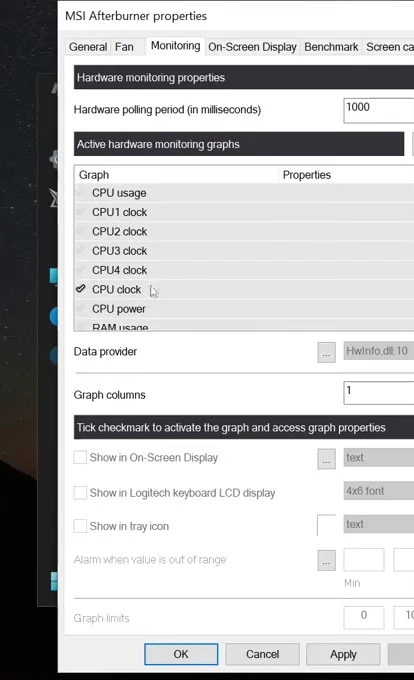
Use a free monitoring tool to watch CPU and GPU temperatures while you reproduce the problem (play the game, run the export, open the same tabs). Our guide to checking GPU temp walks through the tools that read both CPU and GPU sensors on Windows, including how to log readings over time. A log matters more than a single snapshot — you want to see what happens over 10–20 minutes, not one number.
Watch three things together:
- Temperature of the CPU and GPU
- Clock speed (GHz for the CPU, MHz for the GPU)
- Whether your monitoring tool flags thermal throttling (many show a “thermal limit” or “throttling: yes” indicator)
Read the symptoms
The throttling pattern. Performance is great at first, then collapses after a few minutes under load. Temperatures climb, hit a ceiling, and stay pinned there while clock speeds drop. In a game, that’s the classic “fine for 10 minutes, then the FPS falls apart” experience. Throttling is the chip deliberately slowing itself to stay within its temperature limit.
The emergency shutdown. The laptop turns off with no warning, usually under heavy load. As scary as it is, this is thermal protection doing its job: when temperatures pass a critical threshold, the hardware cuts power to prevent damage. It’s a clear sign the cooling can’t keep up — not a sign your laptop is already ruined.
Fan at full blast on a desk doing nothing. If the fan roars while the laptop is idle, something is either loading the processor in the background or the cooling path is clogged so badly that even light work runs hot. The temperature log tells you which.
How hot is “too hot” for a laptop?
Here’s the honest part that most guides skip: there’s no single safe laptop temperature. Laptop processors pack a lot of power into a thin case, and many are designed to run hot under load. Under a heavy, sustained workload, it’s common for thin laptops to sit with CPU temperatures in the 80s–90s °C. That’s typically by design, not a fault.
Intel and AMD chips each have a maximum junction temperature (often called TjMax) set by the manufacturer. When the chip reaches it, it automatically throttles to protect itself. For many laptop CPUs that limit sits around 100°C, but it varies by model and generation, and laptop makers also tune their own fan and power limits on top of it.
So judge by behavior, not by a scary number alone:
- Hitting 90°C+ while performance stays steady → usually normal for that machine under load.
- Hitting the limit and clock speeds dropping hard, stutters, or shutdowns → that’s the problem worth fixing.
- Running hot while idle or doing light work → something is wrong (background load or a clogged cooling system).
For the graphics side — what’s typical for a laptop GPU under gaming load — see our guide to normal GPU temperatures.
On a Mac? Apple’s Activity Monitor (Applications → Utilities) shows what’s loading the CPU. Fanless MacBook Air models don’t overheat in the usual sense — they slow down under sustained load by design. MacBook Pro models have fans and follow the same vent and load advice below.
Why Is My Laptop Overheating? Causes Ranked by How Often They’re the Real One
Most overheating comes down to one of these, roughly in this order of likelihood.
1. Dust-clogged vents and heatsink fins
This is the number-one culprit, especially on laptops more than a year or two old, and in homes with pets or carpet. Your laptop’s fan pulls air in and pushes it through a block of thin metal fins (the heatsink), which carries heat away from the CPU and GPU through heat pipes. Over time, dust and pet hair build a felt-like mat against those fins. Airflow drops, temperatures climb, and the fan spins harder to compensate — which is why an older laptop often gets louder before it starts throttling.
2. Vents blocked while you use it
Many laptops pull air in from the bottom. Put one on a bed, couch, blanket, or your lap, and you’re smothering the intake. A docked laptop with the lid closed and pushed against a wall can trap its own exhaust too. This is the easiest cause to fix and one of the most common.
3. Heavy background load
Sometimes the cooling is fine — the laptop is just working much harder than you think. A stuck browser tab, a sync client, an update running in the background, antivirus scans, or a game launcher that never fully closes can keep the CPU busy. If the laptop is hot and slow even at idle, the approach in our guide to fixing a slow laptop is the right place to start: find what’s eating CPU, then deal with it.
4. Dried-out thermal paste (older machines)
Thermal paste fills microscopic gaps between the processor and the heatsink so heat transfers efficiently. On many laptops it degrades slowly, so this is typically a problem after several years of regular use, not on a laptop you bought last year. Some newer gaming laptops use liquid metal or phase-change pads instead, which have their own lifespans and service rules.
5. A failing or dying fan
Listen. A grinding, rattling, clicking, or high-pitched whine means bearings are wearing out. A fan that stays silent when temperatures are clearly high — or a laptop that shuts down quickly under load — may mean the fan has stopped altogether. A failed fan is a hardware fault; cleaning won’t bring it back.
6. High room temperature
A laptop can only cool itself to a certain number of degrees above the air around it. On a hot summer day, in a room without AC, or in direct sunlight, everything runs hotter and throttles sooner — even on a clean machine.
7. Charging and gaming at the same time
Charging the battery produces heat inside the chassis, and gaming produces a lot more. Stack the two and you add extra warmth right next to the components that are already working hardest. On many gaming laptops you still need the charger plugged in for full performance, so the fix isn’t “never charge” — it’s managing it (see the habits section below).
How to Fix an Overheating Laptop (Easiest Fixes First)
Work through these in order. Check your temperatures and clock speeds again after each step, so you know which change actually helped.
Fix 1: Hard, flat surface — and raise the back
Move the laptop to a desk or table, then lift the rear edge by an inch or two. Anything stable works: a laptop stand, a hardcover book, a small block. If it doesn’t wobble while you type, it’s fine.
Why it works: many laptops draw cool air from the bottom. A hard surface stops fabric from blocking the intake, and the extra gap gives the fan more room to pull air in. It costs nothing and often makes a noticeable difference, especially on laptops with bottom intakes.
Fix 2: Clean the vents with compressed air (the right way)
Done carefully, this clears loose dust from the vents and the outer face of the heatsink. Done carelessly, it can damage the fan or leave liquid propellant inside the case.
Before you start
- Shut the laptop down fully — not sleep or hibernate. Unplug the charger and all accessories.
- Let it cool for a few minutes.
- Find all the vents. Check the bottom, sides, back, and the hinge area; some models hide vents near the hinge or under rubber feet. Your manual or the maker’s support page shows where they are.
- Check your manual for any cleaning instructions specific to your model.
The technique
- Keep the can upright. Tilting or shaking a can of compressed air can spray cold liquid propellant. If anything wet or frosty comes out, stop and let the can settle.
- Use short bursts, not a long blast. A second or so at a time, a few inches from the vent.
- Angle the nozzle across the vent slats rather than jamming it straight in. The goal is to lift dust off the fins and out of the case, not to pack it deeper.
- Alternate between intake and exhaust vents and watch for dust coming out. Keep going until bursts come out clean.
- Don’t let the fan free-spin wildly. Air pushed through the vents can spin the fan far faster than it was designed to run, which can damage the bearings. Short bursts keep this in check. If your fan is visible and reachable without poking anything through the grille (for example, if you’ve removed the bottom panel on a model that allows it), gently hold the fan still at its center hub while you blow.
- Never push tools, pins, or brushes into the vents. You can bend the fan blades or the fins.
What compressed air can’t fix: if a thick dust mat has formed on the inside face of the heatsink fins, air from outside often won’t move it. If temperatures barely change after a careful exterior clean on an older or pet-hair-heavy laptop, the real fix is opening the bottom panel to clean the fan and fins directly — something many models allow, but check your warranty first, or have a shop do it.
While you’re cleaning, you might want to tidy the rest of the machine too — here’s how to clean a laptop screen without streaks or damage.
Fix 3: Find what’s loading the machine (Task Manager)
On Windows, press Ctrl + Shift + Esc to open Task Manager. Click the CPU column, then the GPU column, to sort by usage.
- Look for anything using a lot of CPU or GPU while you’re not actively using it: a stuck browser tab, a launcher, a sync or backup tool, a crypto miner you didn’t install, or an update running in the background.
- Close what you don’t need. Use the Startup apps section (in Settings or Task Manager) to stop non-essential programs from launching at boot.
- If you see a process you don’t recognize using heavy resources, look it up before ending it, and run a malware scan if it seems suspicious.
On a Mac, open Activity Monitor and sort by % CPU.
If you’re seeing high usage with no obvious cause, our slow laptop guide covers the full diagnosis process.
Fix 4: Use your laptop’s performance and fan modes
Most laptops ship with a manufacturer app that controls power and fan behavior. Names and features vary by brand and model, but they usually look like this:
- Lenovo: Lenovo Vantage, or Legion Space on Legion gaming laptops
- ASUS: Armoury Crate or MyASUS (some owners use G-Helper, a lightweight third-party alternative for ASUS laptops)
- HP: OMEN Gaming Hub on OMEN/Victus, HP Command Center on others
- Dell / Alienware: Dell Power Manager / Dell Optimizer, or Alienware Command Center
- MSI: MSI Center
What to look for, by function:
- Balanced or quiet mode lowers power limits, which lowers heat. For browsing, office work, and video, you’ll rarely notice the performance difference.
- Performance or turbo mode raises power limits and usually spins the fans harder. For gaming, this can actually reduce throttling because the cooling ramps up sooner — but the laptop will be louder.
- Manual or custom fan curves are available on some models (mainly gaming laptops). A slightly more aggressive curve keeps temperatures lower at the cost of noise. Not every laptop offers this, and some only expose it in BIOS/UEFI settings.
- Frame-rate caps in games (or in your GPU’s control software) stop the GPU from rendering frames you don’t need, which cuts heat significantly — especially in lighter games running far above your screen’s refresh rate.
On Windows, you can also set the power mode under Settings → System → Power & battery. Your manufacturer’s app typically offers more control.
Fix 5: A cooling pad — an honest review
Cooling pads are the most oversold “fix” on the first page of Google, so here’s the straight version:
- What they do well: raise the laptop for better airflow, keep the bottom surface cooler, and help models with large bottom intakes breathe more easily. For gaming at a desk, a decent pad can make the keyboard deck more comfortable.
- What to realistically expect: typically a few degrees at best on internal CPU/GPU temperatures, depending on the laptop’s vent layout and the pad’s fan placement. Sometimes less.
- What they can’t do: a cooling pad will not clear a clogged heatsink, revive a dying fan, or fix dried paste. If dust is the problem, the pad is cooling the outside of a laptop whose insides still can’t breathe.
If you want one, buy it after you’ve done Fixes 1–4, and choose one whose fans line up with your laptop’s intake vents. A simple stand that raises the rear often gets you most of the benefit.
Advanced Fixes (Read the Caveats First)
Stop and read: These steps involve opening your laptop or changing low-level settings. They can void the warranty on some models, require some skill, and can cause damage if done wrong. If your laptop is still under warranty, contact the manufacturer first — overheating on an in-warranty machine is their problem to fix.
Thermal paste replacement (repaste)
When it makes sense: older laptops (typically several years old), out of warranty, where you’ve already cleaned the fan and heatsink and temperatures are still high under load.
What’s involved: removing the bottom panel, unscrewing the heatsink assembly (often a specific screw order), cleaning off the old paste with isopropyl alcohol, applying fresh paste, and reassembling with the correct pressure. Some laptops also have thermal pads on memory or power components that need replacing at the correct thickness.
Caveats:
- Opening the case or removing the heatsink can void the warranty on some models.
- Some modern gaming laptops use liquid metal instead of paste. Liquid metal is electrically conductive and needs special handling — don’t treat it like regular paste.
- If you’re not comfortable with small screws and ribbon cables, a repair shop will do this for a modest fee.
Undervolting: often not available anymore
Undervolting — running the CPU at slightly lower voltage to cut heat — used to be a popular laptop tweak. On many modern Intel laptops, it’s no longer an option.
In late 2019, researchers disclosed Plundervolt (CVE-2019-11157), an attack that abused software voltage control to compromise Intel’s SGX security feature. Intel’s mitigation, delivered through microcode and BIOS updates, let manufacturers lock software voltage adjustments. Many laptop makers did exactly that — on new models and, through updates, on some older ones. Later Intel generations added a related “undervolt protection” setting that manufacturers can enable.
What that means in practice:
- On many modern Intel laptops, the voltage offset controls in tools like Intel XTU or ThrottleStop are simply locked or have no effect.
- Some gaming and enthusiast models still expose voltage options in BIOS/UEFI, and it varies by brand, model, and BIOS version.
- AMD laptops handle this differently, and options are also often limited or locked by the manufacturer.
- Rolling back BIOS to unlock it is not something we recommend: it can reintroduce security fixes you need, and failed BIOS flashes can brick a laptop.
If your manufacturer’s app or BIOS offers a supported way to reduce power limits, use that instead — it achieves a similar heat reduction safely.

Fan replacement
If the fan grinds, rattles, or no longer spins, it needs replacing. Laptop fans are model-specific parts — the exact part number matters, and sometimes it’s even specific to whether your laptop has a dedicated GPU. Source the part using your exact model and service tag/serial, and follow the maker’s service manual where one exists. If you’d rather not open the laptop, this is a routine job for a repair shop.
Environment and Habits That Keep a Laptop Cooler
Small habits make a real difference to how hot your laptop runs, day to day:
- Watch the room temperature. Heat waves, rooms without AC, and enclosed desks all raise temperatures. If your laptop throttles only in summer, ambient heat is a big part of the story.
- Keep it out of direct sun. A laptop near a sunny window or on a car seat heats up before you even start working.
- Don’t let it work with the lid closed in a corner. If you dock with the lid shut, keep the exhaust vents clear and away from walls. Running with the lid open, or on a vertical stand with clearance, often helps.
- Be smart about gaming while charging. Charging adds heat, and gaming adds more. Many gaming laptops need the charger for full performance, so instead of unplugging, look in your manufacturer’s app for a battery charge limit (often called conservation mode or a similar name, typically capping charge around 60–80%). That keeps the battery from constantly charging during long sessions — less heat, and usually better battery longevity.
- Clean on a schedule. A quick exterior vent clean every few months, more often with pets or carpet, prevents most heavy dust buildup.
- Shut down occasionally. Fully shutting down (not just closing the lid) clears stuck processes that keep the CPU busy in the background.
When to Stop and Get Service
Most overheating is fixable at home. But stop DIY troubleshooting and contact the manufacturer or a reputable repair shop if any of these apply:
- Swollen battery — stop using it immediately. Signs include a bulging bottom case, a trackpad that’s raised or no longer clicks properly, a lid that won’t close flush, or gaps along the case seams. A swollen lithium-ion battery is a safety risk. Power the laptop down, unplug it, don’t charge it, don’t press on or puncture the battery, keep it away from anything flammable, and get it serviced.
- It still shuts down after cleaning and load checks. If you’ve cleaned the vents, closed background apps, used a balanced mode, and it still cuts out under load, the problem is likely internal (a heavy dust mat, fan failure, or a cooling-system fault).
- The fan is grinding, rattling, or dead. Worn bearings and failed fans don’t recover on their own.
- Any history of liquid damage. Spills can cause corrosion that leads to shorts, fan failure, or erratic heat long after the laptop seems to have recovered.
- It’s under warranty. Let the manufacturer handle it — opening the case yourself could complicate a claim.
None of these mean the laptop is a lost cause. A professional clean, a new fan, or a fresh battery often brings a machine right back.
Frequently Asked Questions
Why is my laptop overheating all of a sudden?
A sudden change usually points to a new background process (an update, sync client, or stuck app), blocked vents (using it on a bed or lap), a hot room, or a fan that’s started to fail. Dust builds up gradually, but its effect can seem sudden once airflow crosses a tipping point. Check Task Manager and your vents first.
Why does my laptop overheat and shut down?
The shutdown is a built-in protection. When temperatures pass a critical limit, the hardware cuts power to prevent damage. It means the cooling can’t keep up — usually because of dust on the heatsink, blocked vents, a failing fan, or very heavy load in a hot room.
Is it normal for a gaming laptop to hit 90°C?
For many gaming and thin laptops, CPU temperatures in the 80s–90s °C under heavy load are typical and within design limits. The real question is behavior: if performance stays steady, it’s usually fine. If clocks drop hard, games stutter after a few minutes, or the laptop shuts down, that’s a problem worth fixing. Limits vary by chip and model.
What is thermal throttling on a laptop?
Thermal throttling is when the CPU or GPU slows itself down to stay within its temperature limit. You’ll notice it as performance that’s strong at first, then drops after a few minutes under load. It protects the hardware, but frequent throttling usually means the cooling needs attention.
Do laptop cooling pads actually work?
Somewhat. A good pad improves airflow and keeps the bottom surface cooler, typically lowering internal temperatures by a few degrees at best. It won’t fix a clogged heatsink, a failing fan, or dried paste — address those first.
How often should I clean my laptop vents?
A quick exterior clean with compressed air every few months is a good habit, more often if you have pets, carpet, or a dusty room. If an older laptop is loud and hot even after exterior cleaning, an internal clean is likely overdue.
Can overheating damage my laptop?
Modern laptops protect themselves by throttling and shutting down, so a single overheating event rarely causes damage. Long-term, though, running constantly hot can stress components and the battery. Fixing the cause improves both performance and lifespan.
Is it bad to game while my laptop is charging?
Not inherently — many gaming laptops need the charger for full performance. But charging and gaming together add heat. If your manufacturer’s app offers a battery charge limit, enabling it reduces heat from constant charging during long sessions.
Should I undervolt my laptop to reduce heat?
On many modern Intel laptops you can’t: voltage control was locked through firmware updates after the Plundervolt vulnerability. Some gaming models still allow it in BIOS. A safer alternative is to use your manufacturer’s balanced or quiet mode, or cap your frame rate in games.
Bottom Line
Start by confirming it’s heat: log your temperatures and clock speeds and look for throttling or shutdowns, not just a big number. Then work through the fixes in order — hard surface and raised rear, a careful compressed-air vent clean, closing background hogs, and the right mode in your manufacturer’s app. Those four steps solve most laptop overheating. If yours still throttles hard or shuts down, the fix is inside the case: an internal clean, a new fan, or (on older machines) fresh thermal paste.
Next steps:
- Not sure if your temps are normal? Learn how to check your GPU and CPU temperatures and compare against normal GPU temperatures.
- Laptop slow even when it’s cool? Head to our guide on how to fix a slow laptop.