
Quick answer: pick the method that fits you
1. Windows Update (safest, easiest): Settings > Windows Update > Advanced options > Optional updates > Driver updates. Best for everyday users and anyone nervous about breaking the display. The driver may be a few versions behind.
2. Your GPU maker’s app (newest drivers): the NVIDIA App for GeForce, AMD Software: Adrenalin Edition for Radeon, or Intel Driver & Support Assistant for Intel graphics. Best for gamers and anyone a game is nagging about an old driver.
3. Manual download from the official driver page: pick your exact GPU model and Windows 11 64-bit, then run the installer. Best for clean installs, offline PCs, or when an app won’t cooperate.
On a laptop? Check your laptop maker’s support page or updater app first. And whatever you choose, never use third-party “driver updater” tools.
A graphics driver is the software that lets Windows, your games, and your apps talk to your GPU. Updating it can fix crashes and visual glitches, add support for new games, and occasionally improve performance. It’s also one of those jobs that feels riskier than it is. If you know which graphics card you have and stick to official sources, updating takes about 10 to 15 minutes, and you can always roll back.
This guide covers the three methods that actually matter in 2026, how to choose between them, the laptop catch most guides skip, and how to confirm the update worked (or undo it if it didn’t).
A quick note on Windows 10: Microsoft ended support for Windows 10 on October 14, 2025. The steps below are written for Windows 11, which is where NVIDIA, AMD, and Intel focus their current driver releases.
Step 0: Find Out Which Graphics Card You Have (and Your Current Driver Version)
Before you download anything, you need two facts: the exact name of your GPU and the driver version you’re running now. The first stops you from grabbing the wrong driver. The second is how you’ll prove the update worked.
The 30-second Device Manager route:
- Right-click the Start button and choose Device Manager.
- Expand Display adapters. You’ll see your graphics hardware listed by name, such as an NVIDIA GeForce RTX card, an AMD Radeon card, or Intel Graphics / Intel Arc.
- Right-click your GPU and choose Properties, then open the Driver tab.
- Write down the Driver Date and Driver Version.
Prefer dxdiag? Press Windows + R, type dxdiag, and press Enter. The Display tab shows the device name, manufacturer, and driver version. If you have two GPUs, look for a second Display or Render tab.
A few things you might notice:
- Two adapters listed? That’s normal on most laptops and some desktops: an integrated chip (Intel or AMD) plus a dedicated card (usually NVIDIA or AMD). Each one has its own driver.
- “Microsoft Basic Display Adapter”? Windows is using a generic fallback driver. Any method below will install the real one.
- NVIDIA version numbers look strange? Device Manager uses Windows’ own format. The last five digits are the NVIDIA driver number, with a decimal point after the first three. That’s the number the NVIDIA App and NVIDIA’s website show.
Need more ways to identify your hardware, including when Windows won’t show it at all? See our full guide: What graphics card do I have?
Which Method Should You Use?
Most guides list the methods as if they’re interchangeable. They’re not. Each one gets you a driver from a different pipeline, with different trade-offs.
| Method | Where the driver comes from | Best for | Trade-off |
|---|---|---|---|
| 1. Windows Update | Drivers NVIDIA, AMD, Intel, and PC makers submit to Microsoft | Everyday users, office PCs, cautious first-timers | Often a few releases behind; no control panel extras |
| 2. Vendor app | Directly from NVIDIA, AMD, or Intel | Gamers, creators, anyone needing a newer driver | More to install; can conflict with laptop-maker drivers |
| 3. Manual download | The official driver page for your exact GPU | Clean installs, troubleshooting, PCs without the app | You must pick the right model and OS yourself |
| Laptop maker’s updater | Dell, Lenovo, HP, ASUS, and others | Most laptops, especially work and student machines | Usually the slowest to get new versions |
What about Device Manager’s “Update driver” button? It searches the same Microsoft catalog as Windows Update. If it says “The best drivers for your device are already installed,” that only means Windows has nothing newer. NVIDIA, AMD, or Intel very often do. That message is one of the most common sources of confusion, so don’t treat it as a final answer.
Method 1: Update Graphics Drivers Through Windows Update
This is the safest route because Microsoft tests and signs the drivers it distributes. The catch: graphics drivers usually show up as optional updates, which Windows won’t install unless you choose them.
- Press Windows + I to open Settings.
- Select Windows Update in the left pane, then click Check for updates and install anything pending.
- Click Advanced options.
- Scroll to Additional options and click Optional updates.
- Expand Driver updates. Look for an entry with your GPU maker’s name or “Display” in it.
- Tick its box and click Download & install (some builds label it “Download and install”).
- Restart your PC when it finishes, even if Windows doesn’t ask.
Your screen may flicker or go black for a second or two during the install. That’s the driver switching over, and it’s expected.
No Driver updates section? Windows simply has nothing newer for your hardware right now. Move on to Method 2.
Why might Windows Update give you an older driver? Because Microsoft distributes versions the hardware makers have submitted and validated for broad release, which typically trail the newest vendor releases. For a stable office PC, that’s a feature. For someone launching a brand-new game, it’s often not enough.
Method 2: Use Your GPU Maker’s App
The vendor apps are the fastest way to get the newest driver, and they’ll tell you when the next one arrives. Install only the app that matches your hardware. (If your laptop has Intel integrated graphics and an NVIDIA card, for example, the two apps handle their own GPUs.)
Interface labels change between versions, so the steps below describe what each control does along with its current name.
NVIDIA: The NVIDIA App (GeForce GPUs)
NVIDIA replaced GeForce Experience with the NVIDIA App, and the old app no longer gets new features. If a guide tells you to update through GeForce Experience, it’s out of date. The NVIDIA App also doesn’t require you to sign in to download drivers.
- Download the NVIDIA App from NVIDIA’s official website and install it (or open it if you already have it).
- Click Drivers in the left-hand menu. The app checks for a newer driver automatically; you can also refresh the check from that screen.
- Choose your driver type (see below), then click Download.
- When the download finishes, start the install and pick an installation type:
- Express: updates the driver and keeps your existing NVIDIA settings. Right for almost every update.
- Custom: lets you choose components and, if needed, reset everything for a clean install. Use it when you’re troubleshooting.
- Let it finish. Your screen will blink a few times. Restart if prompted.
Game Ready vs. Studio drivers, in two lines: Game Ready drivers arrive first and are tuned for new game releases and patches; pick these if you mainly play games. Studio drivers come out less often and are tested for stability in creative apps like video editors and 3D tools; pick these if your PC earns its keep in Premiere, DaVinci Resolve, or Blender.
You can switch between the two later from the same Drivers screen.

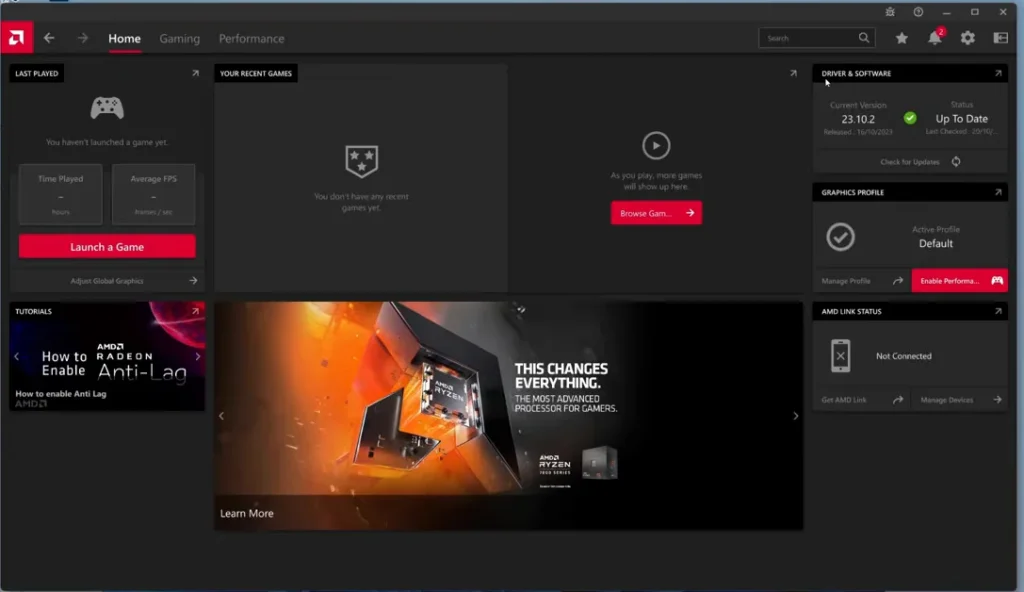
AMD: AMD Software: Adrenalin Edition (Radeon GPUs)
- Open AMD Software: Adrenalin Edition. You can find it in the Start menu or by right-clicking the desktop.
- Not installed? Download AMD’s Auto-Detect and Install tool from AMD’s official drivers and support page. It identifies your GPU and installs both the driver and Adrenalin.
- Find the panel showing your current driver and software version and click Check for Updates. On many versions it’s on the Home tab; on others it’s under the System section (opened via the gear icon).
- If an update appears, choose a package, click Download, then install it.
- Your screen may go black briefly. Restart when prompted.
Recommended vs. Optional: Recommended is AMD’s standard release that has had more time in the field; it’s the right default for most people. Optional is a newer release that often adds support or fixes for just-launched games. Choose it when a specific game or bug fix needs it, and accept that it’s had less real-world time on machines like yours.
To change which kinds of updates Adrenalin offers, use its Manage Updates option, which opens AMD Install Manager.
Intel: Intel Driver & Support Assistant (Integrated Graphics and Intel Arc)
Intel’s tool works a little differently: it’s a small app on your PC that shows its results in your web browser.
- Download Intel Driver & Support Assistant (Intel DSA) from Intel’s official website and install it.
- Launch it. A browser tab opens and scans your PC for Intel hardware. You can rerun the scan later from the DSA icon in the system tray (its “check for new drivers” option) or from the Start menu.
- Find the graphics driver in the results and click Download, then Install.
- Restart when the installer finishes.
If the scan fails or never finishes: Intel supports Chrome, Edge, and Firefox. In Chrome and Edge, the browser may block the local connection DSA needs; Intel’s support pages explain how to allow Local Network Access for intel.com, or you can simply run the scan in Firefox.
If DSA says your graphics driver comes from your computer manufacturer, take that seriously. It means your PC uses a customized driver, so get updates from the laptop maker instead (see the laptop section below).
Method 3: Download the Driver Manually From the Official Site
Going manual gives you full control. It’s the right call for a clean install, a PC where the vendor app won’t run, or when you need one specific older version.
- Go to the official driver page for your GPU:
- NVIDIA: nvidia.com/drivers
- AMD: amd.com, Drivers & Support
- Intel: intel.com, Download Center (search for your graphics model)
- Select your exact GPU series and model from Step 0. “RTX 4060” and “RTX 4060 Laptop GPU” are different entries on NVIDIA’s list, for example.
- Select Windows 11 64-bit as the operating system.
- For NVIDIA, choose Game Ready or Studio. For AMD, choose the Recommended or Optional release.
- Download the installer and run it. Accept the prompts and pick the standard (express) install unless you’re doing a clean install.
- Restart your PC.
⚠️ Official sources only. No exceptions.
Never use third-party “driver updater” programs or driver download sites, however official they look in search results. They aren’t needed for anything in this guide, they can install the wrong driver for your hardware, and many bundle unwanted software or push paid “fixes.” NVIDIA, AMD, Intel, Microsoft, and your PC maker provide every graphics driver you’ll ever need, free.
If the installer refuses to run with a message like “no compatible hardware found,” you almost certainly picked the wrong model or OS. Recheck Step 0. On a Windows on Arm laptop, standard x64 GPU drivers won’t install; get drivers from Windows Update or your laptop maker.
The Laptop Caveat: When Your Laptop Maker’s Driver Is the Better Choice
Laptops are where generic driver advice goes wrong. Many laptop makers ship graphics drivers tuned for that exact model: its display panel, battery and power settings, hotkeys, and the way it switches between integrated and dedicated graphics. A generic driver from NVIDIA, AMD, or Intel can occasionally break one of those features, such as brightness controls, an external display port, or battery life.
For most laptop owners, start here:
- Go to your laptop maker’s support site (Dell, Lenovo, HP, ASUS, Acer, MSI, and so on), enter your model or serial number, and look under Drivers > Graphics or Video.
- Or use the maker’s built-in updater, such as Dell SupportAssist, Lenovo Vantage (System Update), HP Support Assistant, or MyASUS.
- Update both GPUs if your laptop has two.
The honest exception: gamers who want day-one drivers. Laptop makers often lag months behind GPU makers. If you game on a laptop with a dedicated NVIDIA or AMD GPU and a new release needs a newer driver, using the NVIDIA App or AMD Adrenalin is a common and generally safe choice. NVIDIA’s and AMD’s mainstream drivers support most of their laptop GPUs. Just know the trade-off: if something laptop-specific misbehaves afterward, roll back or reinstall the maker’s driver.
Be more cautious with integrated graphics on laptops (especially Intel). That’s where OEM customization is most common, and why Intel’s own tool may send you back to the laptop maker.
Clean Install: When It’s Worth It (and When It Isn’t)
A normal update installs the new driver over the old one and keeps your settings. A clean install removes the old driver’s files and settings first, then installs fresh.
A normal update is fine when: everything works and you just want the newer version. That’s the vast majority of updates.
A clean install is worth it when:
- Glitches, crashes, or black screens persist after a normal update.
- You’re switching GPU brands (for example, NVIDIA to AMD) or changing cards.
- The driver installer keeps failing.
- A control panel won’t open or your settings seem corrupted.
Use the installer’s own clean-install option first:
- NVIDIA: In the standalone installer, choose Custom (Advanced), then tick Perform a clean installation. The NVIDIA App’s Custom install offers the same kind of reset.
- AMD: The Adrenalin installer offers a factory-reset style option that removes previous AMD drivers and settings before installing.
- Intel: Check the options screen of Intel’s standalone graphics installer for a clean-install choice.
When even that doesn’t help: Display Driver Uninstaller (DDU) is a well-known free tool that technicians use to strip every trace of a graphics driver. It’s an advanced troubleshooting tool, not part of a routine update. It’s meant to run in Windows Safe Mode, and before using it you should create a System Restore point so you have a way back. If you’re not comfortable with Safe Mode, stick with the installers’ built-in clean-install options; they solve the problem for most people.
After Updating: Restart, Verify, and Fix Display Settings
1. Restart. Even if the installer doesn’t ask, a restart ensures every part of the new driver is loaded.
2. Verify the new version. Go back to Device Manager > Display adapters > [your GPU] > Properties > Driver and compare the Driver Date and Driver Version with what you wrote down in Step 0. Both should be newer and should match the release you installed. (Remember NVIDIA’s format quirk: match the last five digits.) Your vendor app should also report that you’re up to date.
Still seeing “Microsoft Basic Display Adapter”? The install didn’t take. Run the installer again, or try a clean install.
3. Fix resolution or refresh rate if they changed. A new driver sometimes resets display settings.
- Resolution looks blurry or everything is huge: Go to Settings > System > Display, open Display resolution, and pick the option marked (Recommended).
- Mouse movement feels choppy on a high-refresh monitor: Go to Settings > System > Display > Advanced display and set the refresh rate back to your monitor’s maximum.
- Multiple monitors in the wrong order: Drag them into place at the top of the Display settings page.
4. Do a quick sanity check. Open a game or app you use often. Since driver changes can affect fan and clock behavior, it’s also worth glancing at your GPU temperature under load. Here’s how to check your GPU temp and what counts as a normal GPU temperature.
Screen went black or froze mid-session? Press Windows + Ctrl + Shift + B to restart the graphics driver. Our guide on how to reset your graphics driver covers that shortcut and what to do if it doesn’t help.
How to Roll Back a Graphics Driver If Something Breaks
New driver causing crashes, flicker, or worse performance? Going back takes a minute.
Option A: Roll Back Driver in Device Manager
- Right-click Start and open Device Manager.
- Expand Display adapters, right-click your GPU, and choose Properties.
- Open the Driver tab and click Roll Back Driver.
- Pick a reason, click Yes, and restart if prompted.
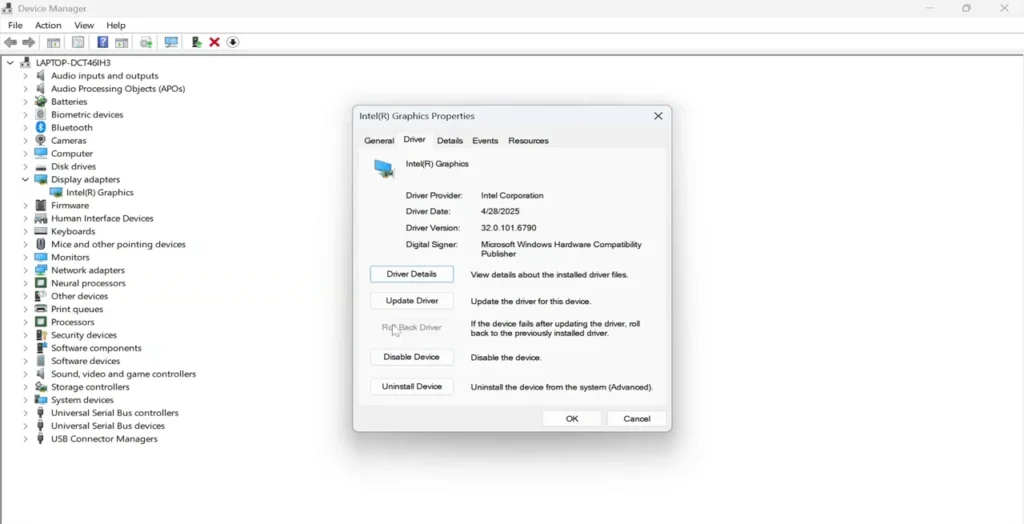
Roll Back Driver is greyed out? Windows doesn’t have the previous driver stored. That’s common after a clean install or when the old driver was installed long ago. Use Option B.
Option B: Reinstall the previous version manually
- Go to the official driver page from Method 3. NVIDIA, AMD, and Intel all list earlier releases for most GPUs.
- Download the version you were using before (the one you noted in Step 0 is your target).
- Install it, ideally choosing the clean-install option so no pieces of the newer driver are left behind.
- Restart and verify the version in Device Manager.
Heads up: Windows Update may later offer a newer driver again. Check the Driver tab after big Windows updates if you’re deliberately staying on an older version.
For quick fixes when your display freezes or glitches, see how to reset your graphics driver.
Updating Graphics Drivers on macOS and Linux
macOS: There’s nothing separate to install. Apple ships graphics drivers as part of macOS itself, so updating macOS through System Settings > General > Software Update is how you update them. Be wary of any download claiming to be a “Mac graphics driver.”
Linux: Use your distribution’s own driver tools and repositories rather than random downloads. Ubuntu-based distros include a driver utility (Additional Drivers, or ubuntu-drivers in the terminal) for proprietary NVIDIA drivers. AMD and Intel graphics drivers are built into the Linux kernel and Mesa, so they update with your normal system updates. On Fedora, Arch, and others, follow your distro’s documentation for NVIDIA packages.
Frequently Asked Questions
How often should I update my graphics drivers?
There’s no fixed schedule. Update when a game or app requires a newer driver, when you’re fixing a crash or glitch, or every few months for general fixes. If everything works and you don’t play new releases, you don’t need every driver that comes out.
Will updating my graphics driver improve FPS?
Sometimes. Drivers can add optimizations for specific games or fix bugs that hurt performance, especially for new releases. For older games on a stable driver, the difference is often small or nothing at all.
Does updating a graphics driver delete my files or games?
No. A driver update only replaces the software that controls your GPU. Your games, files, and saves stay put. A clean install resets your GPU control panel settings, and some games may reset graphics options.
Do I need to uninstall the old driver first?
Usually not. The NVIDIA, AMD, and Intel installers replace the old driver automatically. Only uninstall first (or use a clean install) if normal installs keep failing or problems persist.
Device Manager says “the best drivers are already installed.” Am I up to date?
Not necessarily. That message only means Microsoft’s catalog has nothing newer. Your GPU maker may have several newer releases. Check the NVIDIA App, AMD Adrenalin, or Intel DSA to be sure.
Should I pick NVIDIA Game Ready or Studio drivers?
Game Ready if you mainly play games, since they arrive first with support for new titles. Studio if you rely on creative apps and value stability over day-one game support. Both work for gaming and creating; it’s about what each is tuned and tested for.
Is AMD’s Optional driver safe?
Generally yes, since it’s an official AMD release. It’s simply newer and has had less time in the field than the Recommended release. Use Optional when you need what it adds, and stick with Recommended otherwise.
Are driver updater programs safe to use?
Avoid them. They’re never necessary for graphics drivers, can install the wrong version for your hardware, and often bundle unwanted software or upsells. Use Windows Update, your GPU maker’s app or website, or your PC maker’s support page.
How do I update integrated graphics drivers?
The same way. For Intel integrated graphics and Intel Arc, use Intel Driver & Support Assistant or Windows Update. For AMD Ryzen integrated graphics, use AMD Adrenalin. On laptops, check the laptop maker’s support page first.
What if my graphics card is too old for new drivers?
Older GPUs eventually stop getting new driver releases. If your card no longer appears for Windows 11 on the maker’s site, the last driver offered for it is the one to keep. Don’t force a driver meant for a different model. Not sure exactly which card you have? Start with our guide to finding your graphics card.