
A NAS HDD is a hard drive built to run 24/7 inside a multi-drive network-attached storage enclosure, with RAID-friendly firmware, vibration compensation, and a higher workload rating than a desktop drive. In plain terms, it is a regular 3.5-inch hard disk that has been tuned, tested, and warrantied for always-on, multi-bay duty.
If you have ever compared a WD Red Plus with a WD Blue, or a Seagate IronWolf with a BarraCuda, the spec sheets can look almost identical: same SATA interface, similar capacities, similar speeds. The differences hide in lines like “workload rate limit,” “error recovery control,” and “RV sensors.” This guide explains what those lines mean, which ones actually matter, and when a non-NAS drive is (and is not) acceptable.
This is the technical explainer in our NAS series. New to NAS altogether? Start with what a NAS drive is and how to set one up. Ready to buy? Our NAS hard drive choosing guide covers capacity planning, compatibility, and which line to pick.
How we checked the numbers: every figure below was verified against manufacturer product pages and datasheets (Western Digital, Seagate, Toshiba) in October 2026. Specs change between generations, so we name the exact line each number belongs to. Sources are listed at the end.
NAS HDD at a glance
| NAS HDD (e.g., WD Red Plus, Seagate IronWolf) | Typical desktop HDD (e.g., Seagate BarraCuda) | |
|---|---|---|
| Designed duty | 24/7 (8,760 power-on hours per year) | 2,400 power-on hours per year |
| Workload rating | 180 TB/year | 55 TB/year (most models); 120 TB/year (BarraCuda 12–24TB) |
| RAID error recovery | Error recovery control (TLER/ERC) built in | Not specified; generic error handling |
| Vibration handling | RV sensors (IronWolf 4TB and up; WD Red Plus) | No RV sensors listed |
| Supported bays | Up to 8 | No bay rating |
| Recording tech | CMR across these lines | SMR on many capacities (BarraCuda 8TB and under) |
| Warranty | 3 years | 2 years |
Sources: WD Red Plus product page, Seagate IronWolf and BarraCuda datasheets.
What makes a NAS HDD different from a regular hard drive?
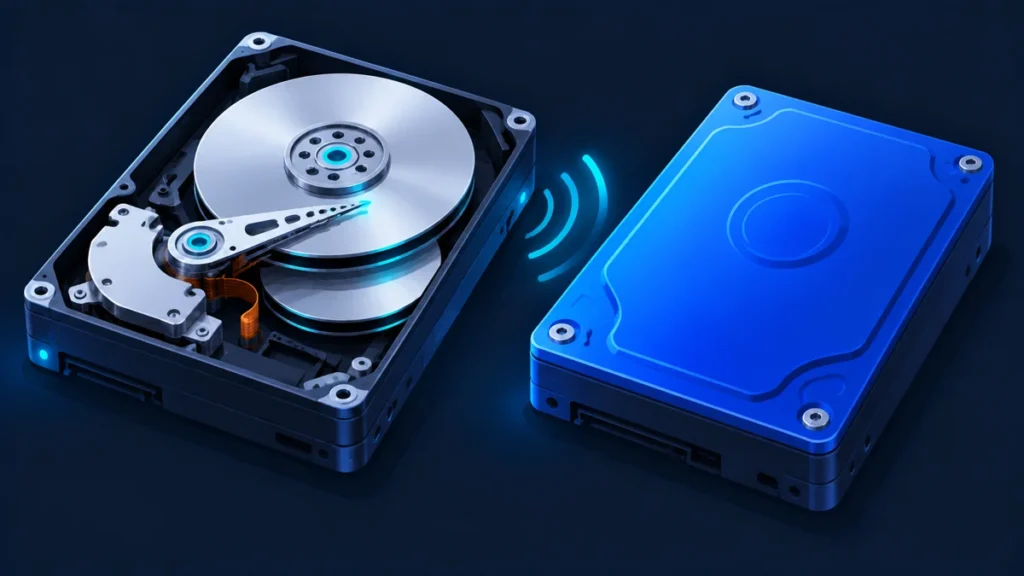
The platters, heads, and motor inside a NAS drive work the same way as in any hard drive. What changes is how the drive behaves under stress, how it is rated, and how it is tested. Five differences matter.
1. It is rated for 24/7 operation
A NAS runs around the clock, serving files, running backups, and scrubbing data at 3 a.m. NAS drives are specified for 8,760 power-on hours per year, which is every hour of the year. Seagate’s current BarraCuda desktop datasheet specifies 2,400 power-on hours per year, roughly 6.5 hours a day.
That rating does not mean a desktop drive dies at hour 2,401. It means the manufacturer’s reliability and warranty assumptions were built around a different duty cycle.
2. Its firmware is tuned for RAID: TLER, ERC, and CCTL
This is the most important technical difference, and the one most spec sheets explain worst.
When any hard drive hits a sector it struggles to read, its firmware retries, sometimes for a long time. On a desktop that is the right behavior: the drive holds the only copy of your data, so it should try hard. Inside a RAID array, it is the wrong behavior. RAID controllers and software RAID expect a drive to answer within a few seconds. A drive that goes silent for too long can be marked as failed and kicked out of the array, even though only one sector was bad.
Time-limited error recovery fixes this. The drive gives up after a short, fixed window (7 seconds is the common default), reports the error, and lets the RAID layer rebuild that one block from parity or a mirror. Vendors use different names for the same idea:
- TLER (Time-Limited Error Recovery): Western Digital
- ERC (Error Recovery Control): Seagate, and the generic SCT ERC term in the ATA standard
- CCTL (Command Completion Time Limit): Samsung and Hitachi
Seagate lists “Error Recovery Control: Yes” on every IronWolf capacity, and WD describes WD Red Plus as engineered with RAID error recovery control. On Linux, you can check any drive with smartctl -l scterc /dev/sdX. If it reports “SCT Error Recovery Control command not supported,” the drive cannot be capped.
Does ZFS care about TLER? Less than hardware RAID does. ZFS generally waits for the drive to finish its recovery, so a missing time limit tends to show up as long stalls rather than a dropped disk. On Linux, the kernel’s default SCSI command timeout is 30 seconds, after which it tries to reset the drive. A capped recovery time keeps the pool responsive either way.
3. It is built to cope with vibration from neighboring drives
Spinning drives vibrate, and in a 4-, 6-, or 8-bay box every drive feels its neighbors. Rotational vibration nudges the read/write head off its track, which forces retries and slows the drive down.
NAS drives use two kinds of countermeasures:
- Rotational vibration (RV) sensors detect the movement and let the drive compensate in real time. WD says its Red drives include RV sensors. Seagate lists RV sensors on IronWolf drives of 4TB and up, but not on the 1–3TB models. Pro lines (IronWolf Pro, WD Red Pro) and Toshiba N300 also list them.
- Balance technology, such as WD’s dual-plane balance control and Seagate’s dual-plane balancing (part of its AgileArray feature set), reduces how much vibration the drive itself creates.
4. It carries a bay-count rating
Bay ratings are the manufacturer’s statement of how many drives can share an enclosure before the drive’s vibration tolerance is exceeded. Current ratings:
- WD Red Plus: up to 8 bays
- Seagate IronWolf: 1–8 bays
- WD Red Pro: unlimited bays
- Seagate IronWolf Pro (current NT models): unlimited bays; earlier NE models were rated up to 24 bays
A bay rating is a supported-configuration limit, not a hard physical one. A Red Plus in a 12-bay chassis will spin up. It is simply outside what WD designed and tested it for.
5. It uses CMR recording (in the lines that matter)
Hard drives write data in one of two ways:
- CMR (conventional magnetic recording) writes tracks side by side without overlap. Any track can be rewritten directly.
- SMR (shingled magnetic recording) overlaps tracks like roof shingles to fit more data. Rewriting one track disturbs its neighbor, so drive-managed SMR drives buffer writes and reorganize data in the background.
For light, bursty writes you may not notice SMR. During a RAID rebuild or a ZFS resilver, which is a long, sustained write, drive-managed SMR can slow dramatically. That is exactly when your array has the least redundancy.
This became a public issue in 2020, when NAS users discovered that some WD Red drives had moved to drive-managed SMR without clear labeling. iXsystems (the company behind TrueNAS) and Western Digital investigated ZFS compatibility, and WD rebranded the line:
- WD Red Plus and WD Red Pro: CMR
- WD Red (plain, no suffix): drive-managed SMR, which iXsystems advised avoiding for ZFS
Seagate states that all IronWolf Pro drives use CMR, and its IronWolf and Toshiba’s N300 datasheets list CMR as well. The desktop BarraCuda is the opposite: every 8TB-and-under model on Seagate’s current datasheet uses SMR.
How to read a NAS HDD spec sheet: every spec decoded
Below is what each line on a NAS drive datasheet means, what the current numbers look like, and how much weight to give it.
| Spec | What it means | Current examples | Does it matter? |
|---|---|---|---|
| Workload rate (TB/year) | Total data the drive is rated to read and write per year, annualized | Red Plus, IronWolf, N300: 180. N300 Pro: 300. Red Pro, IronWolf Pro: 550. BarraCuda: 55 or 120 | Yes. The clearest single line separating drive classes |
| MTBF / MTTF (hours) | Statistical failure rate across a large population, not a lifespan | Red Plus, IronWolf: 1M. N300: up to 1.2M. Red Pro, IronWolf Pro (12TB+): 2.5M | Only as a relative signal. Convert it to AFR (see below) |
| Error recovery control | Caps how long the drive spends retrying a bad sector | “Yes” on every IronWolf capacity; RAID ERC on WD Red Plus | Yes, for any RAID or multi-drive setup |
| RV sensors | Hardware that compensates for vibration from nearby drives | IronWolf 4TB+ and Red Plus: yes. IronWolf 1–3TB: no. SkyHawk: none listed | Yes in 4+ bay enclosures; minor in 1–2 bays |
| Drive bays supported | Largest enclosure the drive is validated for | Red Plus, IronWolf: 8. Red Pro, IronWolf Pro (NT): unlimited | Yes. Match it to your enclosure |
| Recording technology | CMR or SMR | NAS lines: CMR. BarraCuda 8TB and under: SMR | Critical for RAID and ZFS |
| Power-on hours per year | Designed duty cycle | NAS: 8,760. BarraCuda: 2,400 | Yes. Tells you the intended use |
| Nonrecoverable read errors | Rated chance of an unreadable sector per bits read | Red Plus, IronWolf: 1 in 10^14. IronWolf Pro, Exos: 1 in 10^15 | Somewhat. Matters most for large-array rebuilds |
| RPM | Platter spin speed | Red Plus: 5,400, 5,640 or 7,200 depending on capacity. Pro lines: 7,200 | Less than you think (see myths) |
| Cache | Onboard buffer memory | Red Plus: 64–512MB. IronWolf Pro: 256MB | Rarely decisive |
| Load/unload cycles | Rated number of times the heads park and unpark | Red Plus, IronWolf, and current BarraCuda: 600,000 | No longer a NAS-vs-desktop differentiator |
| Warranty | Length of manufacturer coverage | NAS: 3 years. NAS Pro and Exos: 5 years. BarraCuda: 2 years | Yes. The most honest signal of expected duty |
What does “180 TB/year workload” actually mean?
Workload counts data moving in both directions. WD defines it as user data transferred to or from the drive, annualized from the power-on hours actually recorded. Toshiba’s definition counts data written, read, or verified by host commands.
180 TB/year works out to about 493GB per day, every day. 550 TB/year is about 1.5TB per day.
Most home NAS users never come close, but one hidden load is worth knowing: scheduled scrubs and data-integrity checks count as reads. A monthly scrub of a full 8TB drive reads about 96TB a year on its own (8TB × 12). If you scrub frequently on a large drive and also run backups, media transcoding, or VM storage, Pro-class ratings stop looking like overkill.
How to read MTBF without being misled
MTBF (mean time between failures) is a population statistic. A 1,000,000-hour MTBF does not mean a drive lasts 114 years. It describes how often drives fail across a large group running under the manufacturer’s test conditions.
The useful conversion is to annualized failure rate (AFR):
AFR ≈ 8,760 hours ÷ MTBF
- 1,000,000 hours MTBF ≈ 0.88% AFR
- 1,200,000 hours MTBF ≈ 0.73% AFR
- 2,500,000 hours MTBF ≈ 0.35% AFR
That last figure lines up with Seagate’s own spec: Exos X24 lists a 2.5M-hour MTBF and a 0.35% AFR side by side.
Read the footnote, too. WD’s Red Plus MTBF is estimated at a 90 TB/year workload and 40°C drive temperature, and WD says the figure derates above those conditions. WD Red Pro’s 2.5M-hour figure assumes 220 TB/year at 40°C. A rating is only as good as the conditions behind it.
Why model numbers matter more than product names
Product lines evolve while their names stay the same. Two examples from current datasheets:
- Seagate IronWolf Pro exists in two generations on Seagate’s own datasheet. The NT models (such as ST16000NT001) are rated 550 TB/year, unlimited bays, and up to 2.5M hours MTBF. The NE models (such as ST16000NE000) are rated 300 TB/year, up to 24 bays, and 1.2M hours.
- WD Red Pro was once rated 300 TB/year and 1M hours MTBF for 8–24 bay systems. Current models are rated 550 TB/year, up to 2.5M hours, and unlimited bays.
Always check the exact model number against the manufacturer’s datasheet, not just the box name.
NAS HDD vs desktop vs surveillance vs enterprise HDD
| Desktop HDD | NAS HDD | NAS Pro HDD | Surveillance HDD | Enterprise HDD | |
|---|---|---|---|---|---|
| Example lines | Seagate BarraCuda, WD Blue | WD Red Plus, Seagate IronWolf, Toshiba N300 | WD Red Pro, IronWolf Pro, N300 Pro | Seagate SkyHawk, WD Purple | Seagate Exos, WD Ultrastar |
| Built for | One drive in a PC | Home and small-business NAS | Larger business NAS | DVRs and NVRs recording video | Servers and data centers |
| Duty cycle | 2,400 hrs/yr (BarraCuda) | 24/7 | 24/7 | 24/7, write-heavy | 24/7 |
| Workload | 55–120 TB/yr | 180 TB/yr | 300–550 TB/yr | 180 TB/yr on mainstream tiers; 550 TB/yr on SkyHawk AI and WD Purple Pro | 550 TB/yr (Exos X24) |
| Firmware focus | General use | RAID error recovery | RAID error recovery | Smooth video streams (ImagePerfect, AllFrame) | RAID and data-center features |
| Bay rating | None | Up to 8 | Up to 24 or unlimited | Up to 8 (SkyHawk) | Data-center chassis |
| Recording | SMR on many models | CMR | CMR | Varies by model | CMR (Exos X24) |
| Typical warranty | 2 years | 3 years | 5 years | 3 years (5 on WD Purple Pro) | 5 years |
What about surveillance drives like WD Purple and SkyHawk?
Surveillance drives solve a different problem. A video recorder writes continuous streams from many cameras, often up to 64 HD cameras, and almost never reads them back. Seagate describes SkyHawk as built to record about 90% of the time. Their firmware (Seagate ImagePerfect, WD AllFrame) prioritizes keeping those streams flowing without dropped frames.
A NAS does the opposite: mixed random reads and writes from several users, plus RAID rebuilds. Seagate’s SkyHawk datasheet lists no RV sensors and support for up to 8 bays. A surveillance drive will work in a NAS, but it is tuned for a workload your NAS does not have. Use surveillance drives in recorders and NAS drives in NAS boxes.
Exos vs IronWolf Pro: is an enterprise drive “better” for a NAS?
On headline numbers, current IronWolf Pro NT models and Exos X24 now look alike: 550 TB/year, up to 2.5M hours MTBF, 7,200 RPM, CMR, and a 5-year warranty. The differences are in packaging and features:
- Exos targets data centers. It comes in SATA and SAS versions and offers data-center options such as Seagate Instant Secure Erase and PowerChoice power management.
- IronWolf Pro targets NAS boxes. It adds IronWolf Health Management integration on supported NAS systems and three years of Rescue Data Recovery Services.
Many homelab builders choose Exos when it costs less per terabyte. That is a reasonable call for a rack server or a large homelab build. In a living-room NAS, check the acoustic and power figures on both datasheets before deciding.
Can I use a regular desktop drive in a NAS?
Yes, it will physically work. Whether it is a good idea depends on your setup.
The real risks
- Dropped drives in RAID. Without error recovery control, a desktop drive that hits a bad sector may stop responding long enough for the RAID layer to mark it failed. You then rebuild an entire drive over one sector.
- SMR rebuild pain. Many desktop drives use drive-managed SMR. A RAID rebuild or ZFS resilver on SMR can take far longer than on CMR, which extends the window when a second failure could cost you data.
- Duty-cycle mismatch. A 2,400-hour, 55 TB/year drive is being asked to run 8,760 hours a year. It is outside the conditions the manufacturer rated it for.
- Vibration in multi-bay enclosures. Desktop drives list no RV sensors or bay ratings, so performance can suffer as you add drives.
- Shorter coverage. BarraCuda carries a 2-year limited warranty versus 3 to 5 years for NAS lines.
When a desktop drive is acceptable
- A single-drive or two-bay NAS used as a secondary backup, where the data also lives somewhere else.
- A CMR desktop model (check the exact model on the manufacturer’s CMR/SMR list) that supports SCT ERC, which you can set with
smartctl -l scterc,70,70 /dev/sdX(70 means 7.0 seconds). Note that on some drives this setting does not survive a power cycle. - Temporary use while you wait for a replacement NAS drive, with a current backup in place.
When it is not
- Any RAID 5, RAID 6, SHR, or RAIDZ array holding your only copy of important data
- Any SMR drive in a ZFS pool
- Enclosures with five or more bays
If you are planning a box from scratch, our NAS server guide walks through hardware and RAID choices.
Common NAS HDD myths
Myth 1: “NAS HDD is just a marketing label”
Partly true, mostly false. When Seagate launched its first “NAS HDD” in 2013, reviewers at TweakTown found its circuit board carried the same part number as the Desktop HDD.15, apart from the revision. Much of the difference really was firmware and ratings.
But firmware and ratings are the point. Error recovery control changes how a drive behaves in RAID. A CMR guarantee changes how rebuilds behave. A 180 versus 55 TB/year rating and a 3- versus 2-year warranty change what the manufacturer will stand behind. The label is shorthand for a real, checkable set of behaviors.
Myth 2: “Higher RPM is always better”
A 7,200 RPM drive moves data faster, but it also draws more power and runs warmer. WD’s 2TB Red Plus (5,400 RPM) is rated at about 4.0W active and 2.4W idle. Seagate’s 2TB IronWolf Pro (7,200 RPM) is rated at 6.7W operating and 3.8W idle.
The network is often the real bottleneck anyway. Gigabit Ethernet tops out at 125MB/s in theory (1 Gb/s ÷ 8), while even WD’s 2TB Red Plus is rated up to 175MB/s. On a 1GbE NAS, a 5,400 RPM drive is rarely what holds you back. On 2.5GbE or 10GbE with large sequential files, 7,200 RPM starts to pay off.
Myth 3: “MTBF means my drive will last 137 years”
A 1.2M-hour MTTF works out to about 137 years if you divide by 8,760, which is why the myth exists. It is a fleet statistic: roughly 0.73% of a large population failing per year under test conditions. Plan for drive failure with RAID and backups regardless of the MTBF printed on the box.
Myth 4: “More cache makes a NAS drive faster”
Cache helps with short bursts, but WD sells Red Plus models from 64MB to 512MB of cache within the same line. Sustained transfer rate, RPM, and your network matter more for everyday NAS use.
Myth 5: “Load/unload ratings prove NAS drives are tougher”
That used to be a real gap: Seagate’s 2013 NAS HDD doubled the 300,000 cycles of its desktop sibling to 600,000. Today Seagate’s current BarraCuda datasheet also lists 600,000 load/unload cycles, the same as IronWolf and WD Red Plus. Compare workload, duty cycle, ERC, and warranty instead.
Key takeaways
- A NAS HDD is defined by behavior and ratings: 24/7 duty, RAID error recovery control, vibration compensation, CMR recording, and a 180 TB/year or higher workload rating.
- The specs that separate drive classes are workload rating, power-on hours, error recovery control, bay rating, recording technology, and warranty. RPM, cache, and load/unload cycles matter far less.
- Convert MTBF to AFR (8,760 ÷ MTBF) and read the conditions in the footnote.
- Desktop drives can work in small, backed-up setups, but they are a real risk in parity RAID and ZFS.
- Always verify the exact model number, because ratings change between generations under the same name.
Next step: now that you can read a spec sheet, use our NAS hard drive choosing guide to match capacity, bay count, and budget to the right line.
Frequently asked questions
What does NAS HDD mean?
NAS HDD means a hard disk drive designed for network-attached storage. It is rated for 24/7 operation, includes RAID error recovery control and vibration compensation, and carries a higher workload rating than a desktop drive.
Is a NAS hard drive the same as a regular hard drive?
Physically, it is the same type of 3.5-inch SATA hard drive. The differences are firmware behavior, vibration handling, CMR recording, workload and duty-cycle ratings, and warranty length.
Can I put a NAS HDD in a desktop PC?
Yes. A NAS HDD works normally in a desktop. The main trade-offs are price and, for some models, extra noise. Time-limited error recovery is less useful in a single-drive PC, but it does no harm in normal use.
What is TLER on a hard drive?
TLER (Time-Limited Error Recovery) is Western Digital’s name for capping how long a drive retries a bad sector, commonly 7 seconds. It stops a RAID array from dropping the drive. Seagate calls it ERC; Samsung and Hitachi call it CCTL.
Are NAS hard drives CMR or SMR?
Current mainstream NAS lines, including WD Red Plus, WD Red Pro, Seagate IronWolf, IronWolf Pro, and Toshiba N300, use CMR. Plain “WD Red” without Plus or Pro uses drive-managed SMR and is not recommended for ZFS.
What workload rating do I need for a home NAS?
For most home and small-office use, 180 TB/year is plenty. Consider a 300–550 TB/year Pro-class drive for many users, heavy video work, VM storage, frequent scrubs on large drives, or arrays larger than 8 bays.
How long does a NAS HDD last?
Manufacturers do not publish a lifespan. They publish MTBF and warranty length. A 1M-hour MTBF equals roughly a 0.88% annualized failure rate across many drives. Use the 3- or 5-year warranty as a practical planning horizon, and keep backups.
Is WD Purple or SkyHawk okay for a NAS?
It will work, but it is tuned for continuous video recording rather than mixed NAS workloads. SkyHawk lists no RV sensors and supports up to 8 bays. A NAS-line drive is the better fit.
Sources
- Western Digital: WD Red Plus product page and specifications
- Western Digital: WD Red Pro product page
- Seagate: IronWolf Pro datasheet (DS1914)
- Seagate: IronWolf datasheet (DS1904)
- Seagate: BarraCuda 3.5-inch datasheet (DS17.2, 2026)
- Toshiba: N300 NAS hard drive
- Toshiba: N300 vs N300 Pro comparison
- Wikipedia: Error recovery control (TLER, ERC, CCTL)
- TrueNAS Community: WD Red SMR compatibility with ZFS
- StorageReview: WD Red SMR updates
- Blocks & Files: WD Purple Pro launch
- TweakTown: Seagate NAS HDD review (2013)