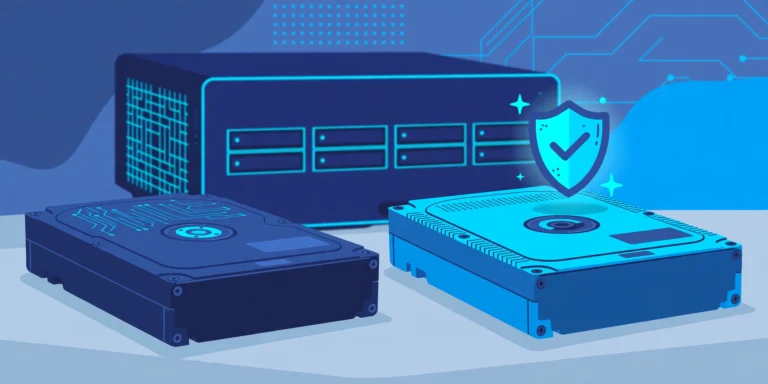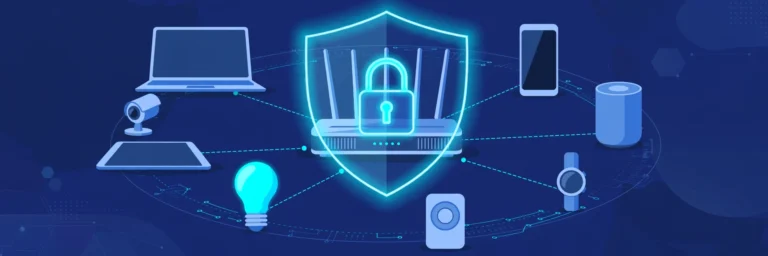

A NAS server (network-attached storage) is a small, always-on computer that stores files on its own drives and shares them over your network. Every phone, PC, Mac, and smart TV at home can reach the same files, backups, and media, with no main computer left running.
Think of it as a private cloud that lives on a shelf next to your router. You buy the hardware once, the data stays in your house, and nothing depends on a subscription that grows every time your photo library does.
A quick note on the acronym: In networking, “NAS” can also mean a network access server, the gateway that checks credentials (often against a RADIUS server) before letting someone onto a VPN or an enterprise Wi-Fi network. That’s a different device entirely. This guide is about network-attached storage.
The short version
- A NAS is a storage appliance that lives on your network instead of plugging into one computer.
- Most home units have 2 to 4 drive bays and are sold without drives.
- RAID protects you from a dead drive. It does not protect you from deletion, ransomware, fire, or theft, so you still need a backup.
- Wire the NAS to your router with Ethernet. Your laptop and phone can still reach it over Wi-Fi.
- Never expose it directly to the internet. Use a VPN or the vendor’s secure relay for remote access.
- Hard drive prices rose sharply through 2025 and 2026, so price the drives before you pick the box.
How a NAS server works
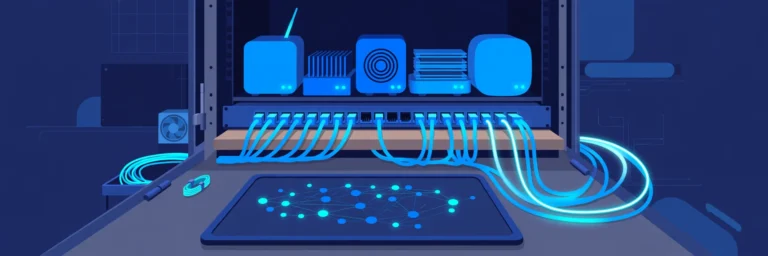
A NAS joins your network like any other device. You plug it into your router or switch with an Ethernet cable, the router gives it an IP address, and your computers see it as a shared drive: a network location in Windows File Explorer, or a server in the macOS Finder sidebar.
Four parts do the work.

The hardware
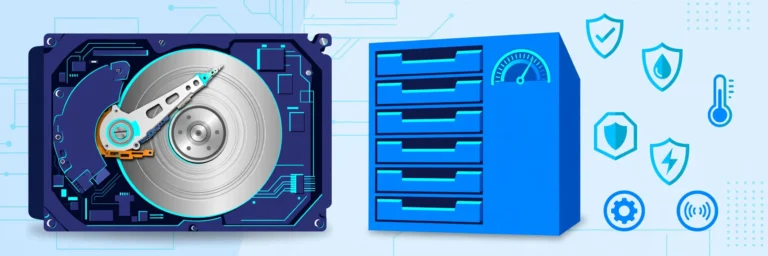
Inside is a low-power processor, some RAM, one or more Ethernet ports, and drive bays. Home models usually have 2 to 4 bays, while prosumer and small-business units go to 6, 8, or more. Many newer models add M.2 slots for NVMe SSDs, used as a cache or as a small, fast storage pool.
The operating system
A NAS runs its own OS, which you manage from a web browser or a phone app. Prebuilt units ship with the maker’s software: Synology DiskStation Manager (DSM), QNAP QTS or QuTS hero, UGREEN UGOS Pro, TerraMaster TOS, or ASUSTOR ADM. DIY builders usually choose TrueNAS, Unraid, or OpenMediaVault. The OS handles user accounts, permissions, sharing, apps, and drive health monitoring.
The file-sharing protocols
Your devices talk to the NAS with standard protocols, so there’s usually nothing to install on them:
- SMB: the default file-sharing protocol for Windows and macOS.
- NFS: common with Linux machines and virtualization hosts.
- iSCSI: presents a slice of NAS storage to one computer as if it were a local disk (block storage rather than shared files).
- WebDAV, SFTP, and vendor apps: for phones and for access from outside the house.
RAID and the file system
With two or more drives, the NAS can combine them with RAID so a single failed drive doesn’t take your data with it. Modern NAS file systems such as Btrfs and ZFS add checksums, which catch silent data corruption, and snapshots, which keep point-in-time copies of your folders. You’ll find a RAID comparison in the buying section below.
Is a NAS just a server?
Technically, yes. It’s a file server with a narrower focus. A general-purpose server or an old PC can run anything, but you build and maintain all of it yourself. A NAS is built for storage first: it runs quietly, uses far less power than a typical desktop, has hot-swap drive bays, and walks you through setup in a browser. Most current NAS units also run apps and Docker containers, which is why the line between “NAS” and “home server” keeps blurring.
What people actually use a NAS server for
Most buyers get a NAS for one job and end up using it for five. These are the common ones:
- Automatic backups for every computer. Windows PCs back up with the vendor’s backup app, and Macs can use Time Machine with a NAS share that supports it. Backups run over the network, so nobody has to remember to plug in a drive.
- One home for family photos and videos. Instead of photos scattered across four phones and three cloud accounts, everything syncs to one place. Vendor photo apps, or self-hosted tools like Immich, handle phone uploads, albums, and face grouping.
- Media streaming. Plex, Jellyfin, and Emby turn your movie and music collection into a streaming-style library on smart TVs, streaming sticks, and phones. It works at home even when your internet is down.
- Security camera recording. Many NAS units record IP cameras over ONVIF or RTSP, keeping footage local instead of in a paid cloud plan. Check the vendor’s camera license limits before you buy.
- Shared folders for a household or small office. One set of folders, with permissions per person, replaces emailing files back and forth.
- A private cloud. Sync folders between devices and open your files away from home, much like Dropbox or Google Drive, minus the monthly bill and storage cap.
- A homelab starting point. Docker containers, virtual machines, network-wide ad blocking, a password manager, and home automation dashboards. A capable NAS is often someone’s first real server.
NAS vs. other storage options
| Option | Who can reach it | Ongoing cost | Survives a dead drive? | Best for |
| NAS server | Every device on your network, plus remote access if you set it up | Electricity and eventual replacement drives | Yes, with RAID across 2+ drives | Households and small offices with lots of data and several devices |
| External USB drive | One computer at a time | None | No | Cheap single-computer backups and carrying files |
| Cloud storage (iCloud, Google Drive, OneDrive, Dropbox) | Any device with internet | A subscription that rises as your data grows | Yes, the provider handles it | Smaller libraries, sharing links, and an off-site copy |
| Drive in a router’s USB port | Devices on your network | None | No | Very light file sharing |
| Old PC as a home server | Devices on your network | Electricity, often more than a NAS | Only if you configure it | Tinkerers who want full control |
| SAN (storage area network) | Servers in a data center | Enterprise pricing | Yes | Businesses running databases and virtual machines |
The honest takeaway: a NAS and cloud storage aren’t rivals. The strongest home setup uses the NAS for fast local storage and a cloud backup service as the off-site copy.
NAS vs. DAS vs. SAN, one line each
- DAS (direct-attached storage) connects to a single computer by cable, like an external drive or a multi-bay USB enclosure.
- NAS shares files with many devices over an ordinary Ethernet network.
- SAN shares blocks of storage over a dedicated high-speed network and lives almost entirely in business data centers.
Do you actually need a NAS?
A NAS earns its place if two or more of these sound like you:
- Your household has several computers and phones, and files are scattered across them.
- You have more than a couple of terabytes of photos, video, or project files.
- Your cloud storage bill keeps creeping up as your library grows.
- You want every computer backed up automatically, without plugging anything in.
- You stream your own movies or music, or you want to record security cameras locally.
- You want to learn self-hosting or start a homelab.
You can probably skip it if you have one laptop, less than a terabyte of data, and you’re comfortable paying for cloud storage. An external drive plus a cloud plan covers you for less money and less upkeep.
Be realistic about that upkeep, too. A NAS needs software updates, an occasional look at drive health, and a plan for the day a drive dies. Expect a weekend to set it up and a few minutes a month after that.
What a NAS really costs. The price of the box is only the start. Total cost of ownership is the enclosure, plus the NAS drives, plus electricity, plus an optional UPS. Because a NAS runs around the clock, estimate its yearly running cost with this formula: average watts ÷ 1000 × 24 × 365 × your local price per kWh. Take the wattage from the maker’s spec sheet with drives installed, or measure it with a plug-in power meter, and find your per-kWh rate on your electric bill.
Prebuilt NAS or DIY NAS?
Prebuilt: Synology, QNAP, UGREEN, TerraMaster, ASUSTOR
You buy an enclosure, slide in drives, and follow a setup wizard. The software is polished, the photo, backup, surveillance, and media apps work out of the box, and updates come from one company.
The trade-offs: the software is baked into the hardware price, entry-level processors can be modest, and some vendors restrict which parts you can use. Synology’s 2025 Plus models, for example, launched that spring limited to Synology-branded or certified drives for new storage pools. DSM 7.3, released in October 2025, restored third-party hard drive and 2.5-inch SATA SSD support on 2025 Plus, Value, and J-series models, though M.2 NVMe pools still need drives from the compatibility list. Whatever brand you consider, check its current compatibility list before buying drives.
DIY: TrueNAS, Unraid, OpenMediaVault
You install NAS software on your own hardware: a mini PC, a retired desktop, or a purpose-built machine in a NAS case. You get more processing power for the money, ECC memory if you want it, and no vendor lock-in.
The trade-off is that you’re the support team. Picking parts, building the storage pool, and keeping everything patched is on you. TrueNAS and OpenMediaVault are free. Unraid is paid, and it’s popular because it lets you mix drives of different sizes.
Quick rule: If you want it to just work, buy prebuilt. If you enjoy tinkering or want the most performance per dollar, build one. Our DIY NAS guide walks through a full build.
How to choose a NAS server: 5 decisions that matter
1. Number of drive bays
Bays decide how far you can grow. Two bays give you a mirrored pair. Four bays are the sweet spot for most homes: enough for RAID 5 or RAID 6, with room to expand. Buy one size bigger than you think you need, because adding bays later means a new box or an expansion unit.
2. Processor and memory
- Files and backups only: an entry-level ARM or low-power x86 chip is fine.
- Plex or Jellyfin for several viewers: look for an Intel CPU with integrated graphics. Intel Quick Sync handles video transcoding efficiently, while NAS models built on chips without integrated graphics struggle when they have to transcode.
- Docker containers and virtual machines: an x86 CPU and at least 8 GB of RAM, ideally with a free memory slot for later.
3. Networking
Gigabit Ethernet tops out around 110 to 115 MB/s in real-world transfers, which a single modern hard drive can already outrun. Many current models ship with 2.5 GbE ports, and higher-end units offer 10 GbE. A faster port only helps if your switch, router, and computer support the same speed; the slowest link sets the pace.
4. The drives (and the 2026 price problem)
Use drives built for NAS duty, which are rated for 24/7 operation and multi-drive vibration. Two rules prevent a lot of grief:
- Choose CMR drives, not SMR. Shingled (SMR) drives can make RAID rebuilds painfully slow. Seagate IronWolf, IronWolf Pro, WD Red Plus, and WD Red Pro are CMR lines; the plain WD Red line uses SMR.
- Mix purchase batches when you can, so several drives from the same production run don’t wear out together.
Then budget around the drives, not the enclosure. Demand from AI data centers has absorbed a large share of hard drive production, and retail prices for NAS-grade drives climbed steeply from late 2025 into 2026, with high-capacity models hit hardest. Price your drives first, and compare a diskless NAS against a pre-populated one at today’s prices; bundles sometimes come out ahead.
5. Software and apps
The OS is what you’ll live with every day. Before you buy, confirm it has the apps you need (phone photo backup, Time Machine support, surveillance, a media server, Docker) and check how long the vendor keeps older models updated.
Which RAID level should you use?
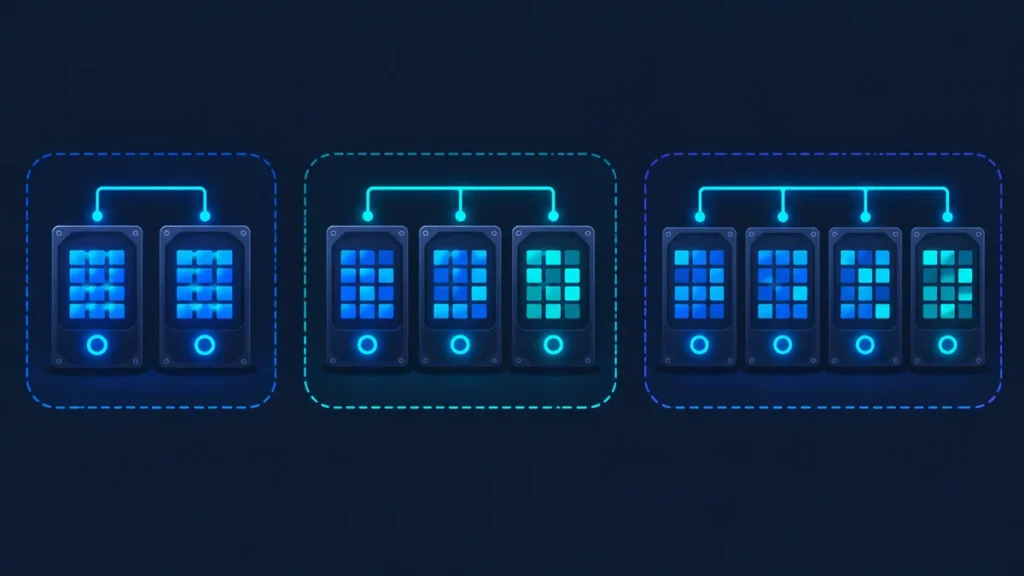
The example below assumes four 8 TB drives, except for RAID 1, which uses two.
| Setup | Minimum drives | Usable space (example) | Drive failures it survives | Good for |
| RAID 1 (mirror) | 2 | 8 TB from 2 drives | 1 | Two-bay units |
| RAID 5 / RAIDZ1 | 3 | About 24 TB | 1 | Most home setups with 3 to 4 moderate-size drives |
| RAID 6 / RAIDZ2 | 4 | About 16 TB | 2 | Large drives, where rebuilds take many hours |
| RAID 10 | 4 | About 16 TB | 1 per mirrored pair | Speed-sensitive work like video editing |
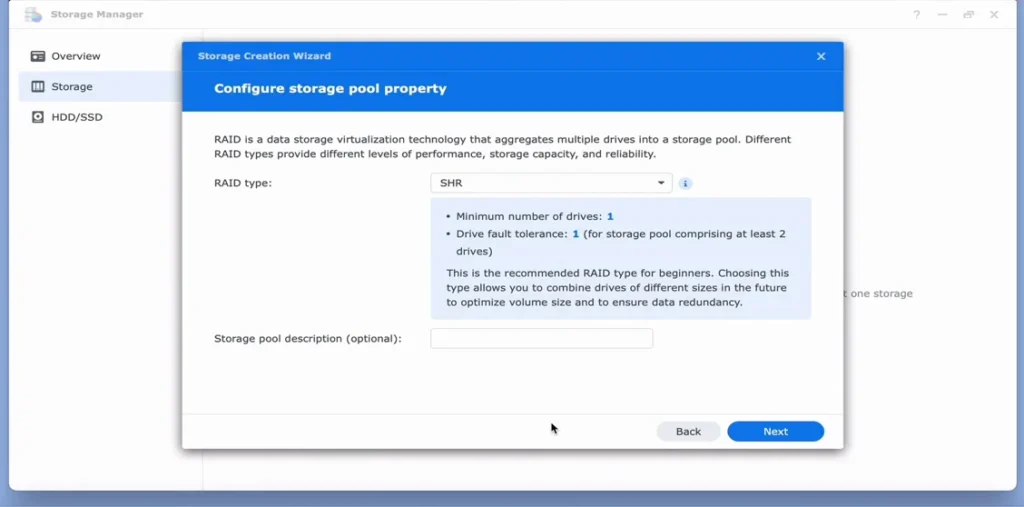
| Synology SHR or Unraid parity | Varies | Depends on your drive mix | 1, or 2 with SHR-2 or dual parity | Mixing drive sizes over time |
Usable space is before file-system overhead. Drives are also sold in decimal terabytes, so your computer will report a little less than the label.
How to set up a NAS server, step by step
- Pick a good spot. Somewhere cool and ventilated, near your router or a network switch. Closets trap heat, so leave space around the unit.
- Install the drives in their trays, then connect the NAS to your router with an Ethernet cable.
- Plug it into a UPS (uninterruptible power supply) and connect the UPS’s USB cable to the NAS so it shuts down cleanly during an outage.
- Find it on your network with the vendor’s setup page or app, or your router’s device list, then install the latest OS update.
- Create the storage pool with the RAID level you chose. The first build and drive checks can take hours on large drives, and that’s normal.
- Lock down the admin account. Use a strong, unique password, turn on two-factor authentication, and disable the default “admin” user if the OS lets you.
- Create shared folders and user accounts. Give each person their own login, with access only to the folders they need.
- Turn on snapshots for important folders, scheduled at least daily.
- Set up backups in both directions. Computers back up to the NAS, and the NAS backs up to somewhere else (more on that below).
- Connect your devices. Use “Map network drive” in Windows or “Connect to Server” in the macOS Finder, and install the vendor’s apps on phones.
- Schedule health checks. Run SMART tests and RAID or ZFS scrubs monthly, with email or push alerts turned on.
How to keep a NAS server secure
NAS devices are a favorite ransomware target because they hold everything valuable in one place. Campaigns such as Qlocker in 2021 and DeadBolt in 2022 encrypted files on internet-exposed QNAP and ASUSTOR units. The pattern is consistent: most NAS compromises start with a box that was reachable from the internet.
- Don’t port-forward the admin page. For remote access, use a VPN such as WireGuard or Tailscale, or the vendor’s relay service.
- Turn off UPnP on the router and the NAS, so the NAS can’t quietly open ports to the internet.
- Install updates promptly, for both the NAS operating system and its apps.
- Use two-factor authentication on every admin account.
- Disable services you don’t use, such as FTP, Telnet, SSH, and the old SMB1 protocol.
- Enable snapshots, ideally immutable ones if your NAS offers them, so ransomware can’t simply delete your restore points.
- Follow least privilege. Everyday accounts shouldn’t have admin rights.
- Isolate it on its own network segment if your router supports VLANs. Our guide to securing a homelab network covers this in detail.
RAID is not a backup: protect your data with 3-2-1
RAID keeps the NAS running when a drive dies. It does nothing if you delete the wrong folder, ransomware encrypts your files, a power surge kills the box, or a pipe bursts above it. For those, you need a real backup.
Follow the 3-2-1 rule: three copies of your data, on two different types of storage, with one copy off-site. For a home NAS, that usually looks like this:
- The original files on your computers and phones.
- The copy on the NAS.
- An encrypted, versioned off-site copy, either with a cloud backup service or on a second NAS at a relative’s house.
Most NAS operating systems include a backup app that can send encrypted, versioned backups to S3-compatible cloud storage such as Backblaze B2 or Amazon S3, or to another NAS. Test a restore every few months. A backup you’ve never restored is a hope, not a plan.
Common NAS problems and quick fixes
- Transfers are slow. Check that the computer is wired rather than on Wi-Fi, that every link is gigabit or faster, and that you’re not using an old Cat5 cable. On Wi-Fi, the wireless link is almost always the bottleneck.
- The NAS disappears from the network. Give it a reserved (static) IP address in your router, then connect by address:
\\192.168.1.50in Windows orsmb://192.168.1.50in the macOS Finder, using your NAS’s actual IP. - Plex or Jellyfin video stutters. The NAS is probably transcoding without hardware acceleration. Play the original quality, or use hardware with Intel Quick Sync.
- A drive shows SMART warnings. Replace it now instead of waiting for it to fail. The array is most vulnerable while it rebuilds.
- It’s loud or hot. Hard drives make seek noise, especially during scrubs and photo indexing. A solid shelf, rubber feet, and a room away from bedrooms help. Keep drive temperatures within the maker’s specified range.
- Space is filling faster than expected. Snapshots and the recycle bin keep deleted files around. Shorten their retention rather than switching them off.
Frequently asked questions
What is a NAS server used for?
Storing files and sharing them across a network. At home that usually means backing up computers, keeping family photos in one place, streaming movies with Plex or Jellyfin, and recording security cameras.
What’s the difference between a NAS and a server?
A NAS is a type of server dedicated to storage. It’s simpler to set up, uses less power, and is managed from a browser. A general-purpose server runs whatever software you install and needs more hands-on maintenance.
Does a NAS server need a computer to work?
No. It has its own processor and operating system. Once it’s set up, it runs on its own, and your other devices connect to it over the network.
Does a NAS come with hard drives?
Usually not. Most home units are sold diskless, and you buy drives separately. Some models come pre-populated, which can be good value while drive prices are high.
Can I access my NAS from outside my home?
Yes, through a VPN such as WireGuard or Tailscale, or the vendor’s remote-access service. Avoid exposing the NAS admin page directly to the internet.
Is a NAS cheaper than cloud storage?
For large amounts of data, a NAS usually costs less over several years because there’s no monthly fee that grows with your library. For small amounts, cloud storage is cheaper and simpler. Most people do best with both: a NAS for local storage and the cloud for the off-site backup.
How long do NAS hard drives last?
It varies by model and workload, and any drive can fail early. Watch the SMART health reports, replace a drive at the first warning, and keep a backup so a failure is an inconvenience rather than a loss.
Can a NAS work over Wi-Fi?
Your devices can reach the NAS over Wi-Fi, but the NAS itself should be wired to the router. A wired NAS on a good Wi-Fi 6 or Wi-Fi 7 network works well for everyday use like photo backup and streaming.
What does NAS stand for?
In storage, NAS stands for network-attached storage. In networking and security, it can also mean network access server, a gateway that authenticates users before they join a network.
Is it worth building a DIY NAS?
If you enjoy tinkering, yes. You get more performance per dollar and full control over the hardware. If you want something that runs with minimal fuss, a prebuilt NAS is the better buy.
The bottom line
A NAS server gives you one place for every file, backup, and photo in the house, and it keeps working whether or not your laptop is on. Choose the bay count for where your data will be in three years, price CMR drives before you pick the box, wire it to your router, keep it off the open internet, and back it up off-site.
Your next step: Ready to pick drives? Our NAS hard drive guide explains CMR, capacity planning, and how to shop during the 2026 shortage. Planning something bigger? Start with our homelab guide.