
Someone’s at your door asking for the Wi-Fi. The fastest way to get them online depends on just two things: what phone you have and what device they have. iPhone-to-iPhone uses Apple’s one-tap share prompt. Everything else — Android, iPhone to Android, or a guest’s laptop — runs on a Wi-Fi QR code that the other person scans with their camera.
Quick answer: On an iPhone, have your guest tap your network name in their Wi-Fi settings, then tap Share Password on your unlocked iPhone. On Android, go to Settings > Network & internet > Internet, tap your network, then Share to show a QR code. On iOS 18 or later, iPhones can show the same kind of QR code from the Passwords app.
Pick your situation
| You have… | They have… | Fastest method | Jump to |
|---|---|---|---|
| iPhone | iPhone, iPad or Mac | Apple share prompt | iPhone to iPhone |
| iPhone | Android phone (or anything with a camera) | Passwords app QR code | iPhone to Android |
| Android or Samsung | Any phone | Wi-Fi QR code from Settings | Android to any phone |
| Any phone or PC | A laptop (Windows or Mac) | QR code or read the password | Laptop or computer guest |
| — | Lots of guests over time | Printed QR + guest network | Make a guest QR code |
Not sure what the password even is? You don’t need to know it for most of these methods — your phone already has it saved. If a step below does require typing it, see how to find your Wi-Fi password.
How to share Wi-Fi password from iPhone to iPhone
This is Apple’s built-in share prompt. When it works, your guest never sees or types the password — your iPhone sends it over and their device fills it in.
What has to be true for the prompt to appear
Apple lists these requirements (Apple Support, updated March 2026):
- Both devices are on the latest software — iOS, iPadOS, or macOS if the other device is a Mac.
- Wi-Fi and Bluetooth are on on both devices.
- Each person is signed in to their own Apple Account.
- Personal Hotspot is off on both devices.
- Each person has the other’s Apple Account email address or phone number saved in Contacts.
- The devices are close to each other.
Most failures come from the Contacts rule. It isn’t enough to have a contact card for your guest — it has to include the email or phone number tied to their Apple Account, and they need yours too.
Steps
- Your guest opens Settings > Wi-Fi on their iPhone and taps your network’s name (the password box will appear — they leave it empty).
- On your iPhone, make sure you’re unlocked and connected to that same Wi-Fi network.
- A card pops up on your screen asking if you want to share the password. Tap Share Password, then Done.
Their iPhone fills in the password and joins.
Share prompt not showing up?
Work through these in order, testing after each one:
- Check the Contacts rule both ways. Open their contact card and confirm the email or phone number on it is the one they use for their Apple Account. Ask them to check yours.
- Turn off Personal Hotspot on both phones (Settings > Personal Hotspot).
- Toggle Wi-Fi and Bluetooth off and on in Settings, not just Control Center.
- Bring the phones closer and make sure yours is unlocked on the Home Screen.
- Have them tap the network name again — the prompt only fires when they’re on the password screen.
- Restart both devices. Apple’s own troubleshooting step if you don’t see the prompt.
- Update iOS on both (Settings > General > Software Update).
Still nothing? Skip the prompt entirely and use the Passwords app QR code below — it works iPhone to iPhone too, with no Contacts requirement.
How to share Wi-Fi password from iPhone to Android (or anyone)
Apple’s share prompt only works between Apple devices. It will never appear for an Android phone. For years, that meant downloading a QR app or building a Shortcut — many guides still tell you to. You don’t need to anymore.
Option 1: Show a Wi-Fi QR code from the Passwords app (iOS 18 or later)
Since iOS 18, iPhones have a standalone Passwords app that stores every Wi-Fi network you’ve joined — and it can turn any of them into a scannable QR code. This is the same in iOS 26.
- Open the Passwords app and unlock it with Face ID, Touch ID or your passcode. (Can’t find it? Swipe down on the Home Screen and search “Passwords.”)
- Tap Wi-Fi.
- Tap your network. The one you’re currently connected to usually appears at the top.
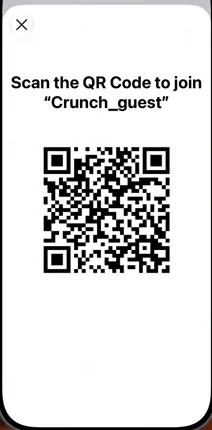
- Tap Show Network QR Code.
- Your guest points their phone’s camera at the screen and taps the Wi-Fi prompt to join.
This works with Android phones, other iPhones, and anything else with a camera that reads Wi-Fi QR codes. It’s also the best option for a group — five people can scan one screen.
On iOS 17 or earlier? The Passwords app doesn’t exist yet. Update if your iPhone supports it, or use Option 2.
Option 2: Reveal the password and read it out (iOS 16 or later)
- Go to Settings > Wi-Fi.
- Tap the Info (i) button next to your connected network.
- Tap the Password field and authenticate with Face ID, Touch ID or your passcode.
The password appears, and you can tap it to copy. Read it out, or paste it into a message. For networks you’re not currently connected to, tap Edit in the top-right of the Wi-Fi screen to see your saved networks. More detail, including Mac and router methods, is in our guide on how to find your Wi-Fi password.
How to share Wi-Fi password on Android (to Android or iPhone)
Android has shared Wi-Fi by QR code since Android 10, and the code works for any phone that scans it — including iPhones.
Stock Android and Pixel
Google’s current path:
- Open Settings.
- Tap Network & internet > Internet.
- Tap your Wi-Fi network (on Pixel phones, tap the gear icon next to it).
- Tap Share and confirm with your fingerprint, face or PIN.
- A QR code appears. Your guest scans it with their camera.
On Pixel and many other Android phones, the password is also printed in plain text under the QR code — handy for laptops.
Shortcut on recent Pixels: swipe down twice for Quick Settings, tap Internet, then Share Wi-Fi. The exact label varies by Android version.
Sharing to another Android with no scanning: on Pixel and many Android 12+ phones, the QR screen also has a Nearby button that sends the network through Quick Share. The other person taps Accept and joins. If you don’t see the button, your phone doesn’t support it — use the QR code.
Samsung Galaxy (One UI) variant
Samsung uses different menu names:
- Open Settings > Connections > Wi-Fi.
- Tap the gear icon next to the network you’re connected to.
- Tap QR code at the bottom of the screen.
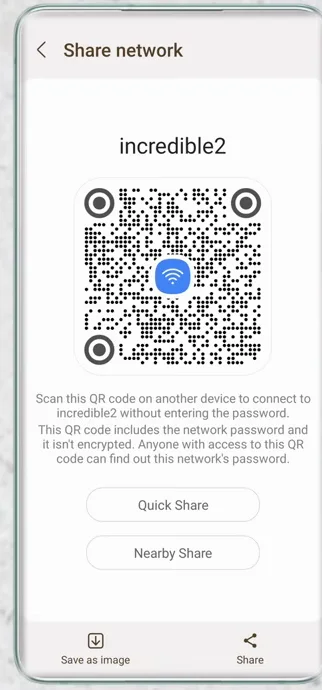
Some One UI versions also offer a Share or Quick Share option on the same screen, and recent versions let you reveal the password there too. Exact wording depends on your One UI version — if you don’t see “QR code,” look for “Share.”
How your guest scans the code
- iPhone: open the Camera app, point it at the code, tap the Wi-Fi notification, then Join.
- Android: open the Camera app (or Google Lens) and tap the network prompt. Many phones also have a QR scanner icon next to Add network in Wi-Fi settings; on Samsung it’s under Settings > Connections > Wi-Fi.
How to share Wi-Fi with a laptop or computer guest
There’s no “Share Password” prompt for Windows. Laptops are the awkward case, and the right route depends on what they have.
Guest has a Mac
If you have an iPhone, the Apple share prompt works to a Mac too — Apple’s requirements include macOS. Have your guest click your network in the Mac’s Wi-Fi menu, then tap Share Password on your iPhone. The same conditions apply.
If you’re on Android, show the password (Pixel prints it under the QR code; Samsung can reveal it on recent One UI versions) and let them type it.
Guest has a Windows 11 laptop
Windows 11 can join a network from a Wi-Fi QR code using its camera:
- On the laptop, open the Camera app and switch to barcode mode (the QR icon).
- Point the webcam at the QR code on your phone (from the Passwords app or Android Settings).
- Select the link that appears — it opens Settings.
- Confirm to add and connect to the network.
No webcam, or the scan won’t take? Reveal the password on your phone and have them type it.
Sharing from your own Windows PC
If the password is saved on your Windows 11 PC and your guest’s phone needs it:
- Open Settings > Network & internet.
- Select Properties for your Wi-Fi connection.
- Next to Wi-Fi network password, select Show.
You’ll see the password, and on Windows 11 version 24H2 or later, a QR code your guest can scan. For a network you’re not connected to, use Network & internet > Wi-Fi > Manage known networks, pick the network, and select Show. Older Windows versions show the password in a different place — our find your Wi-Fi password guide covers them.
Make a guest Wi-Fi QR code for your home
If people ask for your Wi-Fi every week — family visits, a babysitter, an Airbnb — make the code once and stop handing out your phone.
Print it
- Bring up your network’s QR code using any method above.
- Take a screenshot.
- Crop it and print it on a card for the fridge, guest room or entryway. Add the network name in text underneath.
Many router apps can also generate a printable Wi-Fi QR code — check yours.
The smarter version: a guest network
Before you stick your main password on the fridge, consider a guest network. Most home routers can broadcast a second Wi-Fi network with its own name and password, kept separate from your computers, NAS and smart devices. Turn it on in your router’s app or admin page, then print the QR code for that network instead.
It’s especially worth doing if you have cameras, smart locks or speakers on your main network — see what a smart home is and how its devices connect.
The one security note that matters
Sharing your main Wi-Fi password — by voice, text or QR code — gives that person full access to your home network for as long as the password stays the same. A Wi-Fi QR code isn’t encrypted; anyone who scans it can read the password with a QR reader app.
So share the main network only with people you trust, use a guest network for everyone else, and change your Wi-Fi password if it ends up somewhere it shouldn’t. You’ll need to reconnect your own devices afterwards. If you run servers or lab gear at home, segmenting your homelab network takes this further.
Troubleshooting: quick fixes
The iPhone “Share Password” prompt won’t appear
Confirm each person’s Apple Account email or phone number is in the other’s Contacts, turn off Personal Hotspot on both, keep your iPhone unlocked and near theirs, and restart both. Or skip it: use the Passwords app QR code.
The QR code won’t scan
Turn your screen brightness up, hold the phones 6–12 inches apart, and wipe the camera lens. If the Camera app ignores it, scan from the QR icon in Wi-Fi settings (Android) or use Google Lens. On a Windows laptop, make sure the Camera app is in barcode mode.
It scans but won’t connect
Make sure the guest is actually within range of the network. If you generated the code from a saved network you aren’t near, it may be out of reach or out of date.
The password was changed
Old QR codes, printed cards and saved passwords stop working the moment the password changes. Reconnect your own phone with the new password, then generate a fresh QR code and reprint it.
You don’t know the password and nothing is saved
Check the sticker on your router, or log in to the router’s app. Our find your Wi-Fi password guide walks through every option.
FAQ
Can I share my Wi-Fi password from an iPhone to an Android phone?
Yes. On iOS 18 or later, open the Passwords app, tap Wi-Fi, choose your network and tap Show Network QR Code; the Android user scans it with their camera. The Apple share prompt itself only works between Apple devices.
Why doesn’t the “Share Password” option show up on my iPhone?
Usually because a condition isn’t met: each person must have the other’s Apple Account email or phone number in Contacts, both must be signed in to their Apple Account, Wi-Fi and Bluetooth must be on, Personal Hotspot must be off, and the devices must be close with the latest software. Restart both if everything checks out.
Can I share Wi-Fi without knowing the password?
Yes. The Apple share prompt, the iPhone Passwords app QR code, and Android’s Share QR code all use the password your phone already saved — you never have to type or know it.
How do I share Wi-Fi from an Android phone to an iPhone?
Go to Settings > Network & internet > Internet, tap your network, then Share (on Samsung: Settings > Connections > Wi-Fi, gear icon, QR code). The iPhone user scans the code with the Camera app and taps Join.
Can Windows share a Wi-Fi password like an iPhone?
Not with a prompt. On Windows 11, go to Settings > Network & internet > Properties and select Show next to Wi-Fi network password. Version 24H2 and later also display a QR code there for guests to scan.
Is sharing Wi-Fi with a QR code safe?
It’s as safe as sharing the password, because the code contains the password. Only show it to people you trust, and use a guest network for visitors you don’t know well.
Can I share Wi-Fi from my iPhone to my Mac?
Yes. Apple’s share prompt works to a Mac running current macOS under the same conditions. Click the network on the Mac, then tap Share Password on your iPhone.
Getting a guest online is one thing — keeping your network yours is another. If you can’t remember the password you’re sharing, start with how to find your Wi-Fi password. If your house is filling up with connected gadgets, read what a smart home is before your next guest asks for the Wi-Fi.