
You’re standing in the kitchen. A guest, a new phone, or a smart TV needs the Wi-Fi password, and the piece of paper it was written on vanished two house cleans ago. Good news: you almost certainly don’t need that piece of paper. If any device in your house is already connected — or has ever connected — the password is saved on it, and you can read it back in uner a minute.
Quick answer
On Windows 11: Settings → Network & internet → Properties for your connected network, then select Show next to Wi-Fi network password. Your password appears in plain text.On iPhone (iOS 16 or later): Settings → Wi-Fi, tap the (i) next to your network, tap Password, and authenticate with Face ID. Or open the Passwords app (iOS 18+) → Wi-Fi.On Android: Settings → Network & internet → Internet, tap your network, then Share. The QR code appears — and on Pixel phones the password is printed right below it.
Got the password and want to hand it to your guest without reading it aloud? See how to share your Wi-Fi password for the one-tap and QR-code sharing methods.
Jump to your device:
- Windows PC — Settings, Control Panel, or the
netshcommand - iPhone or iPad — Settings or the Passwords app
- Android phone — the Share screen (Pixel vs. Samsung differences included)
- Mac — Passwords app or Keychain Access
- Chromebook — the honest short answer
- Router — the label, the admin page, or a factory reset
Which methods reveal the actual password?
Yes — if a computer or phone is signed in to an account an administrator controls, or can run an administrator command. No — if you only have a locked-down work or school device. This table sets expectations before you start clicking.
| Your device | Fastest route | Reveals the text password? | Go to |
|---|---|---|---|
| Windows 11 (or 10) | Settings → Properties → Show | Yes, if the PC is connected or the network is saved | Method 1 |
| iPhone / iPad (iOS 16+) | Settings → Wi-Fi → (i) → Password, or the Passwords app | Yes, for networks this device has joined | iPhone steps |
| Android 10+ | Settings → Share → QR code (password printed on Pixels) | Yes | Android steps |
| Mac | Passwords app (macOS 15+) or Keychain Access | Yes, for networks this Mac (or your iCloud) has joined | Mac steps |
| Chromebook | No direct way | No — use another device or Wi-Fi Sync | Chromebook note |
| No device has it | Router label or admin page | Label: only if never changed Admin: yes | Router steps |
What you need to know first
- You can only recover passwords for networks the device has already joined and saved. No device can show you the password of a network it has never connected to.
- The exception is the router itself. Its label and admin page hold the current password whether any device is connected or not — that’s your fallback when nothing else works.
- Expect an identity check. Windows asks for administrator approval for the command-line method, iPhone asks for Face ID or your passcode, Android asks for your fingerprint or PIN, and a Mac asks for an administrator password in Keychain Access. That’s by design.
One more trap: if you run the Windows netsh command in PowerShell 7 instead of Command Prompt or the built-in Windows PowerShell 5.1, it can fail with a “requires elevation” message even in an admin window. Open Terminal or Command Prompt as administrator instead.
A note on work and school devices: if your laptop or phone is managed by an employer or school, some of these routes may be blocked by policy — especially admin commands and keychain access. Use a personal device or the router instead.
Find your Wi-Fi password on Windows
Windows saves a profile for every Wi-Fi network you join, including the password. Windows 11 gives you three ways to read it. Start with the first one.
Method 1: Windows 11 Settings (the current, easiest route)
Microsoft’s own support documentation now points to the Settings app first:
- Press Windows + I to open Settings.
- Select Network & internet.
- Select Properties for the Wi-Fi network you’re connected to. (You can also go in via Advanced Wi-Fi network properties.)
- Next to Wi-Fi network password, select Show.
The password appears in plain text. On recent builds, the same page also shows a QR code another device can scan to join — handy for a guest’s phone or TV.
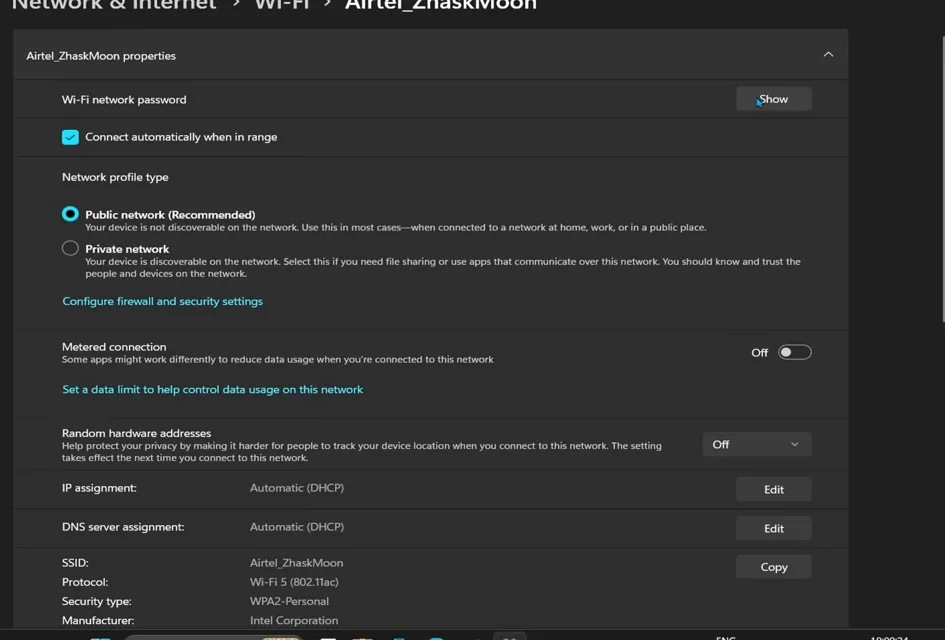
What about a network you’re not connected to right now? Go to Settings → Network & internet → Wi-Fi → Manage known networks, select the saved network, then select Show next to Wi-Fi network password.
Seeing “View Wi-Fi security key” instead? That’s the older label from Windows 11’s original release. Same idea, different menu: look for it in the network’s properties. Most current Windows 11 builds now use the Settings path above, so if a tutorial shows you that old wording, translate it to Method 1.
Method 2: Control Panel (works on Windows 11 and Windows 10)
This classic route still works and is the go-to on Windows 10:
- Open Control Panel (search for it from Start).
- Go to Network and Internet → Network and Sharing Center.
- Next to Connections, select your Wi-Fi network’s name (the blue link).
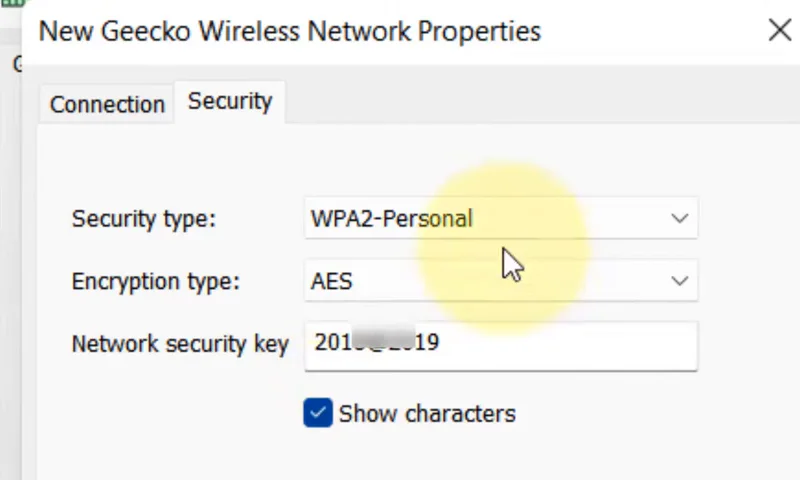
- In the Wi-Fi Status window, select Wireless Properties.
- Open the Security tab.
- Check Show characters.
Your password appears in the Network security key box. (“Network security key” is simply what Windows calls the Wi-Fi password.) Note this method only shows the network you’re currently connected to.
Shortcut: Press Windows + R, type ncpa.cpl, press Enter, then double-click your Wi-Fi adapter to reach the same Wi-Fi Status window at step 4.
Method 3: Command Prompt or PowerShell (any saved network)
This is the power move, because it works for any network the PC has ever saved, even one you connected to at a relative’s house two years ago.
- Right-click Start and open Terminal (or search for Command Prompt). If you can, choose Run as administrator.
- List every saved network:
netsh wlan show profilesFind the network under User profiles and note the exact name.
- Show the password for that network. Replace
NETWORK NAMEwith the profile name, and keep the quotation marks:
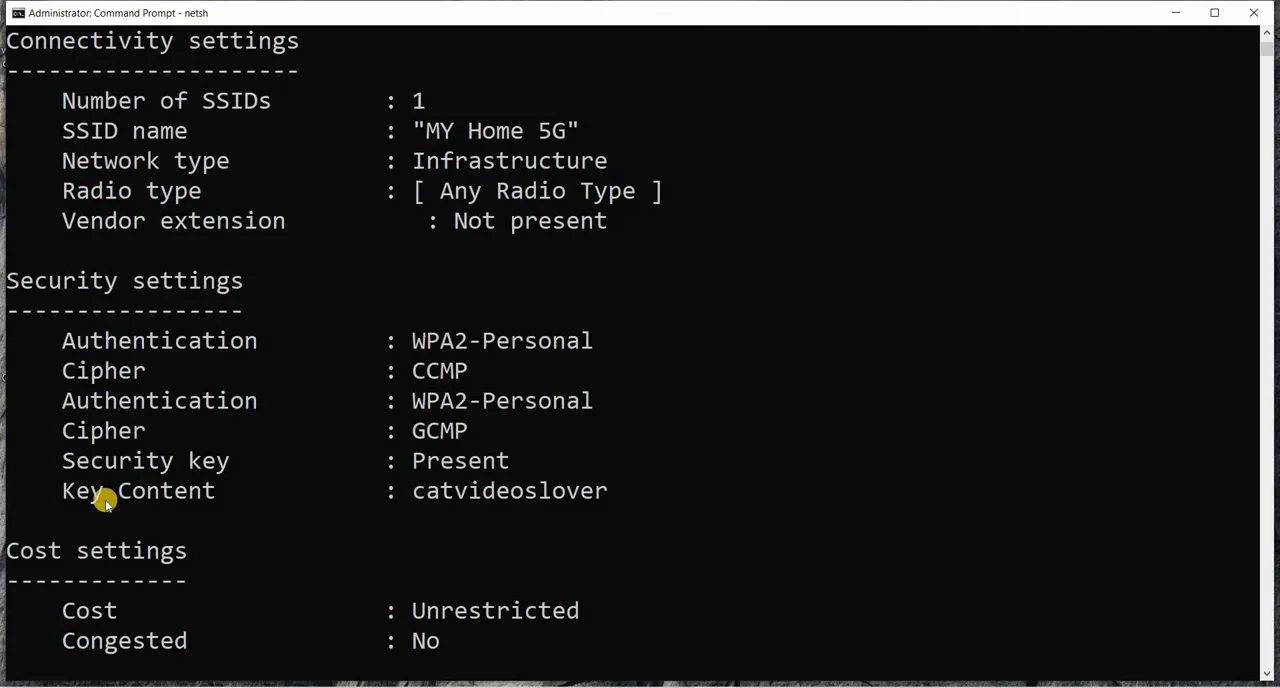
netsh wlan show profile name="NETWORK NAME" key=clearExample for a network called Smith Home 5G:
netsh wlan show profile name="Smith Home 5G" key=clear- Scroll to the Security settings section. The password is on the Key Content line.
The quotation marks matter whenever the name contains spaces. Without them, netsh reads only the first word and reports that the profile isn’t found.
Want only the password line? Add a filter:
- In Command Prompt:
netsh wlan show profile name="NETWORK NAME" key=clear | findstr "Key Content" - In PowerShell:
netsh wlan show profile name="NETWORK NAME" key=clear | Select-String "Key Content"
No “Key Content” line? Try these in order:
- Open Terminal as administrator and run the command again.
- Check the spelling and capitalization against the
show profileslist exactly. - If the network uses work or school sign-in (WPA2/WPA3-Enterprise, where you type a username and password), there’s no single shared key to show.
Find your Wi-Fi password on iPhone or iPad
Since iOS 16 (and iPadOS 16.1), iPhones can show saved Wi-Fi passwords. Every route asks for Face ID, Touch ID, or your passcode first, so nobody can read your password just by picking up your phone.
The network you’re on right now (iOS 16 and later)
- Open Settings and tap Wi-Fi.
- Tap the Info (i) button next to the network you’re connected to.
- Tap the Password field.
- Authenticate with Face ID, Touch ID, or your passcode.
The password appears, along with a Copy option.
A network you joined before
- Open Settings → Wi-Fi.
- Tap Edit in the upper-right corner and authenticate. You’ll see the list of networks your iPhone has saved.
- Tap the Info (i) button next to a network with a lock icon.
- Tap Password to reveal it.
The Passwords app (iOS 18 and later)
Apple’s Passwords app collects every saved Wi-Fi network in one place, which is the quickest way to dig up an old one:
- Open the Passwords app and unlock it with Face ID, Touch ID, or your passcode.
- Tap Wi-Fi.
- Tap the network you want.
- Tap the Password field to reveal it.
If you use iCloud Keychain, this list can include networks your Mac or iPad joined, too.
On iOS 15 or earlier? The iPhone can’t display the password. Use a Mac signed in to the same Apple Account (see below) or the router. And if the person who needs it also has an iPhone, you may not need the text at all: see how to share your Wi-Fi password.
Find your Wi-Fi password on Android
Android 10 and later can share any saved network as a QR code. Whether the password also appears as plain text depends on your phone’s maker and software version. Here’s the honest breakdown.
Google Pixel and phones close to stock Android
- Open Settings → Network & internet → Internet.
- Tap the gear icon next to your connected network. For an older network, tap Saved networks and pick it.
- Tap Share.
- Verify with your fingerprint, face, PIN, or pattern.
A QR code appears, and on Pixels and many other phones the Wi-Fi password is printed right below it. Menu names vary a little by brand (some say Wi-Fi instead of Internet), but the Share button is the thing to look for.
Samsung Galaxy (One UI)
Samsung’s behavior has changed over the years, so check what your phone shows:
- Open Settings → Connections → Wi-Fi.
- Tap the gear icon next to the network (saved networks are under the three-dot menu or Manage networks, depending on version).
- Look for a Password field with a reveal (eye) icon. Recent One UI versions on many Galaxy models show one; tap it and authenticate.
- If there’s no Password field, tap QR code at the bottom. Older One UI versions show only the code, not the text.
Phone shows a QR code but no password?
The password is inside the code. To read it:
- Take a screenshot of the QR code, open it in Google Photos, and tap Lens. Google Lens typically shows the network name and password as text.
- Or point another phone’s camera (with Google Lens) at the screen.
You may not even need the text. Many TVs and phones can join by scanning that QR code directly, which is covered in our Wi-Fi sharing guide.
Android 9 or older? These versions don’t offer a built-in reveal. Use another device or the router. Skip the “Wi-Fi password viewer” apps you’ll see in the Play Store; on unrooted phones they can’t read the protected file, and some are junk.
Find your Wi-Fi password on a Mac
The Passwords app (macOS Sequoia 15 and later)
- Open the Passwords app and unlock it with Touch ID or your Mac password.
- Click Wi-Fi in the sidebar. Your current network appears at the top, with every saved network below it.
- Select the network.
- Hold the pointer over the dots next to Password to show it. Click the dots to copy it.
The same screen offers Show Network QR Code, which is handy for a TV or phone. More options are in how to share your Wi-Fi password.
Keychain Access (macOS Sonoma 14 and earlier)
- Press Command + Space, type Keychain Access, and open it.
- Search for your network name (SSID) in the search field.
- Double-click the matching entry (its kind is “AirPort network password”).
- Check Show password and enter your Mac’s administrator name and password.
The password appears in the field next to the checkbox.
Can you see a Wi-Fi password on a Chromebook?
Not directly. ChromeOS saves your networks, but Google doesn’t document any Show password option for saved Wi-Fi networks in Chromebook settings, and we couldn’t find one in current ChromeOS. The workarounds you’ll see online involve Developer Mode, which wipes the Chromebook (a full Powerwash) and isn’t worth it for a password.
What does work:
- Use another device. If any phone or computer in the house is connected, use its section above.
- Use Wi-Fi Sync with an Android phone. Google’s Chromebook Help describes Wi-Fi Sync, which shares saved networks between your Chromebook and a connected Android phone signed in to the same Google Account. On the Chromebook, open Settings → Connected devices, select your phone, and turn on Wi-Fi Sync. Once the network has synced to the phone, reveal it there using the Android steps.
- Check the router. See the next section.
School and work Chromebooks are managed by an administrator, who may turn off sync. For those networks, ask IT.
Find the Wi-Fi password on your router
If no device knows the password, go to the source. Work through these in order.
1. Read the label
Most routers and ISP gateways have a sticker on the bottom or back with the network name (SSID) and the default Wi-Fi password (sometimes called “Wireless key,” “WPA key,” or “Network key”).
This works only if nobody has changed the password since setup. If the label password fails, someone changed it, and you’ll need step 2.
2. Log in to the router’s admin page
Your router’s settings page shows the current Wi-Fi password. Menus differ by brand, so here’s the general shape:
- Find the router’s IP address (the “default gateway”). Not sure what that means? Our explainer on what an IP address is covers it. Quick ways to find it:
- Windows: run
ipconfigin Command Prompt and look for Default Gateway. - iPhone: Settings → Wi-Fi → (i) → Router.
- Mac: System Settings → Wi-Fi → Details next to your network → TCP/IP → Router.
- Android: open the network’s details; the gateway is listed on many phones (location varies).
- Type that IP address into a browser on a device connected to the network.
- Sign in with the router admin username and password. This is different from the Wi-Fi password and is often printed on the same label.
- Look for a section named something like Wireless, Wi-Fi, or Wireless Security. The password is usually labeled Password, Passphrase, Network key, or Pre-shared key.
Many ISP gateways and mesh systems (Xfinity, Spectrum, AT&T, eero, Google Nest Wifi, and others) manage Wi-Fi through a mobile app instead of, or in addition to, a web page. If you set up your network with an app, open it and look in its Wi-Fi or network settings.
3. Last resort: factory reset
If you can’t sign in to the router at all, a factory reset puts it back to the name and password on the label. Usually you hold a recessed reset button for several seconds (check the manual for the exact time).
Know what you’re giving up: a reset erases everything, including your custom network name and password, admin password, port forwarding, parental controls, and any ISP-specific setup. Every device in your home will disconnect and need to rejoin. With some ISP gateways, you may need to call your provider to finish setup. Try every other method first.
A note on whose password you’re finding
Everything here recovers passwords for your own networks, or ones you’re allowed to use. If it’s a neighbor’s or a business’s Wi-Fi, ask them or use their guest network; we don’t cover cracking or bypassing tools.
Don’t lose it again
Once you’ve got the password:
- Save it in your password manager (Apple Passwords, Google Password Manager, or whichever you use).
- Print a QR code for the fridge or guest room, so visitors can scan instead of asking. Our sharing guide shows how.
- Consider changing it if it’s still the label default. Use WPA2 (AES) at minimum, WPA3 if your router and devices support it, and a long passphrase you can actually read aloud.
FAQ
Where is my Wi-Fi password saved?
On every device that has joined the network: Windows saves it in a WLAN profile, iPhones and Macs in iCloud Keychain (visible in Settings or the Passwords app), and Android phones in Wi-Fi settings. The router stores the master copy.
How do I see my Wi-Fi password on Windows 11?
Open Settings → Network & internet → Properties, then select Show next to Wi-Fi network password. For a saved network you’re not connected to, use Manage known networks, or run netsh wlan show profile name="NETWORK NAME" key=clear.
What is the netsh command to show a Wi-Fi password?
Run netsh wlan show profiles to list saved networks, then netsh wlan show profile name="NETWORK NAME" key=clear. The password is on the Key Content line under Security settings. Keep the quotes if the name has spaces.
Is the “network security key” the same as the Wi-Fi password?
Yes. Windows and some routers call the Wi-Fi password the network security key (or WPA key). It’s what you type when joining the network.
Can I find my Wi-Fi password on an iPhone without a computer?
Yes, on iOS 16 or later. Go to Settings → Wi-Fi → (i) → Password, or use the Passwords app on iOS 18 and later. You’ll need Face ID, Touch ID, or your passcode.
Why doesn’t my Android phone show the password under the QR code?
Some makers, including older Samsung One UI versions, show only the QR code. The password is encoded inside it, so scan a screenshot with Google Lens to read it.
Can a Chromebook show a saved Wi-Fi password?
Not through normal settings. Use another connected device, sync the network to an Android phone with Wi-Fi Sync and reveal it there, or check your router.
What if the password on my router sticker doesn’t work?
Someone changed it after setup. Find it on a connected device or log in to the router’s admin page. Factory reset only as a last resort, since it erases all your settings.
Still stuck? Tell us which device you’re on and what you see on screen in the comments, and we’ll point you to the right menu. And when the password’s in hand, head to how to share your Wi-Fi password to get that TV online in seconds.