
Short answer: The right NAS hard drive is one your NAS maker supports, uses CMR (not SMR) recording, is rated for 24/7 NAS duty, and matches your array size: mainstream NAS drives (WD Red Plus, Seagate IronWolf, Toshiba N300) for typical 1–4 bay home setups, Pro-tier drives (WD Red Pro, IronWolf Pro) for bigger or busier arrays. Buy enough capacity for the RAID level you’ll use, then test every drive before you trust it with data.
Most “best NAS hard drive” pages hand you a ranked list and a price. That’s the wrong order. A great drive is still the wrong drive if your NAS won’t build a pool with it, if it’s SMR, or if four of them don’t give you the space you expected after RAID. This guide walks you through the decision in the order that actually prevents mistakes — no prices (they’re moving too fast in 2026), and only ratings we checked against current manufacturer pages.
If you want to know what workload rate, MTBF or URE actually mean, our NAS HDD specs explainer decodes them. If you’re still choosing the box itself, start with our NAS drive guide.
The 6-step process at a glance
- Check compatibility with your NAS maker (and your exact model).
- Work out capacity after RAID, plus room to grow.
- Lock in the non-negotiables: NAS-rated, CMR, right workload tier.
- Pick a tier that fits your bays, users and noise tolerance.
- Buy smart in the 2026 shortage — new, recertified or used.
- Test before you trust: extended SMART tests, warranty paperwork, monitoring.
Step 1: Check compatibility first
Before you compare a single spec, open your NAS maker’s compatibility list (QNAP, Synology, Asustor, UGREEN, TerraMaster and others all publish one) and search for your exact NAS model. Seagate itself tells buyers to check the NAS vendor’s list before buying an IronWolf drive — that’s the right instinct for any brand.
What a compatibility list tells you:
- Listed: the vendor tested that drive model in that NAS. Safest choice, and the one support teams like to see.
- Not listed: usually works, but not tested. Some vendors limit support or features for unlisted drives.
- Incompatible: a known problem. Don’t buy it for that NAS.
For DIY builds running TrueNAS, Unraid or plain Linux (see our NAS server guide), there’s no vendor list — compatibility comes down to SATA/SAS interface, CMR recording and your controller or HBA.
The Synology situation, explained plainly
Synology is the brand that generates the most confusion, so here’s the timeline without the drama:
- Spring 2025: Synology launched its 2025 DiskStation Plus models (DS925+, DS425+, DS1525+ and others) requiring Synology-branded or certified drives. Third-party hard drives couldn’t be used to install DSM or create new storage pools on those models.
- October 2025 — DSM 7.3: Synology relaxed the policy. On 2025 DiskStation Plus models running DSM 7.3, third-party 3.5″ SATA hard drives and 2.5″ SATA SSDs can again be used for installation and new storage pools, even when they’re not on the compatibility list. DSM labels them “unverified,” and Synology says its support may be limited for problems caused by unlisted drives.
- Still restricted: M.2 NVMe SSDs used for a storage pool or cache must still be on Synology’s list. And some features remain tied to Synology’s own drives — for example drive firmware updates through DSM and deeper drive analytics.
- Other Synology lines: Synology publishes separate policy tables per series (Value/J, rackmount RS, enterprise FS/SA/XS, surveillance). Rules for those differ, so check the table for your series rather than assuming the Plus-series rules apply.
- Pre-2025 models (DS923+, DS920+, DS1522+ and older) were never part of this change. Third-party NAS drives work as they always have.
What Synology owners should actually do:
| You own | Practical move |
|---|---|
| 2025 Plus model (e.g., DS925+, DS425+) | Update to DSM 7.3 or later. Mainstream or Pro third-party CMR NAS drives work for pools; Synology-branded drives are the zero-friction option if you want every DSM feature and listed-drive support. For M.2 NVMe, buy only listed models. |
| Pre-2025 Plus model | Use any CMR NAS drive; check the list for peace of mind. |
| Other 2025-series Synology (Value/J, RS, enterprise) | Read Synology’s drive compatibility policy table for that series before buying — unlisted HDDs may be limited to migration only. |
Other brands: QNAP, Asustor, UGREEN and TerraMaster check their lists, but don’t lock pools to own-brand drives the way Synology’s 2025 launch did. Pick a drive on the list where possible.
Step 2: Work out how much capacity you really need
Raw capacity is what you pay for. Usable capacity is what you get after redundancy. Plan around the second number.
Usable-space math (worked examples)
| Setup | Drives | Raw | Usable | Can lose |
|---|---|---|---|---|
| Mirror (RAID 1 / SHR-1 with 2 drives) | 2 × 8 TB | 16 TB | 8 TB | 1 drive |
| RAID 5 / SHR-1 | 4 × 8 TB | 32 TB | 24 TB | 1 drive |
| RAID 6 / SHR-2 / RAIDZ2 | 4 × 8 TB | 32 TB | 16 TB | 2 drives |
| RAID 10 | 4 × 8 TB | 32 TB | 16 TB | 1 per mirror pair |
| RAID 6 / RAIDZ2 | 5 × 12 TB | 60 TB | 36 TB | 2 drives |
| SHR-1, mixed sizes | 2 × 4 TB + 2 × 8 TB | 24 TB | 16 TB | 1 drive |
The rules behind the numbers:
- Mirror: usable = one drive.
- Single parity (RAID 5, SHR-1, RAIDZ1): usable = total minus one drive.
- Double parity (RAID 6, SHR-2, RAIDZ2): usable = total minus two drives.
- Classic RAID with mixed sizes: every drive counts as the smallest one. Synology’s SHR is more forgiving — with SHR-1, usable space is roughly total minus your largest drive.
Why your NAS shows less: drives are sold in decimal terabytes (1 TB = 10¹² bytes), but most operating systems report binary units. An “8 TB” drive appears as about 7.3 TiB, before file system overhead and snapshots.
Plan for growth, not just today
- Estimate 3–5 years ahead. Total what you store now (photos, backups, media), add how fast it’s grown, and keep 20% or more free space so the pool stays healthy.
- Fewer, larger drives usually win. Two big drives in a four-bay NAS leave empty bays for later expansion. Filling every bay with small drives means your only upgrade path is replacing all of them.
- But don’t go huge in a single mirror without thinking about rebuilds. A rebuild has to read or write the whole drive. Even at a sustained 250 MB/s, one full pass over a 20 TB drive takes more than 22 hours — longer under load. For big drives in arrays of 5+ disks, double parity (RAID 6/SHR-2/RAIDZ2) is the safer choice.
- RAID isn’t backup. Redundancy survives a dead drive, not deletion, ransomware or fire. Budget for a separate backup target (another NAS, USB drive or cloud).
Cost-per-TB thinking (without printing prices)
When you compare options, divide the price by usable TB, not raw TB:
- Price per raw TB = drive price ÷ drive capacity.
- Price per usable TB = (drive price × number of drives) ÷ usable TB from the table above.
Two quick truths fall out of that math. Smaller drives often cost more per TB, and in 2026’s shortage the gap between capacities can swing week to week — so recheck the per-TB numbers on the day you buy, and compare at least two or three capacities before committing.
Step 3: The non-negotiables
These three checks rule out most bad purchases.
1. NAS-rated, not desktop
A NAS runs around the clock, often with several drives vibrating in one enclosure. NAS drives are built and rated for that: 24/7 duty, rotational vibration sensors, and RAID-friendly error recovery. Desktop drives (WD Blue, Seagate BarraCuda and similar) aren’t designed for always-on multi-bay arrays. Our NAS HDD specs explainer covers what each of those features does.
2. CMR — and verify the exact model number
SMR (shingled magnetic recording) drives overlap tracks to squeeze in capacity. They’re fine for archival desktop use, but sustained writes slow down sharply — exactly what a RAID rebuild or ZFS resilver demands. For a NAS array, buy CMR.
Names alone won’t save you. The classic trap: plain WD Red (non-Plus) models are SMR, while WD Red Plus and WD Red Pro are CMR. Here’s how to verify:
- Find the full model number on the listing (e.g., WD80EFPX, ST8000VN004, HDWG480UZSVA).
- Look it up on the manufacturer’s own datasheet or CMR/SMR table — WD, Seagate and Toshiba all publish recording technology per model.
- Confirm the listing matches the datasheet capacity and model exactly. Retailers sometimes group old and new variants under one title.
- When the drive arrives, check the model number on the label (and in your NAS’s Storage Manager or
smartctl -i) matches what you ordered.
3. A workload tier that matches your bays and users
Manufacturers rate NAS drives by annual workload (data read plus written per year) and supported drive bays:
- Mainstream NAS tier (WD Red Plus, IronWolf, N300): 180 TB/year, rated for up to 8 bays (Toshiba’s current US page lists up to 12 for N300).
- Pro tier (WD Red Pro, IronWolf Pro): 550 TB/year, rated for large or unlimited bay counts.
A family NAS serving photos and backups to a few people sits comfortably in the mainstream tier. Many users, video editing over the network, heavy surveillance, VMs, or 8+ bay arrays push toward Pro.
Step 4: Which tier fits which use?
Mainstream NAS drives — most 1–4 bay home setups
WD Red Plus, Seagate IronWolf, Toshiba N300. CMR, built for 24/7 operation, three-year limited warranties. Ideal for home backups, Plex/Jellyfin libraries, phone photo sync and small-office file sharing.
How to choose between them: start with what’s on your NAS vendor’s list, then compare per-usable-TB cost and noise. A useful differentiator: IronWolf includes three years of Seagate Rescue Data Recovery Services (availability varies by country), and IronWolf Health Management integrates with supported NAS systems.
Pro tier — bigger, busier arrays and longer warranties
WD Red Pro, Seagate IronWolf Pro (and Toshiba N300 Pro). Pick Pro when you have 5+ bays, several simultaneous users, heavy write workloads, or simply want a five-year warranty to cover the life of the NAS. IronWolf Pro also includes three years of Rescue data recovery. Pro drives are generally 7200 RPM-class and can be noticeably louder than 5400 RPM-class mainstream drives — worth knowing if the NAS sits in a living room or bedroom.
Enterprise drives — when they make sense
Seagate Exos, WD Ultrastar, Toshiba MG. These datacenter drives carry Pro-level or higher ratings and five-year warranties, and often deliver strong capacity per bay. They make sense in a closet or rack, in a homelab server, or for large ZFS/Unraid builds.
The caveats:
- Noise and vibration: enterprise drives are tuned for server racks. Seek and spin-up noise can be intrusive in a quiet room.
- Warranty path: new retail units carry the manufacturer warranty, but some enterprise drives are sold as OEM/system-integrator units where warranty support goes through the seller, not the maker. Check the serial on the manufacturer’s warranty page.
- NAS vendor lists: consumer NAS boxes may not list enterprise models; Synology’s 2025-and-later series have their own rules.
- Interface: many enterprise drives come in SAS versions that won’t work on a SATA-only NAS. Confirm SATA.
Comparison table (verified current ratings)
| Line | Tier | Recording | Rated workload | MTBF / MTTF | Bays (maker rating) | Warranty | Data recovery included |
|---|---|---|---|---|---|---|---|
| WD Red Plus | Mainstream | CMR | 180 TB/yr | 1M hrs | Up to 8 | 3 yrs | No |
| Seagate IronWolf | Mainstream | CMR | 180 TB/yr | 1M hrs | 1–8 | 3 yrs | 3 yrs Rescue* |
| Toshiba N300 | Mainstream | CMR | 180 TB/yr | Up to 1.2M hrs | Up to 8–12 (model-dependent) | 3 yrs | No |
| Toshiba N300 Pro | Pro | CMR | 300 TB/yr | 1.2M hrs | Up to 24 | 5 yrs | No |
| WD Red Pro | Pro | CMR | 550 TB/yr | Up to 2.5M hrs | Unlimited | 5 yrs | No |
| Seagate IronWolf Pro | Pro | CMR | 550 TB/yr | Up to 2.5M hrs | Unlimited (current NT models) | 5 yrs | 3 yrs Rescue* |
| Seagate Exos X24 | Enterprise | CMR | 550 TB/yr | 2.5M hrs | Datacenter | 5 yrs | No |
Rescue Data Recovery Services aren’t available in all countries. “Up to” figures vary by capacity — check the datasheet for your exact model. Ratings checked against WD, Seagate and Toshiba product pages and datasheets, October 2026.
Heads-up on outdated numbers: you’ll still see IronWolf Pro and WD Red Pro listed at 300 TB/year and about 1–1.2M hours on some retailer pages and older roundups. Those figures describe older generations. Current Pro models are rated at 550 TB/year — if a listing quotes the old numbers, double-check which model you’re actually buying.
Step 5: Buying smart in the 2026 shortage
Hard drives are tight in 2026. Western Digital has said its 2026 HDD production is essentially sold out, largely to AI data center demand, and drive prices have climbed. That changes how you should shop.
Price the drives before the box
Drives can now cost as much as — or more than — the NAS itself. Price the full set of drives at the capacity you need before you buy the enclosure. A cheaper 2-bay NAS plus larger drives can beat a 4-bay box you can’t afford to fill.
Consider starting with a mirrored pair
Two drives in a mirror (RAID 1 or SHR-1) give you redundancy now, with empty bays for later. On Synology SHR, QNAP and many other platforms you can add drives and expand the pool later; with ZFS, plan your vdev layout up front (see our NAS server guide).
New vs. recertified vs. used — the honest version
| Option | Pros | Cons |
|---|---|---|
| New retail | Full manufacturer warranty (3 or 5 yrs), clean history, data recovery perks on some lines | Highest price in 2026 |
| Manufacturer recertified | Tested and relabeled by the maker; often enterprise models at lower cost | Shorter warranty (Seagate’s recertified drives carry a short limited warranty — six months at time of writing); limited stock |
| Reseller “recertified” / refurbished | Often big savings on enterprise drives; some sellers add their own multi-year warranty | Warranty is the seller’s, not the maker’s; quality depends on the seller |
| Used (marketplace) | Cheapest | Unknown history, usually no warranty, highest risk |
What to check before buying recertified or used:
- Seller and warranty: who honors it — manufacturer or reseller? How long? Read the claim process.
- SMART data on arrival: run
smartctl -a(or your NAS’s health page) and check power-on hours, reallocated sector count, pending sectors and offline uncorrectable. Any non-zero reallocated or pending sectors on arrival is a return. - Manufacturer warranty lookup: enter the serial on the maker’s warranty page to see whether any factory coverage remains.
- Interface and recording: confirm SATA (not SAS) and CMR for your exact model number.
- Where it goes: recertified drives are a reasonable fit for a secondary backup NAS or a well-protected double-parity array. For a primary family NAS with one copy of irreplaceable photos, new drives with a full warranty are the safer bet.
Retailer and region warranty notes
- Buy from authorized US retailers, or the manufacturer’s own store, so the warranty is valid in your region. Gray-market or imported drives can be refused.
- Third-party marketplace sellers can ship OEM units with no retail warranty. Check “sold by” before checkout.
- Some promos add an extra warranty year — keep the proof.
Step 6: After you buy — test before you trust
Drives tend to fail early (in the first weeks) or late in life. Catch the early ones before your data is on them.
- Record the basics. Note each drive’s model and serial, and check the label matches your order.
- Run a full SMART extended (long) test on every drive. Most NAS operating systems offer this in their storage or health manager; on Linux/TrueNAS use
smartctl -t long /dev/sdX. Expect it to take many hours on large drives.
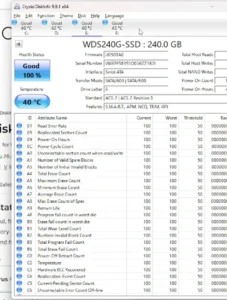
- Optional full burn-in. Experienced builders run a full-surface write/read pass (e.g.,
badblocksin destructive mode on an empty drive), then another extended SMART test, and compare SMART attributes before and after. This takes days on big drives — worth it for arrays you’ll trust for years. Only ever run destructive tests on drives with no data. - Register warranties and keep receipts. Save the invoice PDF and register each serial with the manufacturer.
- Consider a cold spare. One tested, identical (or larger) drive on the shelf means you can start a rebuild the day a drive fails — especially valuable when shortage lead times stretch for weeks.
- Turn on monitoring and alerts. Schedule regular quick and extended SMART tests and data scrubs, and enable email or push alerts in your NAS. In a homelab, tools like smartd, Scrutiny or your monitoring stack can watch drive health across machines.
- Set up backups. RAID protects against drive failure; backups protect your data.
Need help with the box and initial setup? Our NAS drive guide walks through it.
Quick decision summary
- 2-bay or 4-bay home NAS, light use: WD Red Plus, IronWolf or N300 — whichever your NAS vendor lists and costs least per usable TB.
- 5+ bays, many users, heavy writes, or want 5-year coverage: WD Red Pro or IronWolf Pro.
- Closet/rack server or big homelab array: enterprise (Exos, Ultrastar, MG) — mind noise and the warranty path.
- 2025 Synology Plus: update to DSM 7.3+, third-party CMR HDDs are fine for pools; only listed M.2 NVMe for pools/cache.
- Always: CMR verified by exact model number, capacity planned after RAID, every drive tested before use.
FAQ
Can I use any hard drive in a NAS?
Technically many SATA drives will spin up, but you shouldn’t. Use NAS-rated CMR drives built for 24/7 multi-bay use, and check your NAS maker’s compatibility list for your exact model.
Is SMR bad for a NAS?
For RAID or ZFS arrays, yes — avoid it. SMR drives slow dramatically during long sustained writes like rebuilds and resilvers. Verify CMR on the manufacturer’s datasheet for the exact model number.
Do Synology 2025 models still require Synology drives?
Not for hard drives on 2025 DiskStation Plus models running DSM 7.3 or later — third-party SATA HDDs and 2.5″ SATA SSDs can create storage pools, shown as “unverified.” M.2 NVMe pools and caches still need listed drives, and some features stay tied to Synology drives. Other Synology series have separate rules.
WD Red Plus or Seagate IronWolf?
Both are CMR, 180 TB/year, 1M-hour MTBF, three-year-warranty NAS drives for up to 8 bays. IronWolf adds three years of Rescue data recovery where available. Choose by compatibility list, price per usable TB and availability.
Is a Pro NAS drive worth it for home use?
For a 2–4 bay home NAS with light use, mainstream drives are enough. Pro drives make sense for bigger arrays, heavier workloads, or when the five-year warranty matters to you — accepting that 7200 RPM-class drives are usually louder.
How much usable space will I get from four drives?
With four equal drives: about three drives’ worth in RAID 5/SHR-1, two drives’ worth in RAID 6/SHR-2 or RAID 10. Your OS will also show a bit less because it reports binary units (an 8 TB drive shows as roughly 7.3 TiB).
Are recertified hard drives safe for a NAS?
They can be good value, especially enterprise models, but warranties are shorter or seller-backed. Check SMART data and power-on hours on arrival, confirm who honors the warranty, and prefer them for backup targets or double-parity arrays.
What’s the quietest NAS hard drive type?
Generally, 5400 RPM-class mainstream NAS drives are quieter than 7200 RPM Pro and enterprise drives. Enterprise drives are the loudest choice for a living room.
Should I mix drive brands in one array?
You can, as long as all drives are CMR NAS drives of suitable capacity. Some people mix brands or batches deliberately to reduce the chance of simultaneous failures.
How do I test a new NAS hard drive?
Run a full SMART extended test on each drive before creating the pool. For extra confidence, do a full-surface write/read burn-in on empty drives, then recheck SMART attributes.
Ready to build?
You now have the process: compatibility, capacity, CMR, tier, smart buying and testing. Next steps:
- Decode any spec on a datasheet with our NAS HDD explainer.
- Choosing or setting up the enclosure? Read our NAS drive guide.
- Building your own box with TrueNAS or Unraid? Start with our NAS server guide.
- Growing beyond storage? Explore our homelab hub.
About this guide: TheTechHow.com checks every drive rating in this article against current manufacturer product pages and datasheets (Western Digital, Seagate, Toshiba) and Synology’s published drive compatibility policy. We don’t list prices because 2026 drive pricing changes week to week — compare live per-usable-TB prices on the day you buy.